
The on-site controller is what connects MassComs to the physical systems already in your building. It runs on your network, holds the local integrations, and is the path by which a physical event becomes a MassComs incident.
Before you start
Have these ready.
- A machine on the local network to run the controller.
- Details and credentials for the systems you intend to connect.
- Network permission to reach those systems from the controller.
- 01
Configure the controller
Add an On-Site Controller with a name and its URL — the HTTP address of the MassComs agent on your local network.
Field or control What it does Controller Name Where it is — for example Main Building or Sports Hall. Controller URL The HTTP address of the MassComs agent on your local network, for example http://192.168.1.100:3001. Confirm it workedTest Connection succeeds before you add any integrations to it.
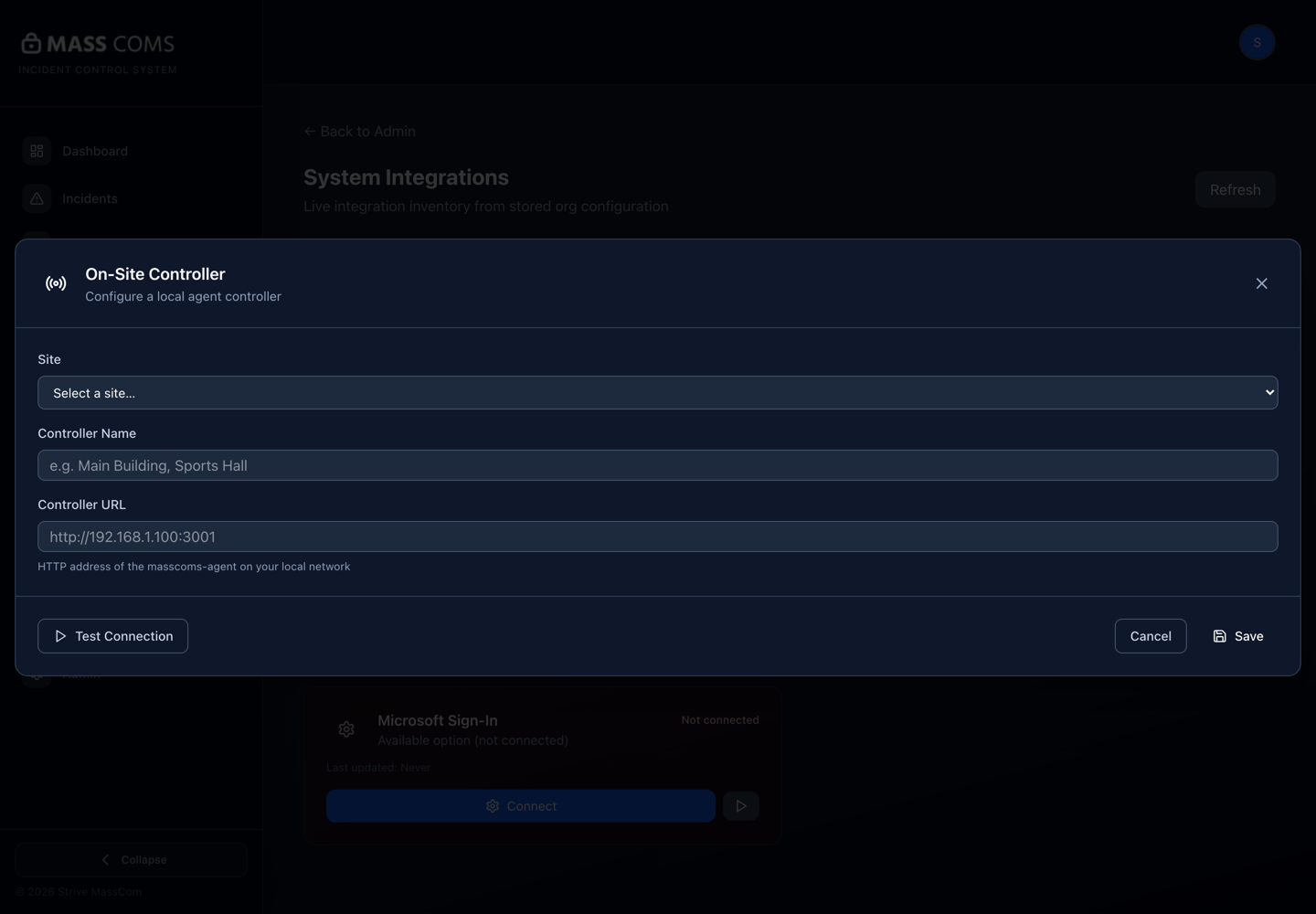
On-site controller configurationMassComs on-site controller dialog with controller name and local network URL. - 02
Understand what the controller is for
It is a local bridge. Systems that cannot or should not be exposed to the internet talk to the controller on the LAN, and the controller talks to MassComs over outbound HTTPS.
This is why the firewall requirements differ: the cloud connection is outbound only, but the optional offline LAN controller feature needs inbound TCP 47809 and UDP 47810 on Domain and Private network profiles.
- 03
Connect the systems you have
Configure each integration you need. Devices & Integrations shows the live inventory, distinguishing what is Connected, what is Available but not configured, and what is configured but Unreported by backend.
Be aware of what is reachable from this screen in the current build. Integrations has its own configuration dialogs for Twilio, the video management system, Wonde and Microsoft Sign-In. Other on-site systems — access control, cameras, interactive panels, PA — are driven through the controller itself rather than configured here, so they are set up with your integrator against the controller, not through a MassComs dialog.
- Access control — doors, and door events that can raise an incident.
- Cameras and video management — views tied to zones.
- Displays and interactive panels — additional emergency surfaces.
- PA and speakers — the audio path for announcements.
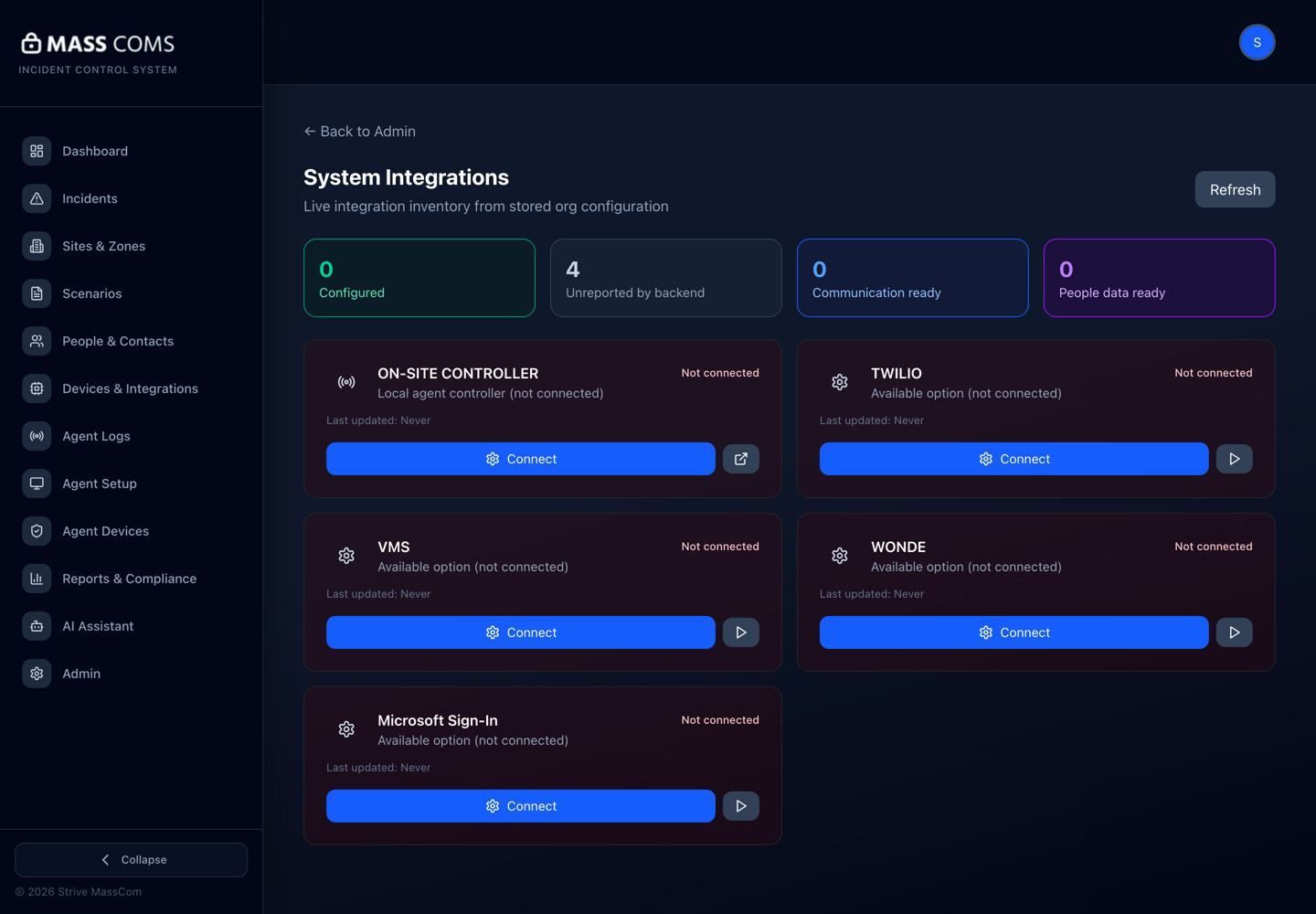
System integrationsMassComs System Integrations screen showing the live integration inventory and per-provider connect actions. - 04
Configure the incoming direction deliberately
The controller can post an activation into MassComs. Decide precisely which physical events should do that, and which should not.
See Trigger from the Agent and on-site controllers for the integration detail.
An over-eager trigger mapping produces false activations. A door held open is not usually an emergency; a panic button always is.
- 05
Test each direction separately
Outbound: run a TEST incident and confirm the connected systems respond. Inbound: trigger the physical event and confirm the incident appears.
Confirm it workedBoth directions work with the real hardware, not with a simulated call.
- 06
Monitor the heartbeat
Integrations report a Last Heartbeat. A configured integration that has stopped reporting looks like coverage on a status page and is not.
See Monitor connected devices and fleet health.
Troubleshooting
When it does not go to plan.
| Symptom | Usual cause | Fix |
|---|---|---|
| Test Connection to the controller fails. | Wrong URL, controller not running, or blocked on the LAN. | Confirm the address and port, and that the controller machine is reachable from the dashboard's network path. |
| Integration shows Unreported by backend. | Configured but not reporting status. | Check the controller is running and can reach that system on the local network. |
| Inbound triggers produce false incidents. | The event mapping is too broad. | Narrow it to events that genuinely warrant an activation. |
| The LAN controller feature does not work. | Inbound ports blocked. | Allow inbound TCP 47809 and UDP 47810 on Domain and Private network profiles. |
Good to know
Small details that prevent big confusion.
- The controller is what makes MassComs part of the building rather than an app alongside it.
- Configured is not connected. Check heartbeats, not configuration screens.
- Every inbound trigger you add is a new way to start an incident. Add them deliberately.
Was this guide clear?