
An offline device is a coverage hole you cannot see from the room it is in. Diagnose the pattern before you diagnose the device.
Before you start
Have these ready.
- The devices.manage permission and access to Agent Devices.
- 01
Establish the pattern first
Look at Agent Devices and answer one question: is it one device, or several on the same network? That single distinction determines everything you do next.
- One device — start with the machine.
- Several on one network — start with the network.
- Everything, everywhere — start with the platform status and your internet connection.
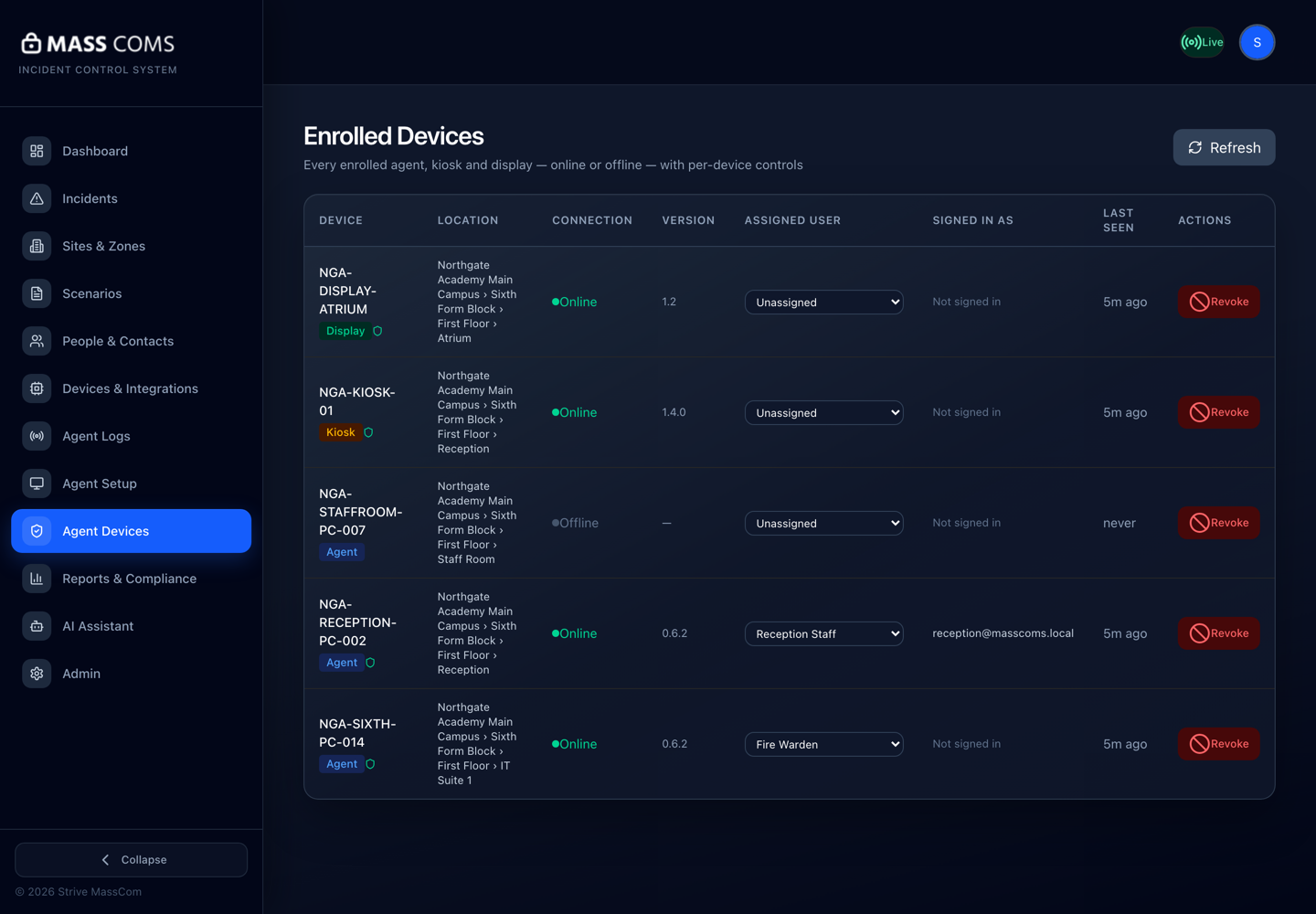
Agent Devices — Enrolled DevicesMassComs Agent Devices page listing enrolled agents, a kiosk and a display with connection state and last seen. - 02
Check the obvious physical causes
Powered on, plugged in, network cable connected, wireless in range. A surprising proportion of offline devices are unplugged.
- 03
Check the application is running
For Agents, confirm the process is running. For signage players and kiosks, confirm the app is in the foreground and has not been exited.
A kiosk that is not set as the Home app can be exited and will then stop reporting.
- 04
Check the network path
The cloud connection is outbound HTTPS only. Where the edge filters by domain, the dashboard domain and masscoms.lon1.digitaloceanspaces.com must be allowlisted, plus api.elevenlabs.io for text-to-speech.
Several devices going offline at the same moment is almost always a network change, not a coincidence of hardware failures.
- 05
Restart, then re-check
Restart the application, then the device. Give it a minute and check Agent Devices for a fresh Last seen rather than assuming.
Confirm it workedLast seen updates to the current time.
- 06
Check for a stale duplicate
A device re-enrolled without removing the old record appears twice, with one stale entry. Remove the stale one so the list means something.
- 07
Escalate with the pattern
If it is still offline, report the pattern rather than the symptom: how many devices, on which network, since when, and what changed.
See Contact support with useful details.
Troubleshooting
When it does not go to plan.
| Symptom | Usual cause | Fix |
|---|---|---|
| Device shows connected but received nothing. | Not a connection problem — a targeting problem. | Check its location assignment and the zone membership of its room. |
| It reconnects then drops repeatedly. | Unstable network or an intercepting proxy breaking the persistent connection. | Check for TLS interception on the path. |
| A screen is still showing takeover after the all-clear. | It was offline when the resolution was sent. | It should clear on reconnection. If not, restart the player. |
Good to know
Small details that prevent big confusion.
- One device is usually the device. Many devices is usually the network.
- A device that has been offline for weeks was probably decommissioned. Clean the list so the real gaps are visible.
- Check the fleet before drills, not after them.
Was this guide clear?