
A device that is enrolled is not the same as a device that will receive the next incident. Agent Devices is the page that tells you the difference — the enrolled fleet, what is connected right now, and the per-device controls — and it is worth looking at on a schedule rather than after a failed drill.
Before you start
Have these ready.
- The devices.manage permission. Revoking and restoring a device needs Super Admin.
- 01
Read Agent Devices — the enrolled fleet
Agent Devices → Enrolled Devices lists every enrolled Agent, kiosk and display, online or offline, one row per machine: Device, Location, Connection, Version, Assigned user, Signed in as, Last seen and Actions.
Read it in three passes: which devices are missing entirely, which are present but offline or stale, and which are present but org-wide with no location.
Field or control What it does Connection Online means the device has a live session at this moment — this is the column to watch during a drill. Offline rows stay listed so you can see what is missing, not just what is present. Version The Agent version it last reported. A fleet with mixed versions usually means Intune-installed Agents waiting for a superseding package. Assigned user The person an admin has tied to this device. A scenario's message-to-agent recipient channel is delivered to the device assigned to that person — set it here. Signed in as The staff member currently signed in on the Agent from its tray menu, i.e. who is running it as a controller right now. Advisory, reported by the Agent. Actions Revoke disconnects the device immediately and blocks it until Restore; other devices are unaffected. Use it for a lost laptop or a decommissioned PC. 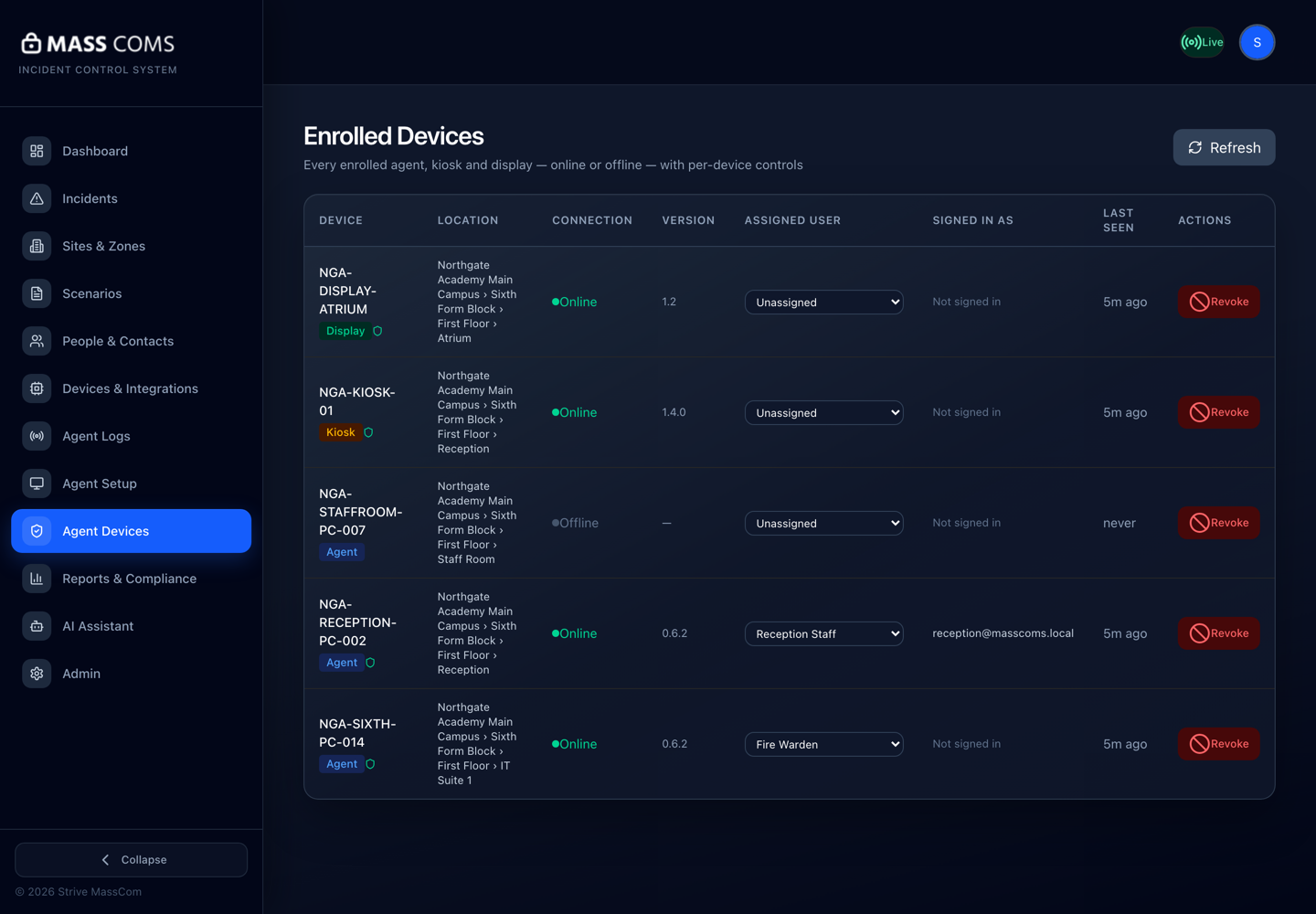
Agent Devices — Enrolled DevicesMassComs Agent Devices page listing enrolled devices with location, connection, version, assigned user, signed-in user and last seen. - 02
Treat Last seen as the real status
A device with a Last seen from yesterday is offline, whatever else the row says. It will not wake up because you started an incident.
Confirm it workedEvery device you are relying on has a Last seen measured in seconds or minutes, not hours.
- 03
Find devices with no location
Devices whose Location reads org-wide receive whole-organisation incidents but nothing scoped to a building or floor, and cannot be given a route. In a large deployment this is the most common silent gap.
After a mass deployment, expect any fleet whose token had no Initial location to be in this state until you run the location exercise — see Assign an Agent to a site and room.
- 04
Check the integrations view
Devices & Integrations shows the live connection status of configured systems, with provider, device ID, version and Last Heartbeat. Integrations that are Available but not configured are inventory, not coverage.
A configured integration with a stale heartbeat is more dangerous than an unconfigured one, because it looks like coverage on a status page.
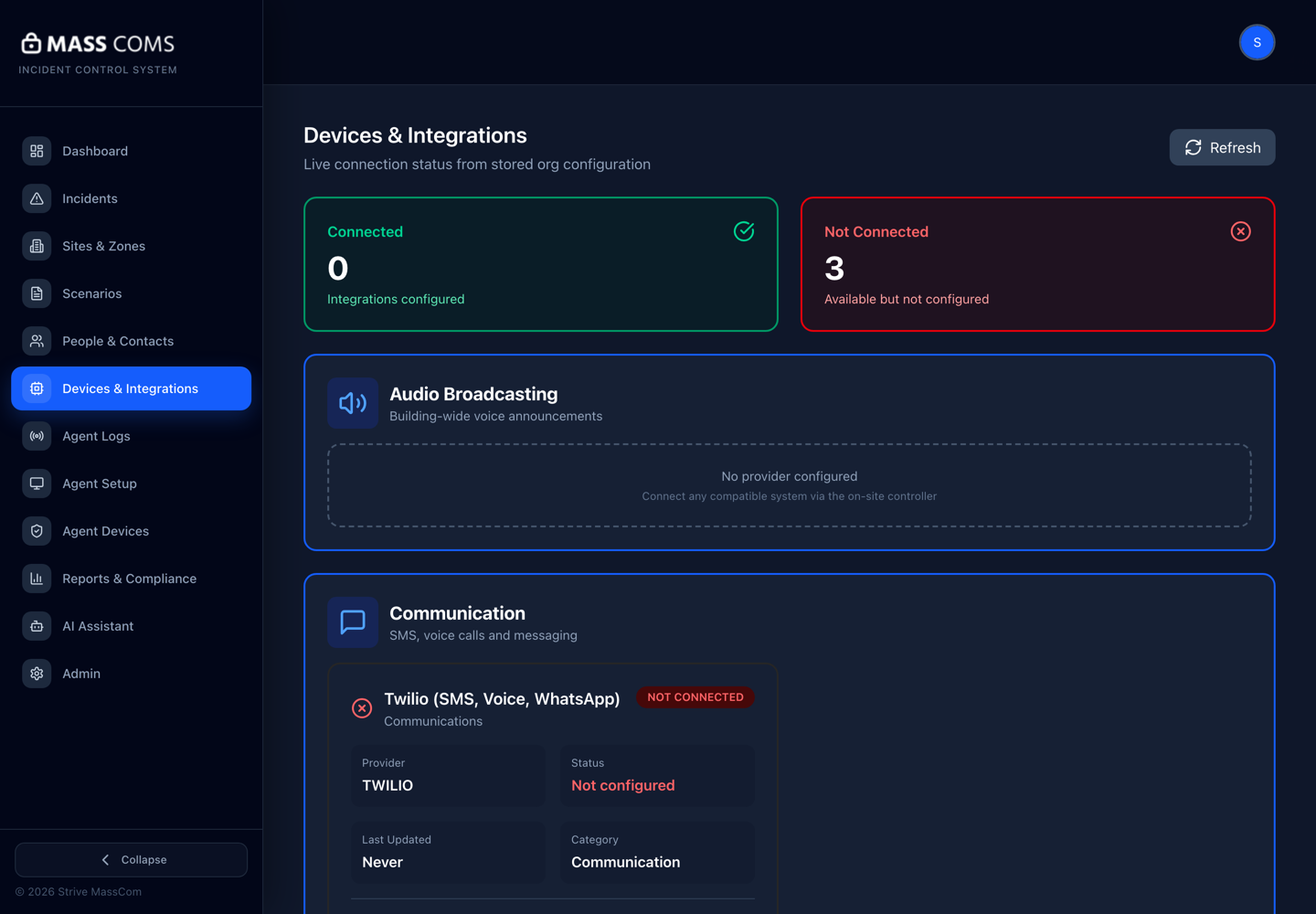
Devices & IntegrationsMassComs Devices and Integrations screen showing live connection status by provider. - 05
Use Agent logs for the awkward cases
Agent logs collect what individual devices report. When a machine is connected but behaving strangely — no audio, no overlay, repeated reconnects — the logs are where the evidence is.
Agent logsMassComs Agent Logs screen showing reported device activity. - 06
Build a routine, not a reaction
Check the fleet before every drill and on a fixed schedule between them. The cost of a stale device is paid entirely during an incident.
- Before every drill: check Last seen across the devices in scope.
- Monthly: check for devices that have disappeared entirely.
- After every estate change — reimaging, network changes, room moves: re-check.
Troubleshooting
When it does not go to plan.
| Symptom | Usual cause | Fix |
|---|---|---|
| No devices connected, but devices are installed. | Network filtering, or the devices are powered off. | Check the domain allowlist first. A whole estate disappearing at once is almost always a network change. |
| A device appears twice. | It was re-enrolled after a reinstall or credential reset without the previous enrollment being revoked. | Revoke the stale row — the one without a live Connection — and confirm the surviving one has the correct location and Assigned user. |
| Message to agent never reached the device. | No Assigned user on the device, or the assignment sits on a stale duplicate row. | Set Assigned user on the row that shows a live Connection. |
| Integration shows Unreported by backend. | The integration is configured but has not reported status. | Check the on-site controller is running and reachable. A configured-but-silent integration is not coverage. |
Good to know
Small details that prevent big confusion.
- Enrolled, connected and located are three different states. Only the third is fully usable.
- Fleet checks are cheap and drills are expensive. Do the cheap thing more often.
- A device count that never changes is suspicious in an estate where machines are reimaged.
Was this guide clear?