
For a few PCs the manual install is fine. For a lab, a block or a whole estate you want every device installed silently for every user and enrolled with nobody clicking through a sign-in screen. You download four files, paste one token into a script, zip them into an Intune package, and Intune installs it everywhere. About 30 minutes, and it works with any MDM that can push a Windows Win32 app.
Before you start
Have these ready.
- Agent 0.6.0 or newer — the current release is 0.6.2.
- Microsoft Intune, or another MDM that deploys Win32 apps. Targets are Windows 10 1809 or later / Windows 11, 64-bit.
- Microsoft's Win32 Content Prep Tool (IntuneWinAppUtil.exe).
- Access to Agent Setup → Mass Deployment on the dashboard. Revoking a token needs Super Admin.
- Two or three PCs you can physically check for the pilot.
- 01
Understand what the token does
Each PC redeems the deployment token once, on its first run, for a credential unique to that machine, and receives your organisation's details in the same reply. So every device appears separately under Agent Devices and can be revoked on its own, the token stops working after the number of machines and days you choose, and it is the only secret in the package.
This replaces the older approach of writing organisation credentials into each device. Nothing organisation-wide ever leaves the dashboard; a leaked package is a leaked token with a machine cap and an expiry, not a leaked tenant.
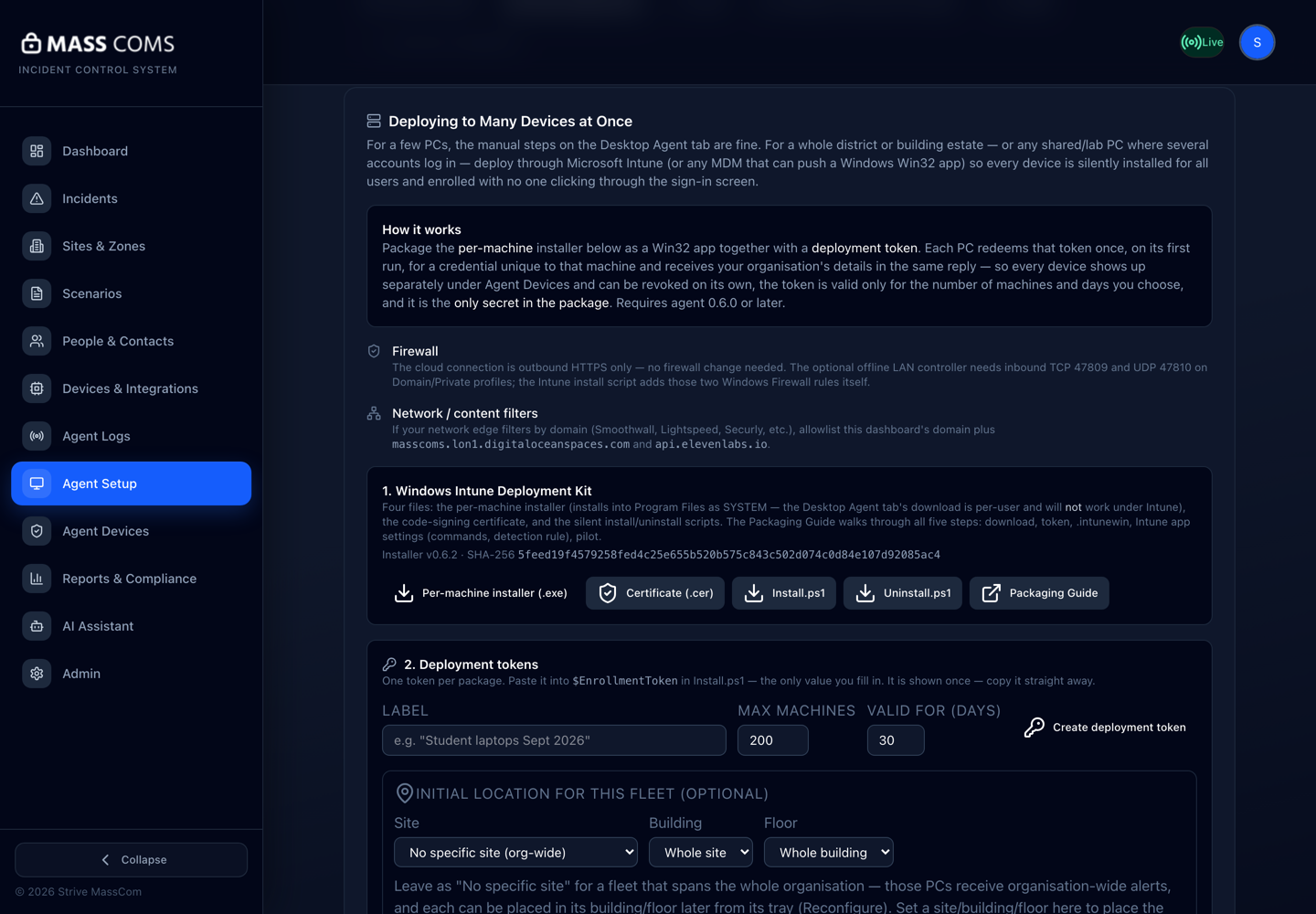
Mass Deployment tabMassComs Agent Setup, Mass Deployment tab, showing the deployment kit downloads and the deployment tokens panel. - 02
Download the four files
Agent Setup → Mass Deployment → 1. Windows Intune Deployment Kit. Put all four in one empty folder. The card shows the installer version and its SHA-256, and links the Packaging Guide, which opens in a new tab with a Download as PDF button.
Field or control What it does Per-machine installer (.exe) The file name ends in -perMachine.exe (agent-0.6.2-x64-perMachine.exe). It installs into Program Files as SYSTEM. Certificate (.cer) MassComsLimited.cer — the install script imports it into the machine's Trusted Root store before installing. Install.ps1 Install-MassComsAgentLite.ps1 — silent install, drops the token config, adds the two LAN-controller firewall rules. Uninstall.ps1 Uninstall-MassComsAgentLite.ps1 — silent uninstall and clean-up. Do not package the Windows download from the Desktop Agent tab — it installs per user and fails under Intune. Do not package the .msi either: it carries no token, so every PC would show the Setup window.
- 03
Create a deployment token
Same page, 2. Deployment tokens. Give it a label, the maximum number of machines and how many days it stays valid, then Create deployment token. The token is shown once — copy it straight away.
The table below lists every token with Label, Location, Machines (used / max), Expires and Status — active, exhausted or revoked. A Super Admin can Revoke one; machines already enrolled are not affected.
Field or control What it does Label How you will recognise it later, e.g. Student laptops Sept 2026. Max machines 1 to 5000, default 200. The token stops working after this many enrolments. Valid for (days) 1 to 90, default 30. Enrolled PCs are unaffected when it expires. Initial location for this fleet (optional) Site → Building → Floor. Every PC enrolled with this token inherits it, so a whole batch is placed at once. Leave as No specific site for a fleet that spans the organisation; each PC can be moved later from its tray (Reconfigure…). One token per package. If you manage several tenants, one token and one package per tenant, labelled unmistakably.
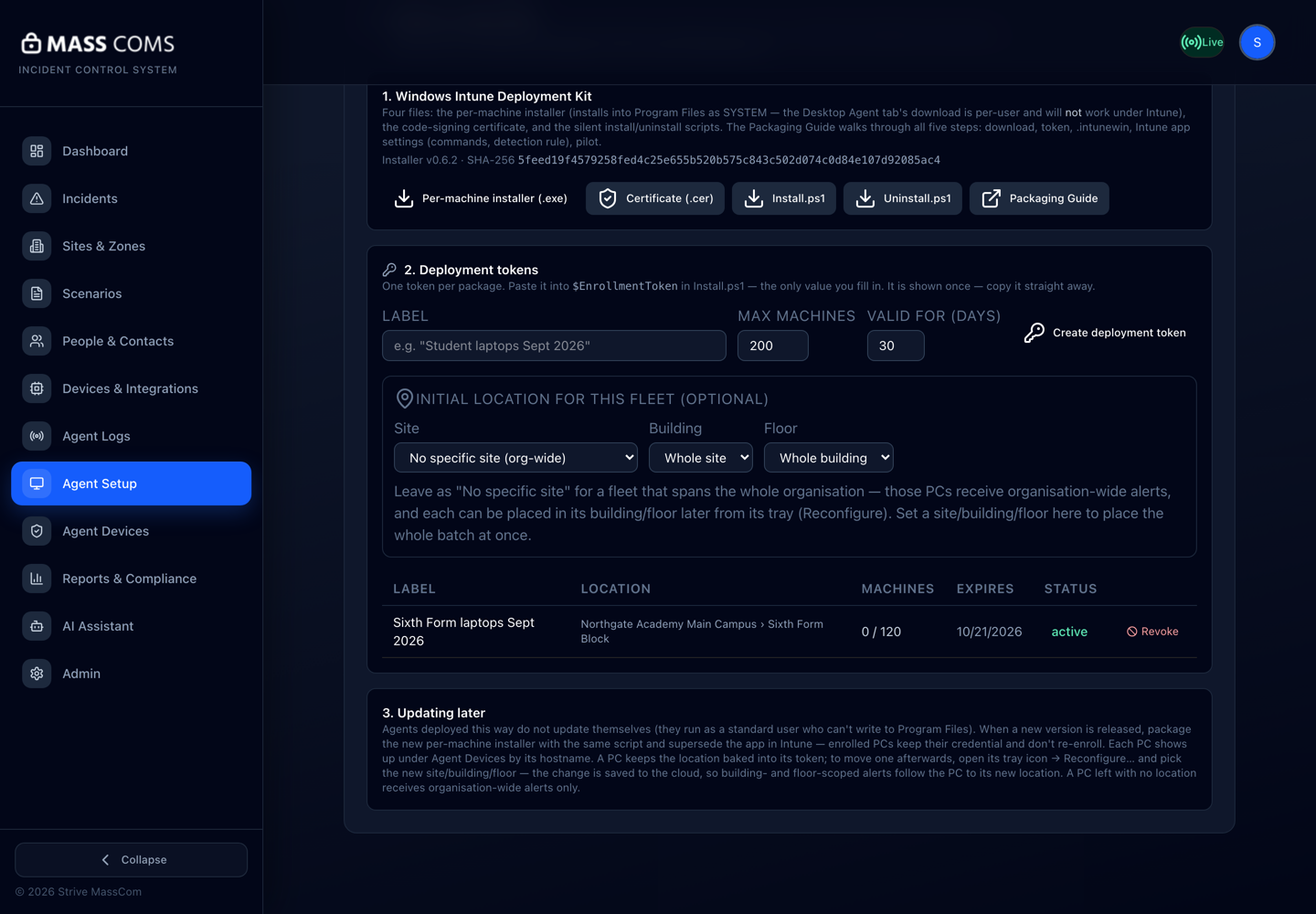
Deployment tokensMassComs Agent Setup, Mass Deployment tab, showing the deployment kit downloads, the token form with initial location, and one active token in the table. - 04
Paste the token into the script
Open Install-MassComsAgentLite.ps1 in Notepad and replace the placeholder on the one line near the top. Save. That is the only edit.
- $EnrollmentToken = "REPLACE_WITH_DEPLOYMENT_TOKEN"
Leave $CloudUrl as it is — the Agent accepts only that origin and fetches your organisation's details itself.
Treat the filled-in script like a password until the token expires: not in source control, not on a shared drive.
- 05
Build the .intunewin package
Run Microsoft's Win32 Content Prep Tool in a Command Prompt against the folder with the four files. The setup file is the script, not the installer.
- IntuneWinAppUtil.exe -c "<folder with the 4 files>" -s Install-MassComsAgentLite.ps1 -o "<output folder>"
Confirm it workedYou get Install-MassComsAgentLite.intunewin.
- 06
Add it in Intune
Intune admin center → Apps → Windows → + Add → Windows app (Win32) → pick the .intunewin. Name it MassComs Agent, publisher Strive MassCom, then fill in exactly this and leave everything else at its defaults.
Field or control What it does Install command powershell.exe -ExecutionPolicy Bypass -File Install-MassComsAgentLite.ps1 Uninstall command powershell.exe -ExecutionPolicy Bypass -File Uninstall-MassComsAgentLite.ps1 Install behavior System Device restart behavior No specific action Requirements 64-bit · Windows 10 1809 or later Detection rule Manually configure → File. Path C:\Program Files\masscomsagent-tauri · File masscomsagent-tauri.exe · File or folder exists · 32-bit app on 64-bit clients: No - 07
Pilot on two or three PCs
Assign the app as Required to a small test group. After their next Intune sync, check all three of these before going any wider.
- Agent Devices on the dashboard lists each PC by hostname, online.
- On the PC, the MassComs tray icon (bottom-right, maybe behind the ^ arrow) reads Connected (Cloud) on hover.
- Mass Deployment shows the token's Machines count went up.
Confirm it workedAll three, on every pilot PC, with nobody having seen a Setup window.
- 08
Assign to everyone and open the network paths
Assign to the full device group. The cloud connection is outbound HTTPS only, so there is normally no firewall change; the optional offline LAN controller needs inbound TCP 47809 and UDP 47810, and the install script adds those two Windows Firewall rules itself.
- If your edge filters by domain (Smoothwall, Lightspeed, Securly and similar): allow admin.masscoms.com, masscoms.lon1.digitaloceanspaces.com and api.elevenlabs.io.
Domain filters are the usual cause of an Agent that installs fine and never connects. If a whole batch is missing from Agent Devices, look here before looking at the package.
- 09
Place the fleet
PCs keep the location baked into the token. To move one afterwards, open its tray icon → Reconfigure… → sign in → pick the new site, building and floor; the change is saved to the cloud, so building- and floor-scoped alerts follow it. A PC with no location receives organisation-wide alerts only.
See Assign an Agent to a site and room.
- 10
Updating later
Agents deployed this way do not update themselves — they run as a standard user who cannot write to Program Files. For a new version, download the new per-machine installer, rebuild the package with the same script, and add it in Intune as a new app that supersedes the old one. PCs upgrade in place and keep their credential; they do not re-enroll.
Troubleshooting
When it does not go to plan.
| Symptom | Usual cause | Fix |
|---|---|---|
| Intune says Failed; our log says not the per-machine build or Expected binary not found. | The per-user .exe from the Desktop Agent tab was packaged. | Use the …-perMachine.exe from Mass Deployment and repackage. |
| Our log says was not filled in before packaging. | The $EnrollmentToken line is still the placeholder. | Paste the token in, save, repackage. |
| Tray says Setup required — use Reconfigure and the PC is not in Agent Devices. | The token has expired, been revoked, or is out of machines. | Create a new token, update the script, redeploy. |
| Nothing starts after login. | The scheduled task is missing. | Task Scheduler should have a MassComs Agent task (At log on of any user). Re-run the install. |
| Unknown publisher warnings on the PCs. | MassComsLimited.cer was missing from the folder. | Add it, repackage. |
| A PC that had a hand-installed Agent misbehaves after deployment. | Two copies fight at login. | Uninstall the hand-installed copy first (Settings → Apps → masscomsagent-tauri). |
Good to know
Small details that prevent big confusion.
- Logs: ours at C:\ProgramData\MassComs\Logs\intune-install-agent.log; Intune's at C:\ProgramData\Microsoft\IntuneManagementExtension\Logs\IntuneManagementExtension.log.
- A token expiring or being revoked never disconnects a PC that already enrolled. Revoke a device from Agent Devices instead.
- Any MDM that can push a Win32 app works — Intune is documented because it is the common case.
- Silent deployment removes the user from the loop, which is the point — but nobody on the ground will notice a failure. Verify centrally.
Was this guide clear?