
A silent Agent is the failure that matters most, because nobody discovers it until it matters. Work through these in order — they are ordered by how often each is the cause.
Before you start
Have these ready.
- Physical or remote access to the machine.
- 01
Confirm the Agent is actually running
Look for the MassComs icon in the system tray (Windows bottom-right, behind the ^ arrow if hidden) or the macOS menu bar. If it is not there, something stopped it — or, on Windows, it was installed under a different account.
- The Desktop Agent .exe installs for the Windows account that ran it. Another account signing in to the same PC has no Agent unless the per-machine (Intune) build was used.
- Intune-installed Agents start from a MassComs Agent scheduled task at log on of any user — check Task Scheduler if nothing appears.
- Check whether a security product quarantined masscomsagent-tauri, or a user with admin rights uninstalled it.
- 02
Read the tray status
Right-click (Mac: click) the icon. The Status line tells you which problem you have before you touch anything else.
Field or control What it does Connected (Cloud) Healthy. If it still did not alert, go to the audio and location checks. Connected (LAN) Connected through an on-site controller rather than directly. Healthy while that controller is up. Reconnecting… It had a connection and lost it — network path or an intercepting proxy. Setup required — use Reconfigure No usable credential: never set up, revoked from Agent Devices, or an Intune token that had expired when it first ran. Reconfigure… and sign in. INCIDENT ACTIVE It believes an incident is still running. If the dashboard says resolved, it missed the resolution — reconnect it. Check for updates in the Setup window forces an update check. A manually installed Agent updates itself; an Intune-installed one only updates when a superseding package is deployed.
- 03
Check the machine's sound
The most common cause of a silent Agent is the machine, not the Agent. Play any other audio at the volume the alert would need to be heard at.
- System volume up, and not muted.
- Output routed to the speaker you expect, not to a disconnected display or a headset that is not there.
- Per-application volume for the Agent not muted in the OS mixer.
- Physical speakers powered and connected.
Test at the volume the room actually needs. An alert audible at a desk can be inaudible in an occupied classroom.
- 04
Check the connection state on the dashboard
Compare the tray status against Agent Devices — if the row shows no live Connection or a stale Last seen, this is a connectivity problem, not an audio one.
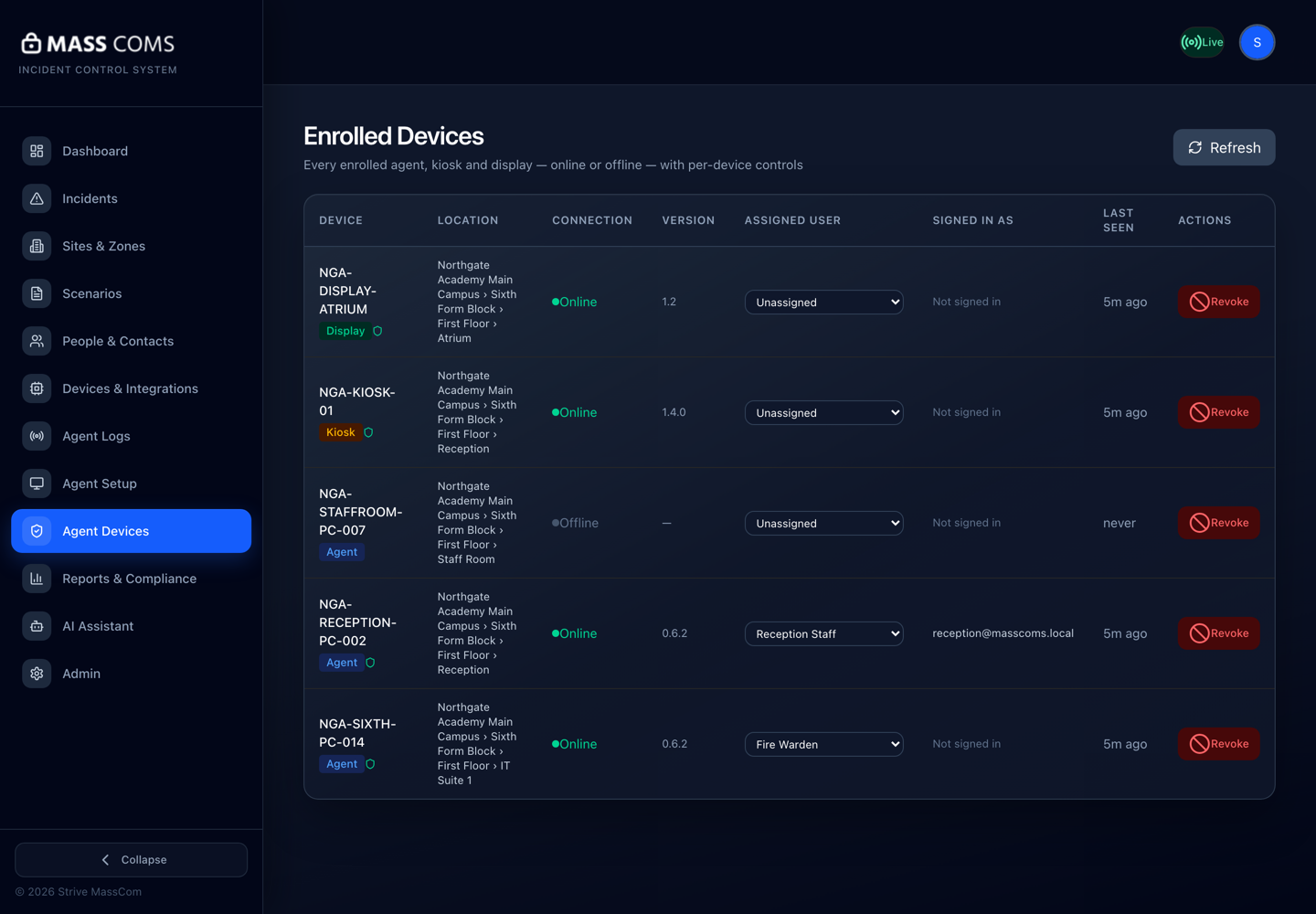
Agent Devices — Enrolled DevicesMassComs Agent Devices page showing device connection state and last seen. - 05
Check the network path
The cloud connection is outbound HTTPS only. Where a network edge filters by domain, admin.masscoms.com and masscoms.lon1.digitaloceanspaces.com must be allowlisted, plus api.elevenlabs.io if you use text-to-speech.
If several Agents on the same network went quiet at the same time, this is almost certainly the cause. A single Agent going quiet is more likely to be the machine.
- 06
Check the location assignment
An Agent that receives organisation-wide incidents but nothing zone-scoped is not a connection problem — its room is not in the zone being targeted.
See Assign an Agent to a site and room.
- 07
Collect the details before contacting support
If none of the above resolves it, gather the specifics. A precise report resolves in one exchange; a vague one takes four.
- Operating system and version, and the Agent version from the tray menu.
- The device name as it appears in Agent Devices, and its Location.
- The tray Status line word for word, and the dashboard's Last seen for it.
- Whether other devices on the same network are affected.
- The exact visible error text, copied rather than paraphrased.
- The time of a specific incident or test that failed to arrive.
See Contact support with useful details.
Troubleshooting
When it does not go to plan.
| Symptom | Usual cause | Fix |
|---|---|---|
| Overlay appears, no sound. | Machine audio — muted, wrong output, or unpowered speakers. | Work the audio checklist. The Agent is working; the machine is not producing sound. |
| No overlay and no sound, device shows connected. | The incident did not target this device — usually a zone membership problem. | Check the room's zone assignment in the floorplan builder. |
| Many Agents went quiet at once. | A network change — new filtering rule, proxy, or firewall policy. | Check the domain allowlist and any recent network change before investigating machines. |
| The Agent reconnects repeatedly. | Unstable network, or an intercepting proxy breaking the persistent connection. | Check for TLS interception on the path. Agent logs will show the reconnect pattern. |
Good to know
Small details that prevent big confusion.
- A single silent Agent is usually the machine. Many silent Agents are usually the network.
- Audio is the channel that fails most quietly. Include a listening check in every drill.
- Agent logs are the evidence trail when the symptom is intermittent.
Was this guide clear?