
Silent alerts exist for situations where a visible response would make things worse. There are two: the SILENT panic alert, one of the six incident types, which brings an external response by SMS; and Silent custom scenarios, which reach a chosen group of your own staff. Both are defined by what they do not do.
MassComs supports your organisation’s safety plan. It does not replace authorised instructions, trained judgement or emergency services.
Before you start
Have these ready.
- For the panic alert: security and police phone numbers configured for the organisation — without them it has no destination.
- For a Silent scenario: an approved Custom scenario with Delivery set to Silent and its Recipients configured.
- A role holding incidents.trigger.
- Agreement with whoever receives the alert about what they will do when they get one.
- 01
Know which one you need
Use the SILENT panic alert when the person in front of you must not know a call has been made and you want security or police, not colleagues: an aggressive visitor at reception, a duress situation. Use a Silent scenario when a specific group of your own staff needs to act quietly: a medical emergency, a missing child, a safeguarding concern.
Neither is a quieter alarm. Both are a different decision — you are choosing not to move anyone and not to warn the building.
- 02
Silent scenarios — trigger the violet tile
Approved Silent scenarios appear on the Incidents trigger page as their own tiles with a violet Silent badge, and in the mobile app's trigger screen. Choosing one goes straight to scope and, where the scenario has a Details prompt, a box for what is happening — a description of the missing child, for example — with quick options to tap.
The scenario's Recipients get the message on the channels the scenario chose — SMS, voice, email, a quiet phone notification to their MassComs app, or a message to the Agent device assigned to them. No PA, sirens, signage, CAP or parent messages fire, and recipients see the incident as a Silent card on the dashboard rather than an org-wide banner.
The confirmation screen restates it: This is a Silent alert — only this scenario's recipients are notified.
Building these scenarios is covered in Create a scenario and response plan — Custom type, Delivery: Silent, Recipients. They exist only if someone has made them.
- 03
Silent panic — raise it from the dashboard
On the Incidents trigger page, select the SILENT tile. The panel restates exactly what it will and will not do: discreet SMS to security contacts — no sirens, PA, signage, or mass broadcast.
Field or control What it does Situation (staff-only, logged) What is happening, who is involved, and what responders need to know. Visible to staff with access and permanently recorded — write facts, not interpretation. Approximate location (optional) Where you are, in the form someone would use out loud — for example Main reception, Level 2 east. Optional in the form and the thing that lets a responder find you. SMS on-site security Whether this alert texts your on-site security contact. SMS police liaison Whether it texts your police liaison contact. The two are independent. 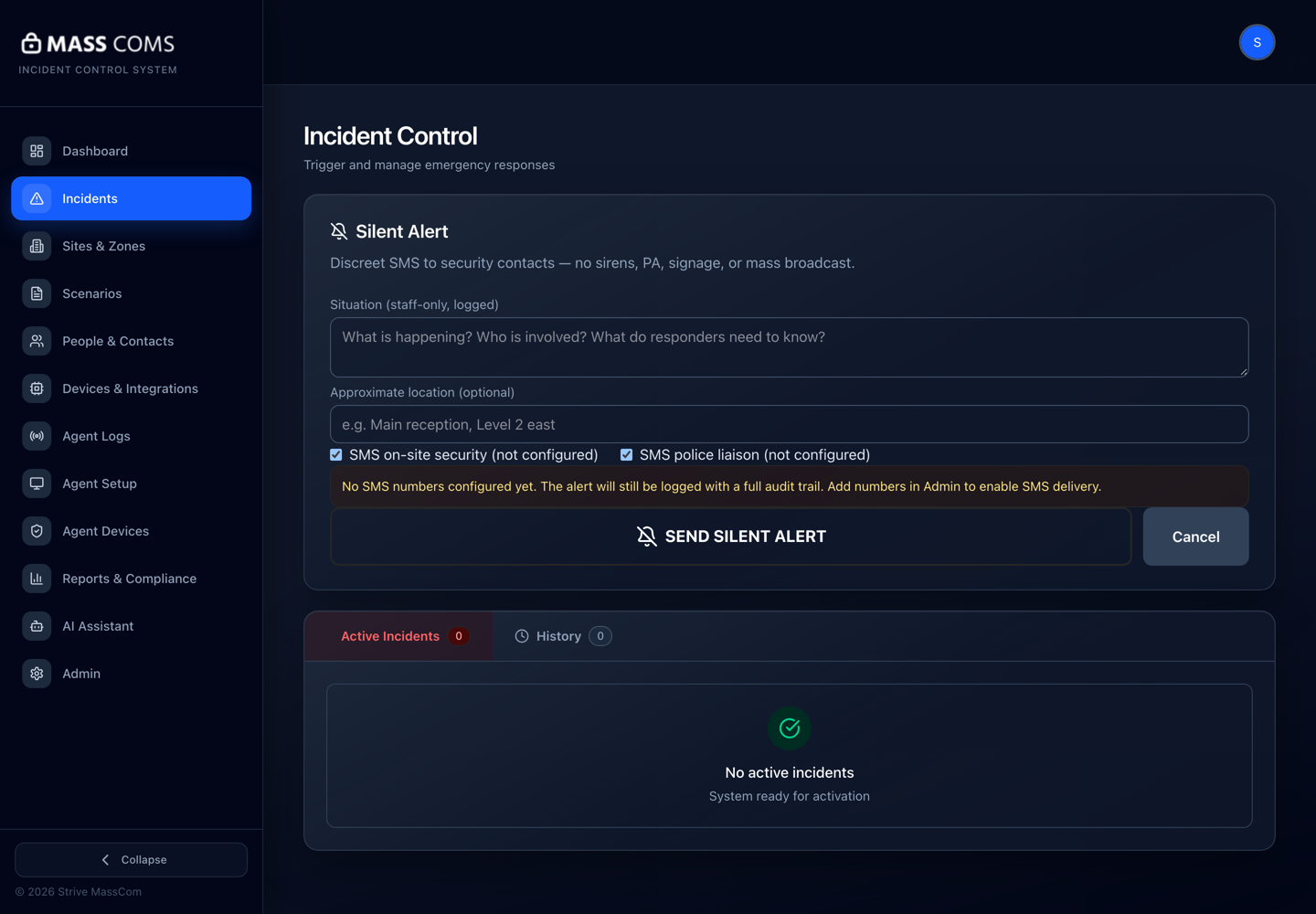
Silent AlertMassComs Silent Alert panel with situation and location fields and the two SMS recipient options. - 04
Silent panic — raise it from the mobile app
The app has a dedicated Silent Panic screen with its own SEND SILENT ALERT action, described as a discreet alert — no PA, no announcement. It is deliberately separate from the ordinary trigger flow. Silent scenarios, by contrast, sit among the trigger tiles with a Silent badge.
Learn where both are before you need them. Hunting for a screen while trying to look calm is exactly the failure they are designed to prevent.
- 05
Understand what happens next
A panic alert notifies the configured security and police numbers by SMS and appears in the silent panic log with who raised it, when, the situation text and the location. A Silent scenario notifies its recipients and appears as an active Silent incident to them and to anyone who can resolve it. In both cases nothing audible or visible happens in the building.
Because there is no sensory confirmation, the person who raised it gets no reassurance from the environment that it worked. Check the log, or the Silent card on the dashboard, if you need confirmation and it is safe to do so.
When a Silent scenario is resolved, only its recipients are told. No screen or speaker in the building reacts to its all-clear either.
- 06
Review the log afterwards
The silent panic activity log lists discreet alerts with who raised them, the situation, the location, the time and the SMS audit. Review it as part of incident follow-up.
Confirm it workedThe alert appears in the log with an SMS audit entry showing the message was dispatched to the configured numbers.
Troubleshooting
When it does not go to plan.
| Symptom | Usual cause | Fix |
|---|---|---|
| The alert was raised but nobody was contacted. | No SMS numbers are configured. The panel warns about this before you send, and shows each recipient option as (not configured). | Add the numbers in Admin to enable SMS delivery, then test the path with the recipients' knowledge. The alert itself was still logged with its audit trail. |
| No discreet alerts recorded yet, after one was sent. | The alert did not reach the platform, or you are viewing a different organisation or site. | Check connectivity and the site scope. Silent alerts are scoped like any other incident. |
| No Silent tiles appear on the trigger page. | No Custom scenario has Delivery set to Silent and Approved. | Create one — see Create a scenario and response plan — and have it approved. Unapproved scenarios never show on the live trigger page. |
| A Silent scenario was triggered and nobody was notified. | Its Recipients audience resolved to nobody — the role or tag has no members with contact details. | Check the people, their role or tag, and their SMS, voice, email and app sign-in on People & Contacts. |
| Staff do not know it exists. | It is deliberately unobtrusive in the interface. | Brief it explicitly during training, especially to reception staff, and include it in drills as a tabletop exercise rather than a live send. |
Good to know
Small details that prevent big confusion.
- SILENT panic and Silent scenarios both suppress audible and public channels by design. Everything else about the incident record is the same.
- The situation note and the Details text are staff-only but permanently logged. Treat them as evidence.
- Agree in advance with whoever receives the alert what their response will be. An alert nobody has a plan for is not a safety feature.
Was this guide clear?