
A scenario is the pre-agreed answer to a situation, written when there is time to think and read when there is not. Scenarios is where you program the building's response; the wizard makes you decide, in order, what type it is, how it reaches people, what repeats automatically, who may trigger it, and what happens when it ends.
MassComs supports your organisation’s safety plan. It does not replace authorised instructions, trained judgement or emergency services.
Before you start
Have these ready.
- The scenarios.create permission.
- Your organisation's approved procedure for the situation — MassComs distributes it, it does not author it.
- At least one communication integration connected (Twilio for SMS and voice, SendGrid for email, Axis for PA) — the Channels step lists only what is connected.
- Approved message templates (Admin → Message Templates) and, if you will email, email templates (Admin → Email Templates). No free text is sent during an incident.
- 01
Write the response plan first
On the Scenarios page, scroll to Response Plans and create one: Plan Name, a Type (Lockdown, Evacuation, Invacuation, Test / Drill or Custom) and the Response Steps people will read while moving. The wizard can only link a plan whose type matches the scenario's type.
- Lead with the action, not the reason. Address the reader directly: "Move to …", not "Staff should move to …".
- One instruction per step, in the order someone would perform them. Avoid conditional branches.
- Say what to do if the primary instruction is impossible.
This text is read in about ten seconds by someone who is frightened. Read it aloud at speed to a colleague and ask them what they would do.
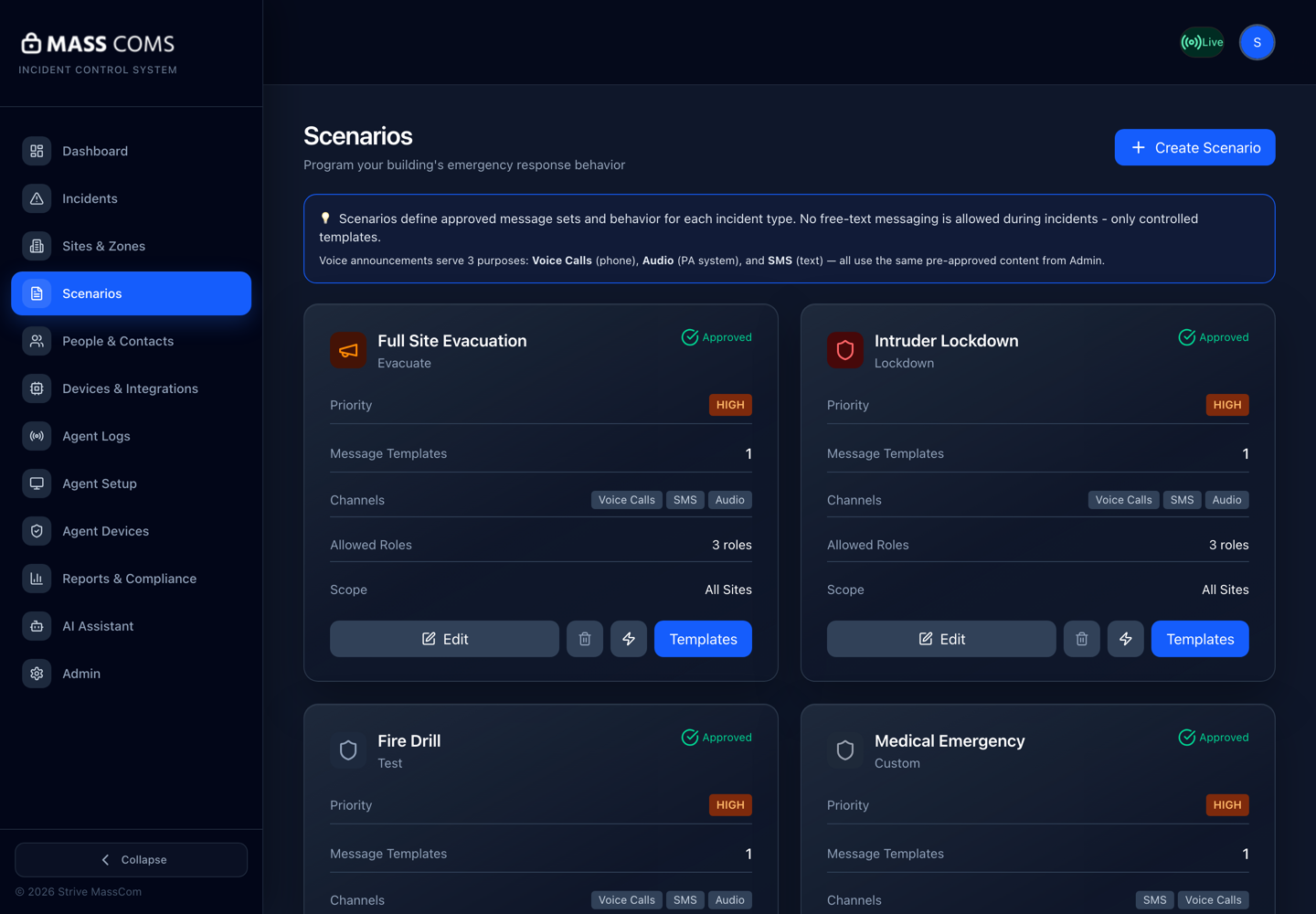
Scenarios overviewMassComs Scenarios page showing scenario cards, the compliance note and the Response Plans section. - 02
Step 1 — Type
Click Create Scenario. Choose the behaviour type — it pre-configures the safety defaults — and give the scenario the name that will appear in the Scenarios list and on the trigger screen.
Field or control What it does Lockdown Secure in place. Dual confirmation is recommended for these. Evacuation Leave to assembly points; signage shows the assembly-point map. Invacuation Shelter in place. Test / Drill Looks like the real thing on devices, is recorded as a drill, and sends no All Clear. Custom Everything is configured by hand. This is the only type that can be Silent and the only one with a Details prompt. Medical, Missing Person and similar situations are built as Custom scenarios. Name the situation, not the mechanism — Intruder in building, not Lockdown protocol v2. The name is editable again on the next step.
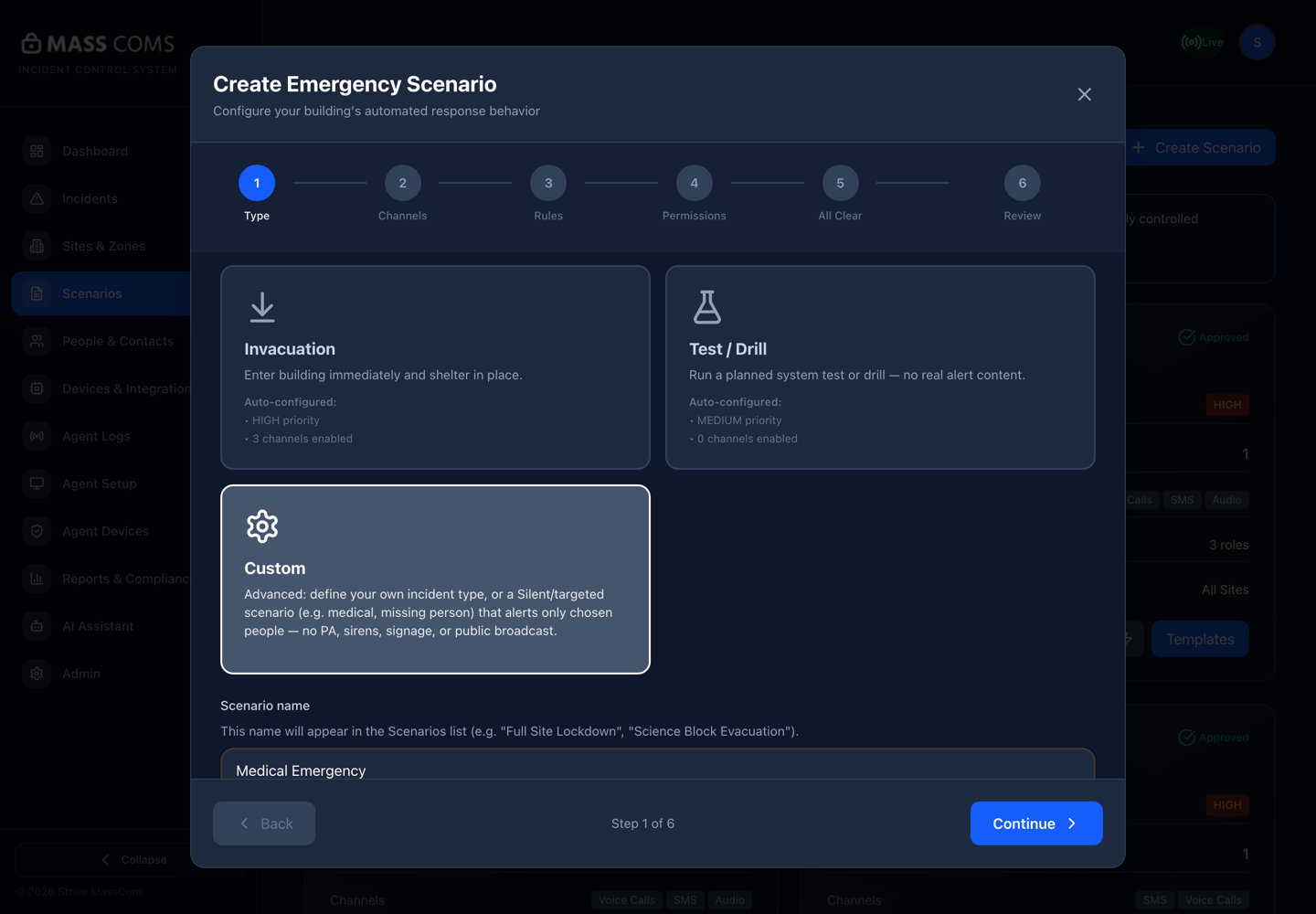
Scenario wizard — TypeMassComs scenario wizard step 1 showing the five type tiles and the scenario name field. - 03
Step 2 — Channels: link the plan and choose Delivery
Pick the Linked response plan. For a Custom scenario, set Delivery first, because it changes what the rest of the step means: Broadcast alerts everyone through the channels below; Silent / targeted alerts only the people you choose in Recipients — no PA, sirens, signage, CAP or parent messages.
A Silent scenario is how you build a discreet Medical Emergency or Missing Child response: the right staff are told, on their own phones and devices, and nobody else in the building notices. Approved Silent scenarios appear as their own violet Silent tiles on the dashboard trigger page and in the mobile app.
A Broadcast Custom scenario reaches signage. Keep Custom scenarios Silent unless you genuinely want every screen in the building to take over.
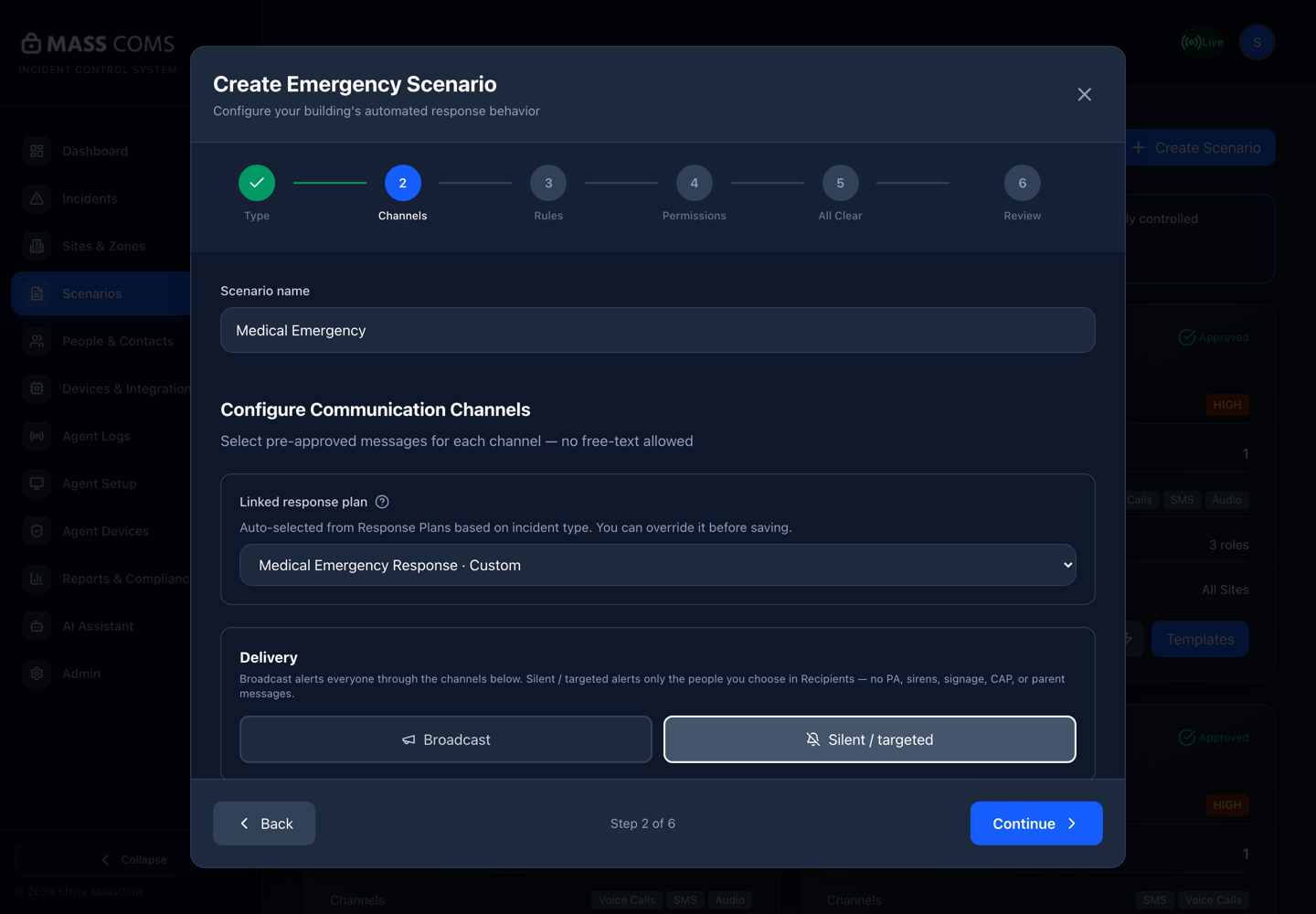
Scenario wizard — ChannelsMassComs scenario wizard step 2 showing the linked response plan, Delivery toggle and channel sections. - 04
Step 2 — Channels: enable each channel you have tested
Each section is off until you switch it on, and each pulls its content from the approved templates and announcements in Admin. Select every channel your procedure expects, and no more.
Adding a channel you have not tested is how a scenario appears to work in a drill and then fails in the way that matters. If you enable SMS, send one. If you enable PA, hear it.
Field or control What it does Audio Announcements Voice announcements played on kiosk and Agent displays. Voice Calls Pre-recorded call to all registered staff via Twilio. Axis Audio PA System Audio files on the PA, with a Priority Override. SMS Messages One approved SMS template. Email A Subject, one email template from Admin → Email Templates, and the audience — All means parents and contacts with email alerts switched on in People & Contacts. Digital signage A pre-approved signage template on lobby, corridor and wayfinding screens. Recipients Send to: all, a role or tag (e.g. Medical Trained), or specific people. Message plus channels: SMS, Voice, Email, Phone notification (a quiet push to that person's MassComs app login) and Message to agent (the device an admin assigned to them on Agent Devices). For a Silent scenario this is the only delivery. Details prompt (Custom only) A free-text box shown to whoever triggers this scenario — a missing child's description, what is happening — with your own Label, Placeholder and Quick options. The text is included in the messages sent out. Confirm it workedA Silent scenario will not save without a Recipients message and at least one Recipients channel — the wizard says so.
- 05
Step 3 — Rules
Automatic Response Rules decide what repeats without anyone touching the dashboard. Repeat audio announcements automatically with a Repeat Interval (60–90 seconds is recommended for emergencies), and optionally delay senior-staff notifications so the first minute is not spent answering calls.
These rules run identically every time and produce the audit evidence Martyn's Law compliance leans on. That is their value: consistency you can prove.
- 06
Step 4 — Permissions
Authorized Roles restricts which roles can trigger this scenario at all. Under Trigger Safeguards, Show confirmation screen before triggering is on by default; Require second authorized user to confirm adds dual confirmation for high-risk scenarios.
Authorized Roles is separate from the incidents.trigger permission. A role can hold incidents.trigger and still not be allowed to run a particular scenario.
Dual confirmation is strongly recommended for lockdowns. It prevents a single accidental tap from securing a whole site.
- 07
Step 5 — All Clear
Decide what plays and who is told when this scenario is stood down. Leave everything blank to use your organisation's default All Clear message and audio; fill it in to override with wording specific to this scenario.
Field or control What it does Custom All Clear message Optional. Replaces the default wording on devices and in messages. All Clear Audio Announcement Which announcement plays on kiosk and Agent displays, and how many times (Play announcement). Display duration How long the All Clear stays on kiosk and Agent screens before clearing automatically. All Clear recipients Tell the same people (Use same recipients as trigger) or a different group that it is over, via their own SMS, voice, email and push preferences. Test / Drill scenarios send no All Clear — announce the end of a drill verbally. A scenario that is itself the organisation's All Clear needs none either.
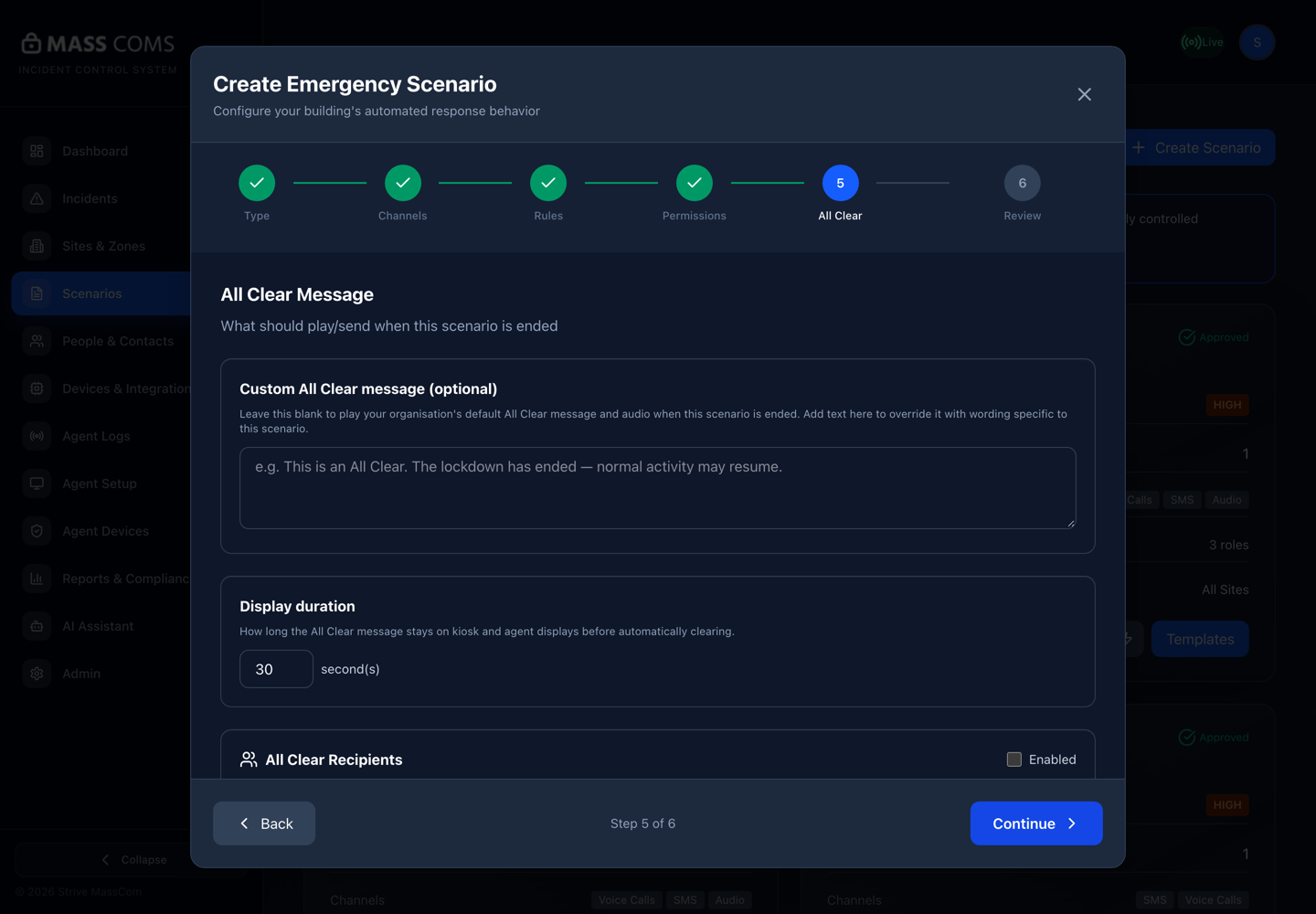
Scenario wizard — All ClearMassComs scenario wizard step 5 showing the custom All Clear message, audio announcement, display duration and recipients. - 08
Step 6 — Review & Approve
The review lists the incident type, linked plan (View full response plan), Delivery, Recipients, Details prompt and a When triggered, the system will: summary. Read it as a recipient. Then either leave it unapproved or, if you hold scenarios.approve, tick I approve this scenario for live use.
Unapproved scenarios can only be used in test mode; they do not appear on the live trigger page. Approval is an act of authority — record who approved and when outside the system as well.
See Approve scenarios and message templates for the approval side.
Confirm it workedThe scenario card shows Approved in the Scenarios list.
- 09
Test it with a TEST activation
Run the scenario as a TEST-type incident against a narrow scope with a device you can watch. Confirm the response steps render fully, every enabled channel fires, and the message reads correctly on a real device. For a Silent scenario, confirm the intended people were reached and nobody else was.
Troubleshooting
When it does not go to plan.
| Symptom | Usual cause | Fix |
|---|---|---|
| The scenario does not appear at activation. | It is not approved, is of a different incident type, or your role is not in Authorized Roles. | Check all three. The most common is approval. |
| The Linked response plan dropdown is empty. | No response plan exists with the same type as the scenario. | Create one under Response Plans on the Scenarios page with the matching Type, then reopen the wizard. |
| The Channels step says No communication integrations connected. | No provider is configured. | Connect Twilio, SendGrid or Axis under Integrations first. See Connect SMS and voice with Twilio. |
| A Silent scenario reached nobody. | Its audience resolved to zero people — the role or tag has no members with contact details, or the people are not on the People page. | Check People & Contacts for the role or tag, and each person's SMS, voice and email preferences. The incident is still created and recorded; it just had nobody to deliver to. |
| Email did not send. | No SendGrid integration, no email template selected, or nobody has email alerts switched on. | Check Integrations, Admin → Email Templates, and the email preference on the contacts. |
Good to know
Small details that prevent big confusion.
- Several scenarios per type is normal — a lockdown for an internal threat reads nothing like one for a nearby police operation.
- Editing an approved scenario and saving with the approval box unticked takes it out of live use until it is approved again.
- The default All Clear for the whole organisation is a scenario too; per-scenario All Clear settings override it only for that scenario.
- Review scenarios on a schedule. A response plan that has not been read in two years is a liability.
Was this guide clear?