
Approval is separated from authorship on purpose. Creating a scenario is a drafting act; approving one is an act of authority that makes it possible to broadcast to everybody.
MassComs supports your organisation’s safety plan. It does not replace authorised instructions, trained judgement or emergency services.
Before you start
Have these ready.
- The scenarios.approve permission — held by Super Admin, Safety Officer and Senior Leadership Team, not by Security Manager or Fire Warden.
- The organisation's approved procedure to check the draft against.
- 01
Find what is waiting
Scenarios are listed as Approved or Pending Approval. Work the pending list deliberately rather than approving as requests arrive.
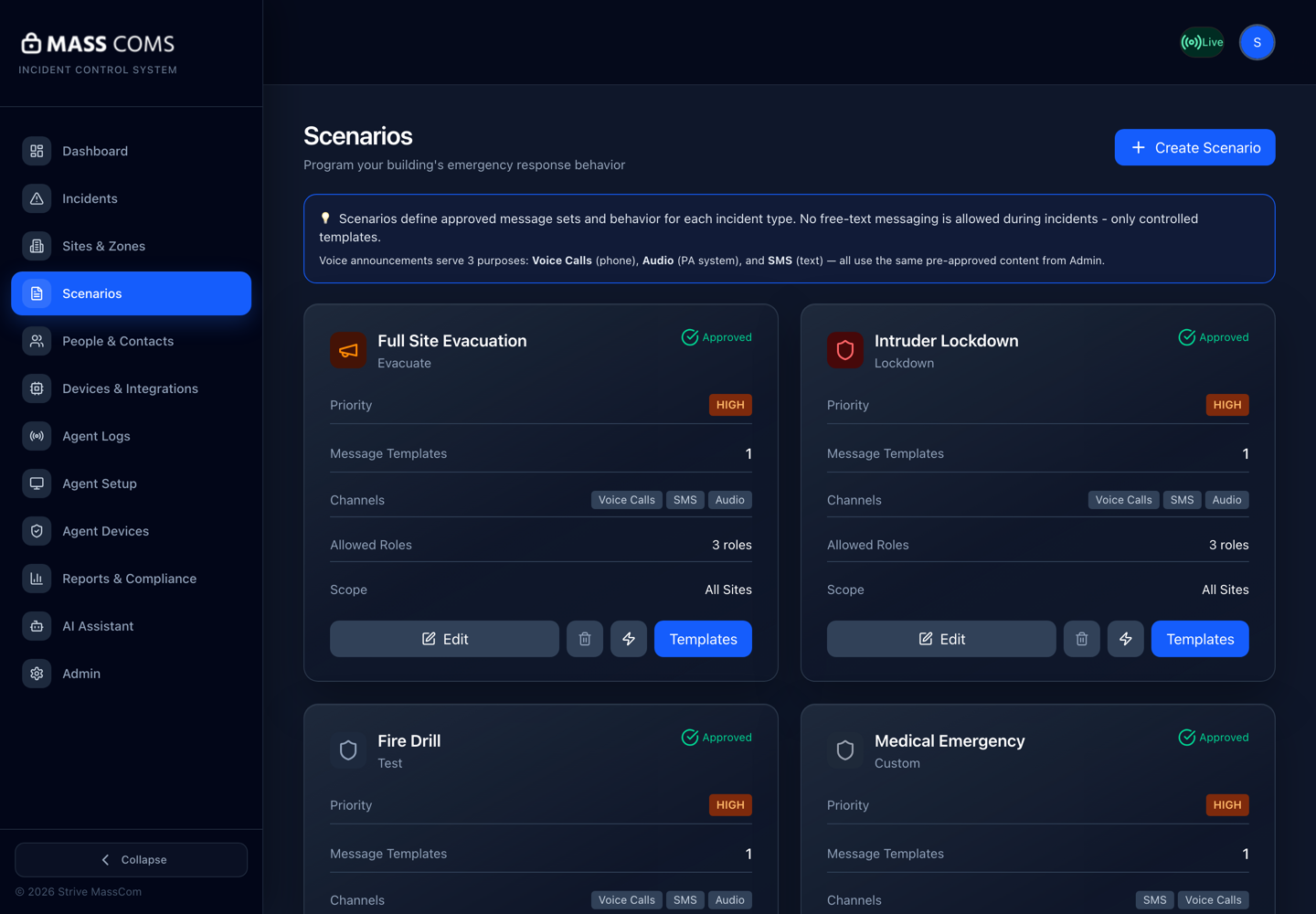
Scenarios overviewMassComs scenarios list with approved and pending scenarios. - 02
Check the type and the blast radius
Confirm the incident type matches the situation described, and look at which channels are enabled. A scenario that takes over every screen and sounds every Agent is a different thing from one that sends an app notification.
For a Custom scenario, check Delivery first. Silent reaches only the Recipients listed on the review step; Broadcast reaches every enabled channel including signage. A Medical or Missing Person scenario that is accidentally Broadcast will take over the building's screens.
Check the All Clear step too: what plays on kiosks and Agents when it ends, for how long, and who is told. Approving the scenario approves its ending as well as its start.
- 03
Read the response steps as a recipient
Read them out loud, quickly, once. If you have to re-read a step to know what to do, the people receiving it will too.
- Is the first sentence an action?
- Is it clear who is being addressed?
- Is there an instruction for when the primary action is impossible?
- Does it tell people to acknowledge, if you expect acknowledgements?
- 04
Check the allowed roles
Allowed Roles decides who can run this. A wide-reaching scenario runnable by every role that holds incidents.trigger is a governance decision, not an oversight — make it consciously.
- 05
Approve message templates separately
Admin → Message Templates holds pre-approved SMS and WhatsApp text, grouped into categories, with a count of how many scenarios use each. Admin → Email Templates is the separate, per-organisation library for the Email channel — a subject and a longer body rather than SMS-length text. Approving a template makes it available for reuse across scenarios.
Because templates are shared, editing one changes every scenario that uses it. Check the Used in Scenarios count before editing rather than after.
The scenario wizard's Email section only offers templates from Email Templates; SMS templates are never sent as email.
Editing an approved template silently changes the message every scenario using it will send. Treat an edit as requiring the same approval as the original.
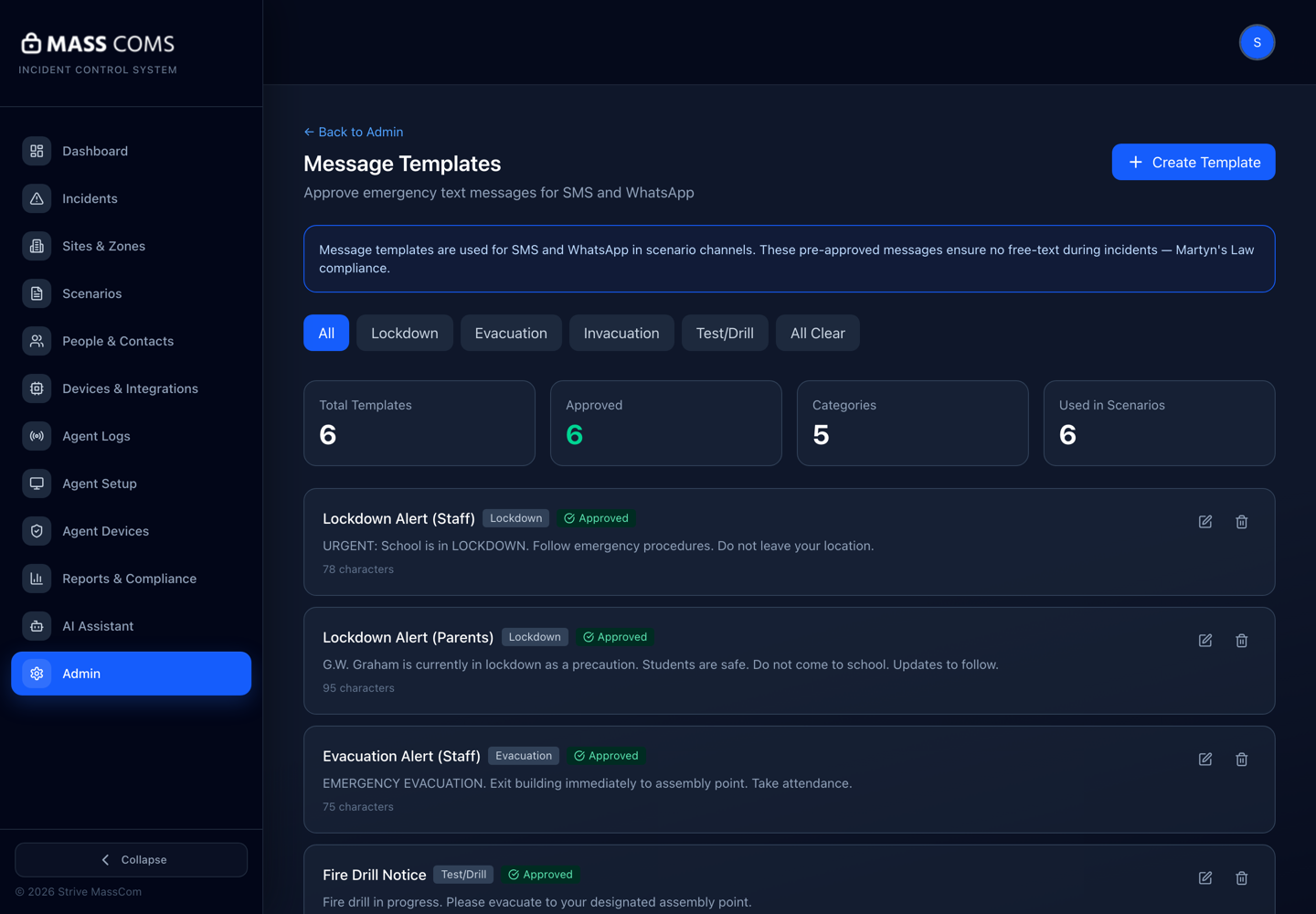
Message templatesMassComs message templates screen showing approved SMS and WhatsApp templates by category. - 06
Record the approval outside the system too
MassComs records that a scenario is approved. Your governance process should record who approved it, when and against which version of the procedure — that is what an inspector will ask for.
Confirm it workedThe scenario shows Approved and appears in the activation list for its type.
Troubleshooting
When it does not go to plan.
| Symptom | Usual cause | Fix |
|---|---|---|
| No approve action is available. | The role does not hold scenarios.approve. | Security Manager and Fire Warden can create and trigger but not approve. Ask a Safety Officer, Senior Leadership or Super Admin. |
| An approved scenario stopped appearing. | Its type or allowed roles were changed after approval. | Re-check the scenario's type and Allowed Roles against the role trying to activate it. |
Good to know
Small details that prevent big confusion.
- Approval is not permanent quality. Re-read approved scenarios on a schedule.
- Templates are shared objects. The Used in Scenarios count is the blast radius of an edit.
- The separation between create and approve is one of the few genuine safety controls in the product. Do not route both to the same person by default.
Was this guide clear?