
Almost every "why can't I see this?" question resolves to this table. MassComs has seven roles, each mapped to a fixed set of permissions, plus per-user custom permissions where a role is not quite right.
Before you start
Have these ready.
- The users.manage permission to make changes; anyone can read this to understand their own access.
- 01
The seven roles
Roles are named for the job, not for the access level, which is why the mapping is worth reading rather than guessing.
Field or control What it does Super Admin Everything: user management, triggering, resolving, scenario creation and approval, sites, people, devices, reports, admin access, organisation settings and compliance. Safety Officer Full emergency authority: trigger, resolve, create and approve scenarios, sites, people, devices, reports, admin access and compliance. Not user management. Security Manager Security incidents: trigger, resolve, people, devices, reports, admin access and compliance. Cannot create or approve scenarios. Fire Warden Fire and evacuation: trigger and people only. Cannot resolve an incident. Senior Leadership Team Strategic: approve scenarios, generate reports, admin access and compliance. Cannot trigger or resolve. Reception Staff Trigger only — the reception panic path. Teacher Trigger only, with class-scoped roll call authorised separately through class assignments. 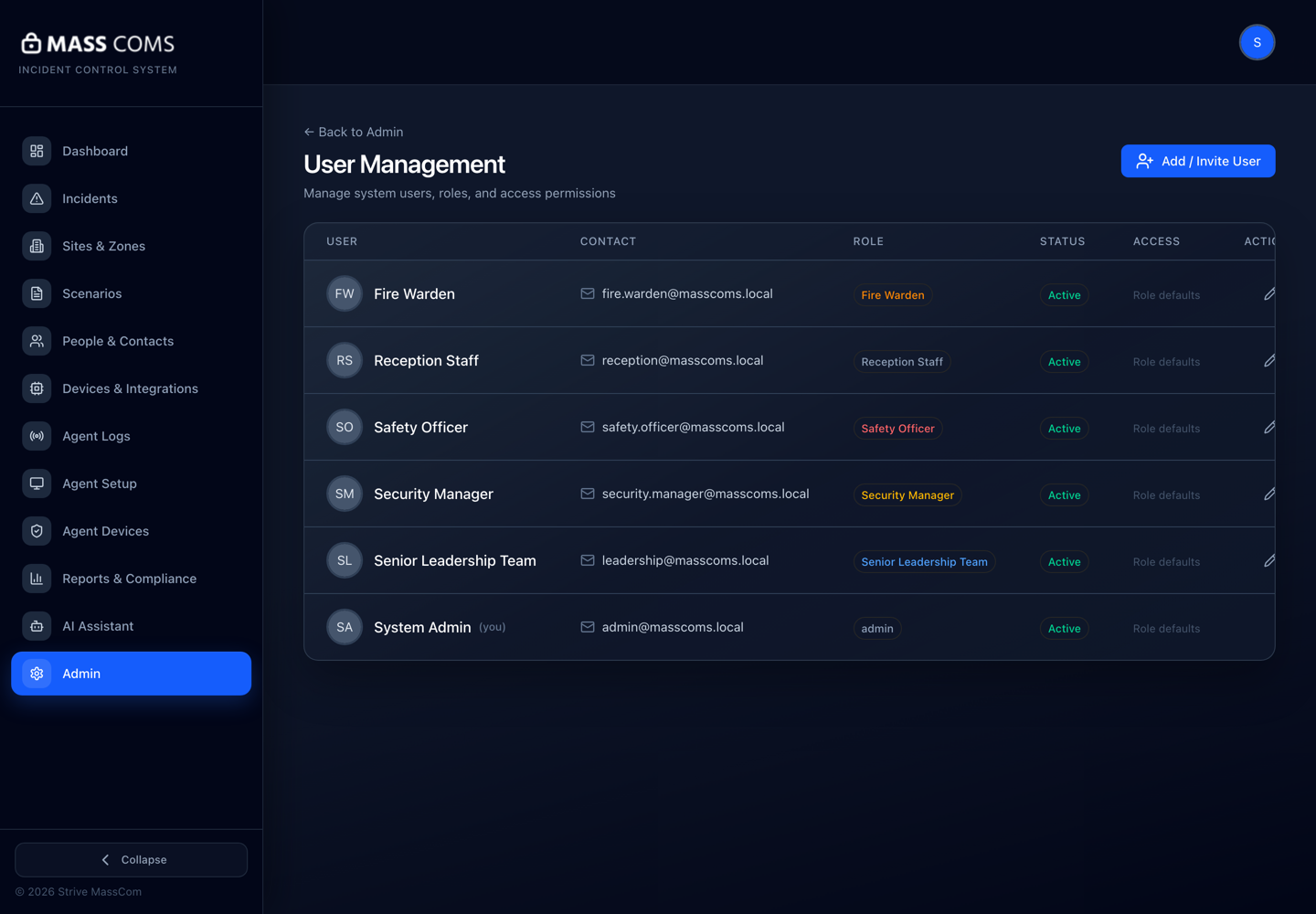
User managementMassComs user management screen showing users and their roles. - 02
The twelve permissions
Roles are built from these. When something is unavailable, it is one of these that is missing.
- users.manage — create, invite and modify users.
- incidents.trigger — activate an incident.
- incidents.resolve — send the all-clear.
- scenarios.create — author response plans.
- scenarios.approve — make a scenario usable.
- sites.manage — sites, zones, floorplans.
- people.manage — the people register and roll call.
- devices.manage — enrollment, locations, integrations.
- reports.generate — reports and evidence exports.
- admin.access — the administration area.
- admin.orgSettings — organisation-level settings and integrations.
- compliance.manage — compliance records and risk assessment.
- 03
The asymmetries worth knowing
Three gaps in the matrix cause most operational surprises.
- Fire Warden and Reception Staff can trigger but cannot resolve. Somebody who can resolve must always be reachable.
- Senior Leadership can approve scenarios but cannot trigger them. Approval authority and activation authority are deliberately separate.
- Security Manager can trigger and resolve but cannot create or approve scenarios.
Check that at least one person with incidents.resolve is available whenever people with incidents.trigger are on site. An incident nobody present can end is a real operational risk.
- 04
Assign roles and site scope
In user management, set the role and the site scope. They are separate: role decides what a person can do, site scope decides where.
Most users should be scoped to their own site. Organisation-wide visibility should be a short, deliberate list.
- 05
Use custom permissions sparingly
Users can hold custom permissions beyond their role. This is useful for genuine exceptions and corrosive if it becomes the norm — a permission model everybody has exceptions to is not a model.
- 06
Review on a schedule
Review roles when people change jobs, and audit the whole list termly or quarterly. The list of people who can activate an emergency response across your site is worth looking at deliberately.
Confirm it workedYou can name, from the list, every person who can trigger and every person who can resolve.
Troubleshooting
When it does not go to plan.
| Symptom | Usual cause | Fix |
|---|---|---|
| A menu item is missing for one user. | Their role does not hold the permission behind it. | Check the permission in the list above rather than comparing screens. |
| A user cannot see another site. | Site scope, not role. | Widen the site scope in user management. Role and scope are set separately. |
| Somebody triggered an incident nobody could end. | Only trigger-capable roles were on site. | Rota planning problem. Make sure resolve capability is always covered. |
Good to know
Small details that prevent big confusion.
- Role names describe jobs. Read the permissions rather than inferring from the title.
- Site scope is as important as role in a multi-site organisation.
- The trigger/resolve asymmetry is the one that bites in practice. Plan around it.
Was this guide clear?