
The all-clear is as consequential as the activation. It tells everyone the event is over, plays the All Clear on the devices that alerted, and returns every device to normal — and it must come from authority rather than from impatience.
MassComs supports your organisation’s safety plan. It does not replace authorised instructions, trained judgement or emergency services.
Before you start
Have these ready.
- The incidents.resolve permission — fewer roles hold it than hold incidents.trigger.
- An explicit decision from whoever is accountable that the event is over.
- 01
Confirm the decision has actually been made
The button does not decide anything. Before you touch it, confirm with the person accountable for the site that the event is over and people can return to normal.
A premature all-clear is more dangerous than a late one. It moves people back towards a situation they were moved away from.
- 02
Resolve from the incident
Open the active incident on Incidents and click Resolve. MassComs asks Confirm stop incident? with one option: Send All Clear notification. Leave it ticked to notify people that it is over; untick it only when the stand-down has already been communicated another way and you are just closing the record.
With the option ticked, resolving fans out the scenario's All Clear — its announcement on kiosk and Agent displays, its message, and its All Clear recipients over SMS, voice, email and push — or the organisation's default All Clear where the scenario has none of its own. The confirmation toast reads All Clear notification sent. Without it, devices simply return to normal and the toast reads All Clear sent to all controllers.
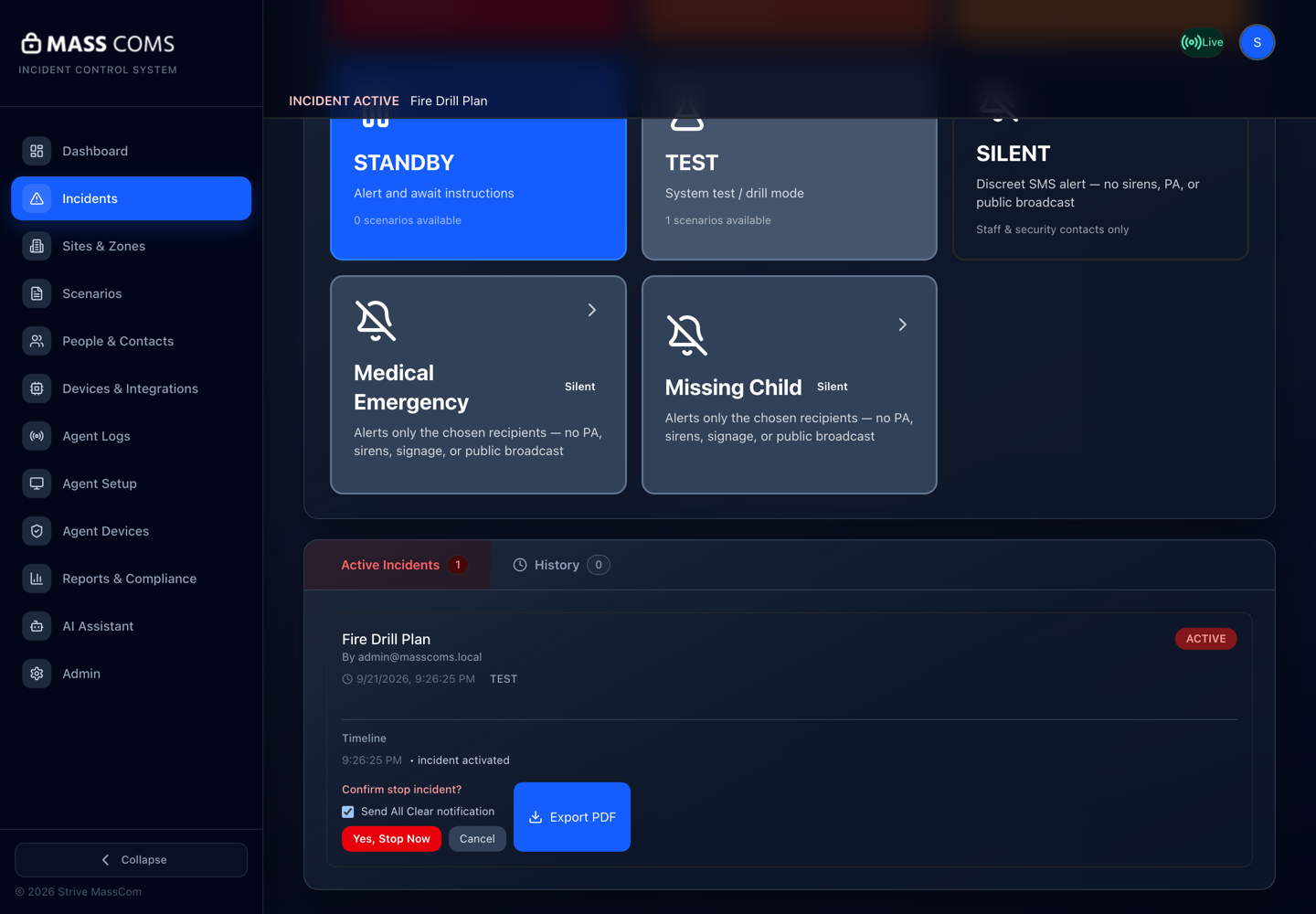
All-clear confirmationMassComs Confirm stop incident dialog with the Send All Clear notification option. - 03
Know what people will see and hear
Resolution is broadcast to every device at once, and each behaves the way its scenario said it would on step 5 of the wizard.
Field or control What it does Agents and kiosks Play the All Clear announcement the number of times configured, show the All Clear message for the configured display duration, then return to normal. Signage Ends the takeover and returns to the scheduled playlist. Mobile app Stops the siren, plays a neutral chime with a spoken all-clear on its own notification channel, and closes the live incident. All Clear recipients The people the scenario named — by default the same audience as its trigger — receive the all-clear message on their own SMS, voice, email and push preferences. Test / Drill incidents No All Clear is sent. Announce the end of a drill verbally as usual. The mobile all-clear is deliberately quiet — a chime, not a siren — so a phone in a pocket signals relief rather than a second alarm.
- 04
Watch it land
Confirm that devices actually returned to normal. A screen still showing takeover, or an Agent still showing INCIDENT ACTIVE in its tray, means that device did not receive the resolution.
Confirm it workedSignage returns to scheduled content, Agent overlays close after the All Clear display duration, and the incident shows as resolved on the dashboard.
- 05
Complete the record while it is fresh
Add anything the system could not know: what actually happened, who was accounted for by hand, decisions taken and by whom. The resolved incident, its timeline and its delivery log — including whether the All Clear notification went — become the evidence record.
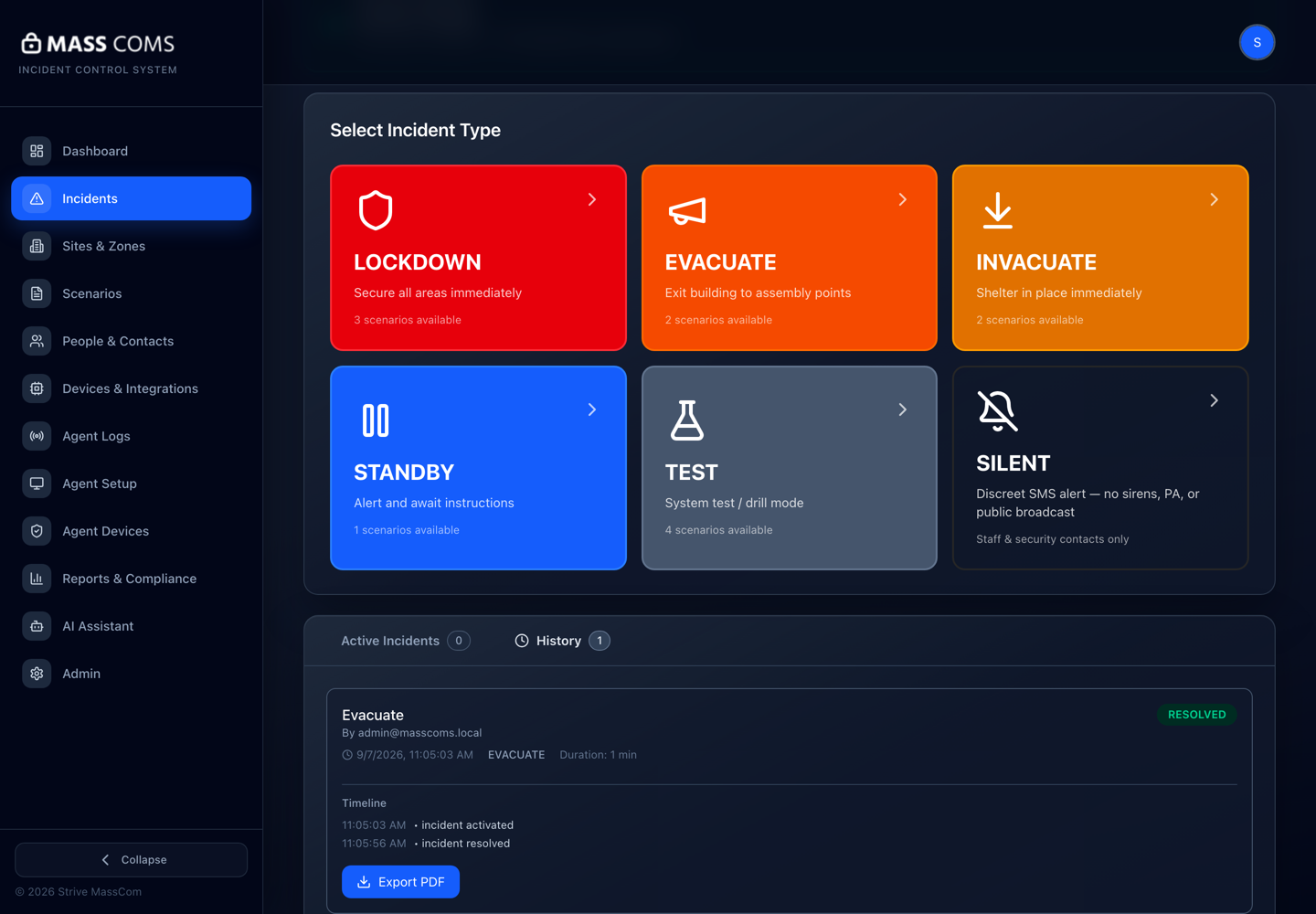
Incident timelineMassComs resolved incident showing its complete timeline. - 06
Debrief before people disperse
The most useful information about an incident exists for about twenty minutes after it ends. Capture it then, not in a report next week.
Troubleshooting
When it does not go to plan.
| Symptom | Usual cause | Fix |
|---|---|---|
| There is no Resolve action. | The role does not hold incidents.resolve. | Fire Warden and Reception Staff can trigger but not resolve. Escalate to a Safety Officer, Security Manager or Super Admin. |
| Devices went quiet but nobody got an all-clear message. | Send All Clear notification was unticked, or the scenario has no All Clear recipients and the organisation has no default All Clear. | Check the scenario's All Clear step and the organisation default. The incident itself is still resolved. |
| Agents and kiosks played nothing on the all-clear. | The scenario's All Clear step has no audio announcement and neither does the default. | Pick an announcement on step 5 of the scenario wizard. See Use live PA and voice announcements. |
| A device stayed in incident mode after the all-clear. | It lost connection during the incident and did not receive the resolution. | See Fix an offline device. The device reconciles on reconnection. |
| People returned before the all-clear. | Verbal stand-down outran the system. | Procedural. Make it explicit that the MassComs all-clear is the authoritative signal, and resolve promptly once the decision is made. |
Good to know
Small details that prevent big confusion.
- Resolution reaches every device at once — there is no partial all-clear.
- What plays and who is told is decided per scenario on the wizard's All Clear step, with an organisation-wide default behind it.
- A Silent scenario's all-clear is silent too: only its recipients are told, and no screen or speaker in the building reacts.
- Fewer roles can resolve than can trigger. Check that someone who can resolve is always reachable.
Was this guide clear?