
MassComs can be activated from four places, and they are not interchangeable. Each has a different actor, a different amount of context available at the moment of triggering, and a different failure mode. Knowing which is which is the difference between a fast, correct activation and a wrong one you then have to undo in front of everybody.
MassComs supports your organisation’s safety plan. It does not replace authorised instructions, trained judgement or emergency services.
Before you start
Have these ready.
- The incidents.trigger permission on whichever surface you intend to use.
- At least one approved scenario for the incident type — activation without one is possible but sends no response plan.
- A clear understanding of your organisation's authorisation rules for who may activate what.
- 01
The four routes at a glance
All four converge on the same incident record and the same fan-out to every receiving device. What differs is who initiates, how much they can specify, and how quickly.
Field or control What it does Dashboard The full-control route. All six incident types, scenario selection, zone scoping, channel review and a confirmation step. Slowest, most deliberate, most auditable. Use it when someone is at a desk and the situation allows a considered activation. Mobile app The route for whoever is standing in the situation. Incident type, scenario, building/floor/zone location, drill flag, then Verify & Trigger. Fast, carried, and the only route that moves with a person. MassComs Agent The fixed computer in a room. A signed-in staff member activates from the machine in front of them, which means the actor and the location are both already known. On-site controller Machine-to-machine. A physical panel, panic button or integrated system posts an activation through the local connector. No human interface at the moment of triggering. - 02
Route 1 — the dashboard
Incidents → Incident Control is the canonical activation path. It presents the six incident types — plus a violet Silent tile for each approved Silent custom scenario — then walks through scenario, scope and a review before anything is sent.
The dashboard is the only route that shows you the full blast radius before you commit: which zone, which channels, which scenario, which controllers. If the situation gives you thirty seconds to think, this is where you should be.
- Select Incident Type — LOCKDOWN, EVACUATE, INVACUATE, STANDBY, TEST or SILENT — or a Silent scenario tile, which skips straight to scope.
- Choose a pre-approved scenario, or proceed with No specific scenario.
- Fill in the Details box if the scenario asks for one — it goes into the messages sent out.
- Set the Target Zone — start narrow, widen deliberately.
- Optionally dispatch to a Specific Controller rather than everything.
- Review details before activating, then activate.
Trigger incident with default settings exists for speed, but it uses the defaults rather than your judgement. Prefer the explicit path unless you have rehearsed the default.
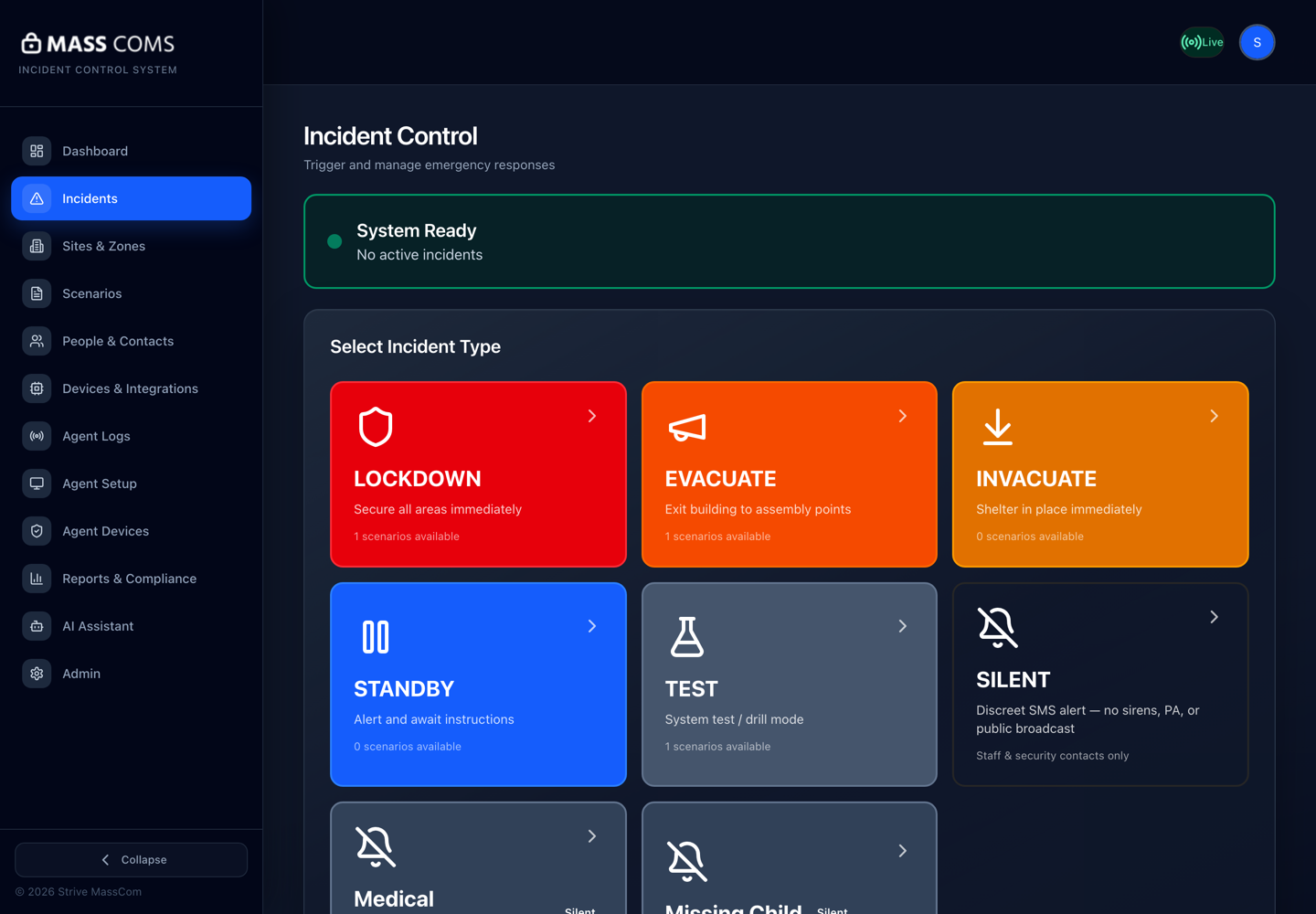
Incident ControlMassComs Incident Control showing the six incident types with their available scenario counts. - 03
Route 2 — the mobile app
On iOS and Android, Trigger Incident on the home screen starts the mobile activation flow. It asks for the incident type, then a scenario, then where you are.
The mobile route exists because the person who first sees a situation is rarely the person at the dashboard. Its whole design is about compressing the decision to what can be answered while walking.
- Select Incident Type.
- Choose a scenario — the app shows No scenarios available for this incident type if none is approved.
- Set Location: Building, Floor and Zone (label).
- Optionally Mark as Drill (test scenario).
- Verify & Trigger, then watch Trigger Status.
Confirm it workedTrigger Status shows the incident with its delivery data and timeline. If it shows No delivery data yet for more than a few seconds, the activation reached the platform but has not fanned out — stay on the screen and check.
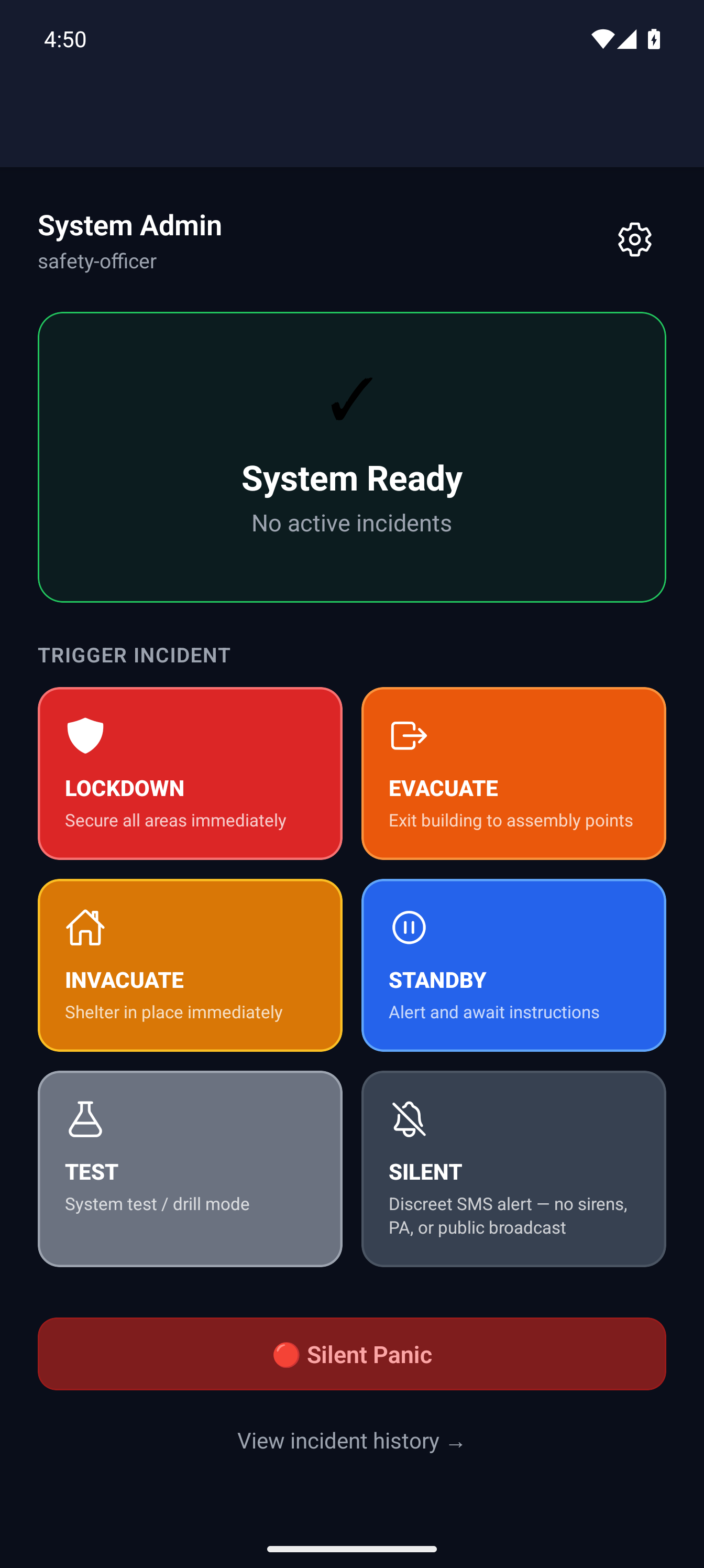
Mobile home with trigger optionsMassComs mobile app home screen showing system ready and trigger options. - 04
Route 3 — the MassComs Agent
The Agent runs on a fixed machine in a known room, and a staff member signs in to it with Microsoft SSO or an email and password. That combination means an Agent-initiated activation already knows both who raised it and exactly where they are.
This is the route that covers the case nobody plans for: a member of staff at a classroom or reception PC, no phone in hand, needing to raise an alarm without leaving the room.
The Agent's room assignment is what makes this route valuable. An Agent that was never assigned to a site and room can still raise an incident, but arrives without the location context that is its main advantage.
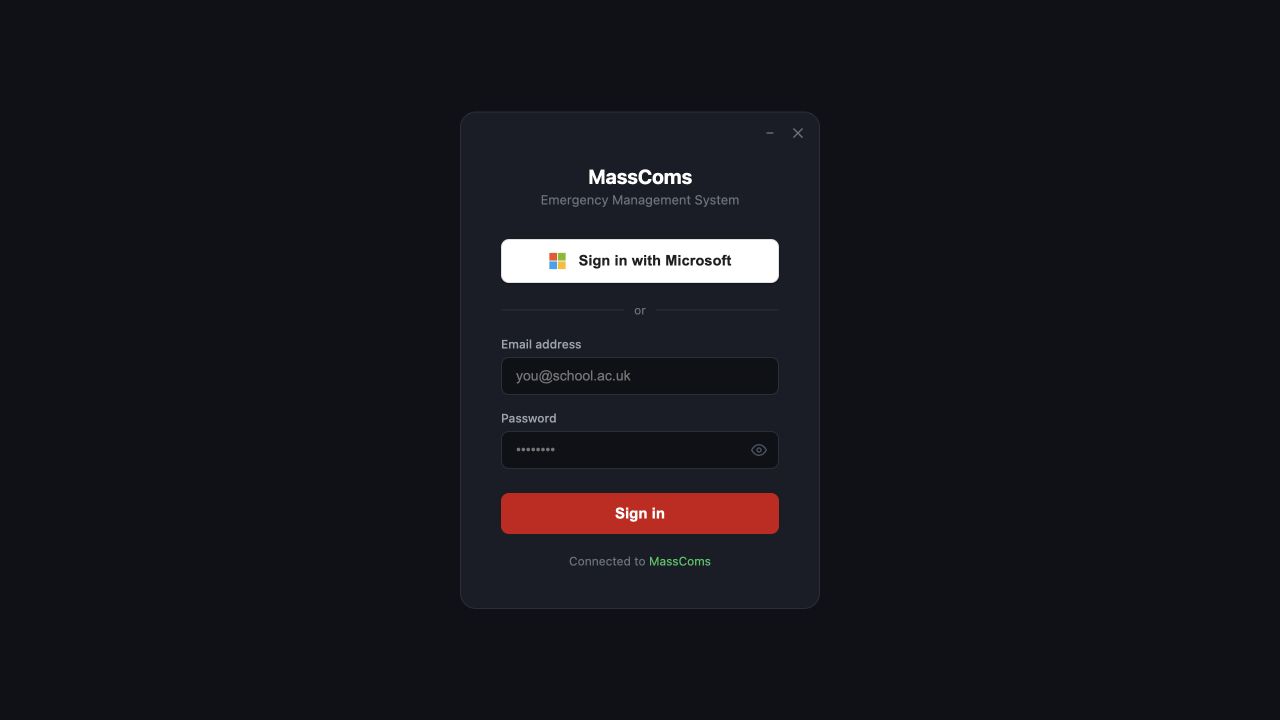
Agent staff sign-inMassComs Agent sign-in window with Microsoft SSO and email options. - 05
Route 4 — the on-site controller
The local connector accepts an activation from a physical system — an alarm panel, a hardwired panic button, an access-control event — and posts it into MassComs as an incident. There is no interface at the moment of triggering; the button is the interface.
This path authenticates with the organisation's connector secret rather than a user session, and carries an identity for the person or system that triggered it, so the resulting incident still has an actor in its record. Activations are idempotent on a client-supplied identifier, which is what allows a controller to retry safely after a network drop without producing two incidents.
A controller activation can also carry a kiosk roll-call snapshot, so an incident raised by hardware can still arrive with a list of who was signed in at the time.
The connector secret is an organisation-wide credential and is for connector REST integrations only. AgentHub does not accept it — each device receives a separately revocable credential during its own setup. Never distribute it as a per-device credential during mass deployment.
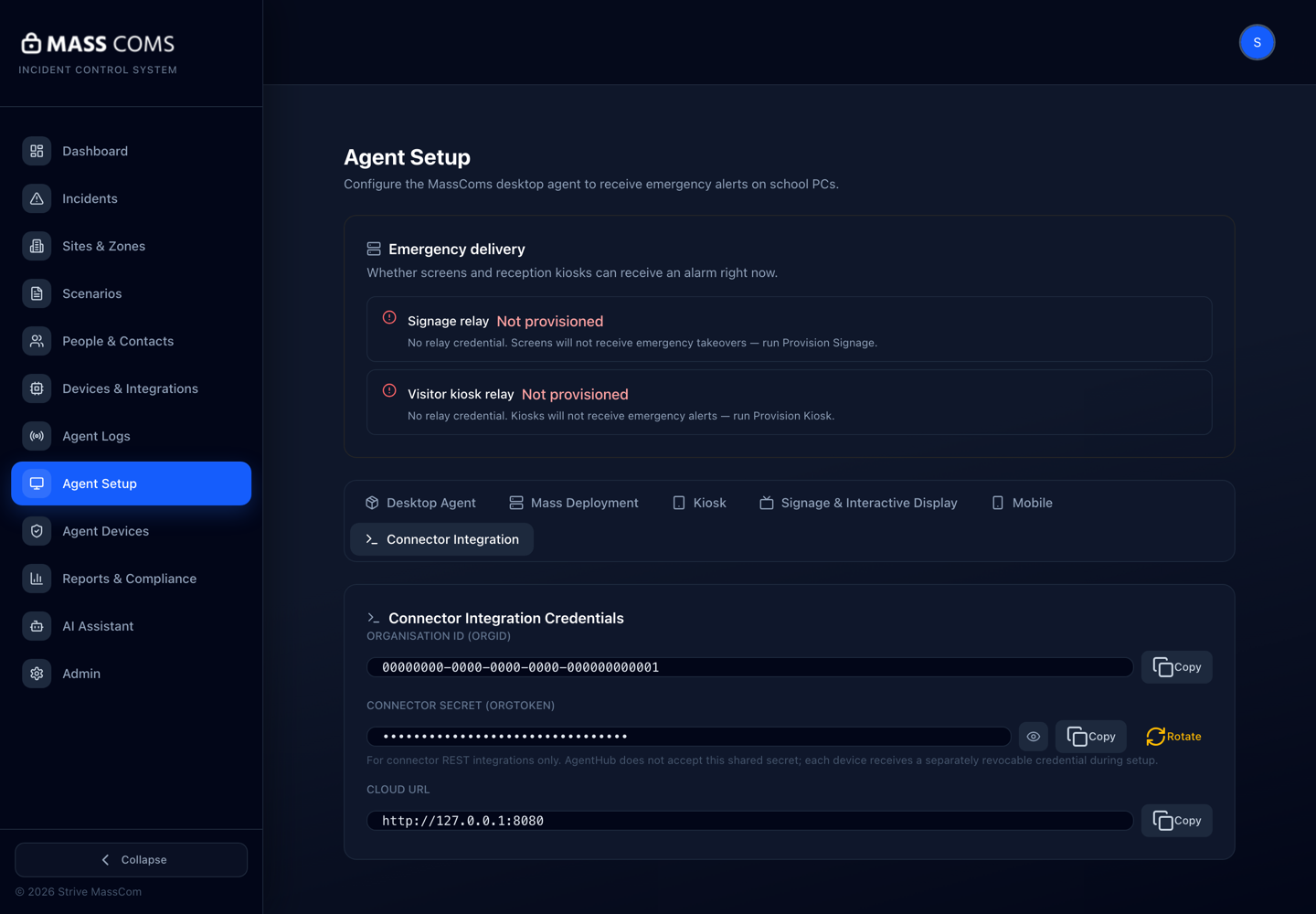
Connector Integration credentialsMassComs Agent Setup Connector Integration tab showing Organisation ID, Connector Secret with a rotate action, and Cloud URL. - 06
Silent panic is a separate decision, not a fifth route
SILENT is one of the six incident types and is available from the dashboard and the mobile app. It raises a discreet alert — no sirens, no PA, no public broadcast — and notifies configured security and police numbers by SMS instead.
Treat it as a distinct decision rather than a quieter version of an alarm. The whole point is that the situation is one where visible response would increase risk.
Silent custom scenarios are the same decision aimed inward: a Medical Emergency or Missing Child scenario that quietly reaches a chosen group of staff on their own phones, devices and email, with nothing on any screen or speaker. They appear as Silent tiles on both the dashboard and the mobile app once approved.
See Raise a silent panic alert for the full procedure.
- 07
Choosing between them under pressure
The practical rule: use the surface you are already touching. The seconds spent moving to a preferred device are worse than the small loss of control from using the one in your hand.
- At a desk with time to think — dashboard.
- Walking, or in the room where it is happening — mobile.
- At a fixed workstation with no phone — Agent.
- No time to touch anything — the physical button wired to the controller.
- 08
What is identical regardless of route
Once activated, every route produces the same thing: one incident record, targeted at the same scope, delivered over the same channels, recorded in the same timeline, and resolvable only by someone with incidents.resolve.
This matters for training. Staff do not need to learn four systems; they need to learn one procedure and four ways to start it.
Troubleshooting
When it does not go to plan.
| Symptom | Usual cause | Fix |
|---|---|---|
| The trigger option is missing on a surface. | The signed-in role does not hold incidents.trigger. | Safety Officer, Security Manager, Fire Warden, Reception Staff and Teacher all hold incidents.trigger; Senior Leadership does not. Check the role rather than the device. |
| No approved scenarios for this incident type yet. | No scenario of that type has been approved. | Approve one — see Approve scenarios and message templates. You can proceed with No specific scenario, but responders then receive no response plan. |
| Two incidents appeared for one controller event. | The controller retried without a stable client-supplied identifier. | Have the integrator send the same id on retries. Activations are idempotent on that id specifically to prevent this. |
| A mobile activation shows no delivery data. | The incident was created but the target scope resolved to no connected devices. | Check the zone actually contains rooms with devices, and that those devices are connected. See Monitor connected devices. |
Good to know
Small details that prevent big confusion.
- Every route lands in the same incident record, so a drill run from a phone is as valid as evidence as one run from the dashboard.
- The dashboard is the only route that shows the full scope before committing. Where the situation allows it, that review is worth the seconds.
- Ending an incident is not symmetrical with starting it — resolving requires incidents.resolve, which fewer roles hold than incidents.trigger.
Was this guide clear?