
This is the route with the most control and the most confirmation. Use it whenever the situation gives you the seconds to be deliberate.
MassComs supports your organisation’s safety plan. It does not replace authorised instructions, trained judgement or emergency services.
Before you start
Have these ready.
- The incidents.trigger permission.
- An approved scenario for the type you intend to use.
- Authorisation under your organisation's own procedure — the permission is technical, the authority is not.
- 01
Open Incident Control
Go to Incidents. When nothing is active the panel reads System ready for activation, alongside any integration status. Confirm you are in the right organisation and site before you touch anything.
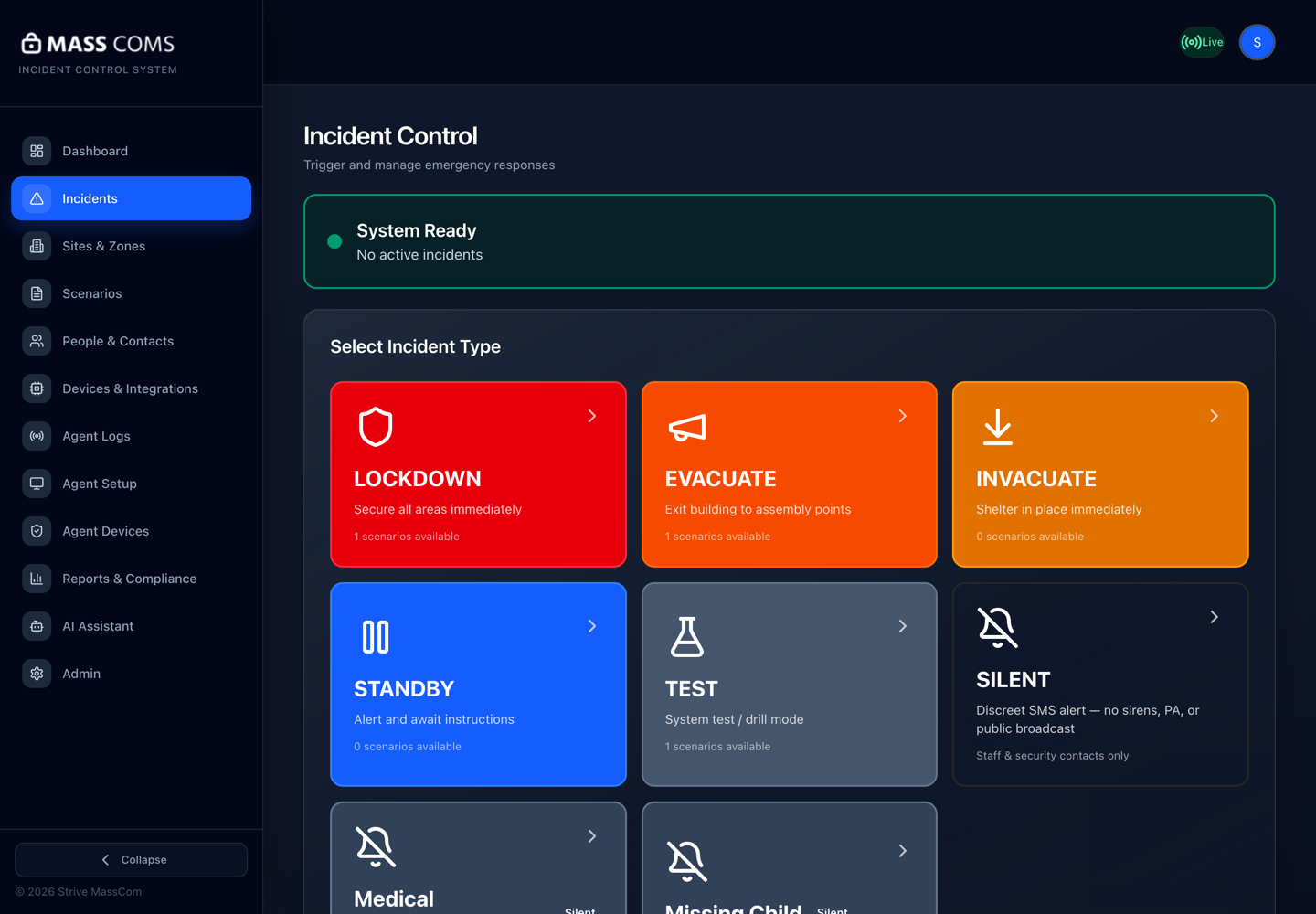
Incident control ready stateMassComs incident control screen in its system-ready state. - 02
Select the incident type
Choose from LOCKDOWN, EVACUATE, INVACUATE, STANDBY, TEST or SILENT. The count of available scenarios is shown against each type, which is a useful sanity check before you commit. Any approved Silent custom scenario — a Medical Emergency, a Missing Child — has its own tile with a violet Silent badge; choosing one goes straight to scope.
Read the type name back to yourself before continuing. Type selection is the error that is hardest to recover from once devices have fired.
- 03
Choose the scenario
Pick a pre-approved scenario or proceed without one. The scenario carries the response steps people will read, the channels used, and the roles permitted to run it.
Proceeding with No specific scenario sends the incident type with no response plan attached. Responders get an alert and no instructions — occasionally the right call for a fast-moving situation you have not planned for, but never the default.
If the list is empty you will see No approved scenarios for this incident type yet — the scenario exists but has not been approved, or none has been created.
- 04
Set the scope
Choose the Target Zone. Scope narrowly and widen if needed rather than starting organisation-wide.
Zone scope resolves down to the rooms in that zone, then the devices and people in those rooms. Rooms not assigned to any zone are excluded — if a wing seems not to have received an incident, check its zone membership before suspecting delivery.
Confirm it workedThe review step should name the zone you intended. If it names the whole organisation when you selected a zone, stop and re-select.
- 05
Decide on controller dispatch
Where on-site controllers are configured, you can dispatch to a Specific Controller rather than all of them. This targets the physical systems a single controller drives.
Leave this alone unless you specifically intend a single-controller action. The default reaches everything configured.
- 06
Add situation context where the scenario asks for it
A SILENT panic alert takes a Situation (staff-only, logged) note and an Approximate location (optional). A Custom scenario with a Details prompt shows its own box — labelled by whoever built the scenario, with quick options to tap — and that text is included in the messages sent out for the incident.
Write it as if it will be read in an investigation, because it will be. Facts, time, location, description; not interpretation. The confirmation screen tells you whether the text goes only to the scenario's recipients (Silent) or into the broadcast.
- 07
Review, then activate
The confirmation step restates type, scenario, scope and channels under Review details before activating. Read it as a checklist rather than a formality.
Confirm it workedAfter activating, the incident appears as active and acknowledgements begin arriving within seconds.
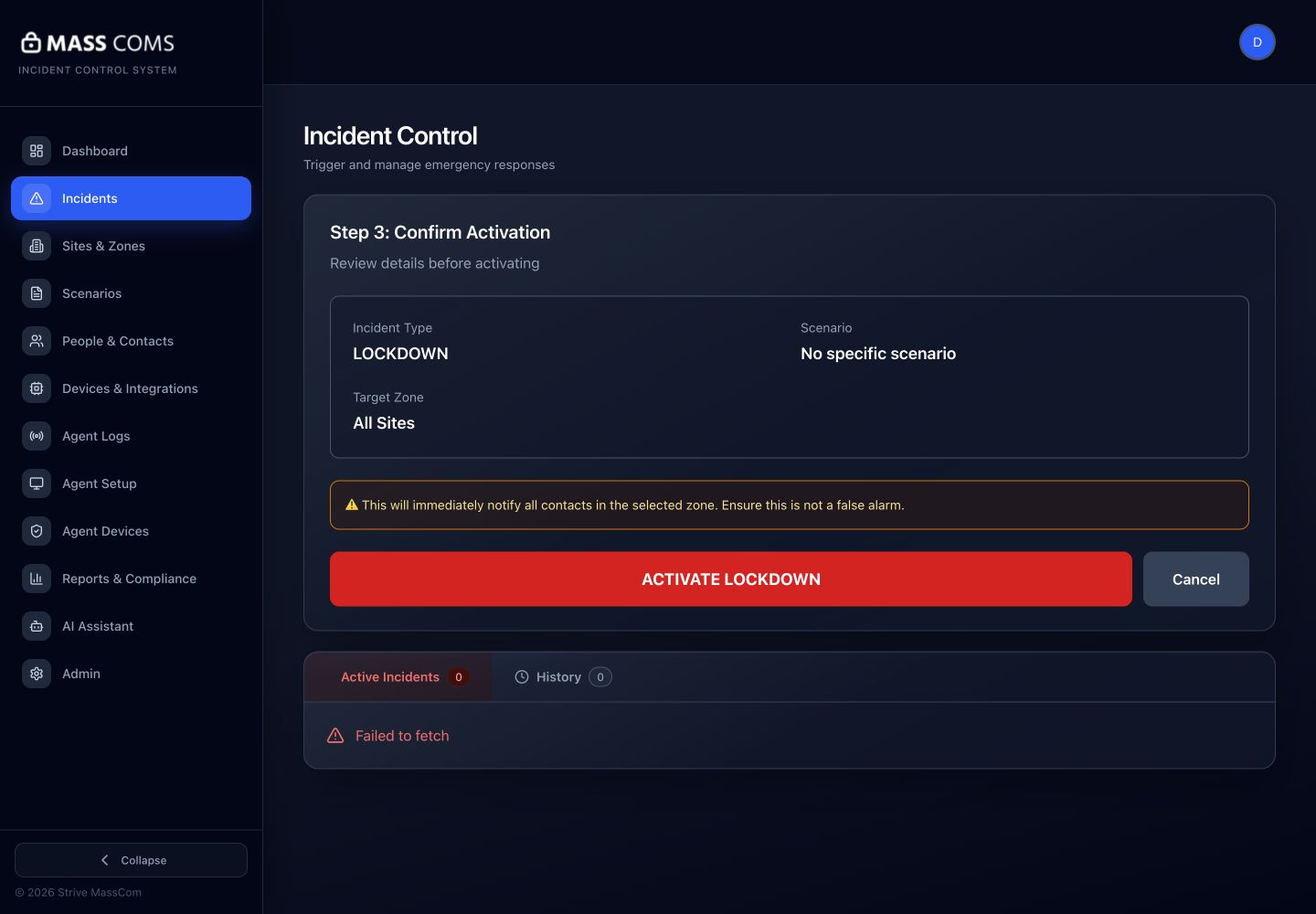
Activation confirmationMassComs confirmation step before an incident is activated. - 08
Stay with it
Do not activate and walk away. The live view shows the timeline, acknowledgements, help requests and the kiosk on-site roll — that is your picture of what is actually happening.
See Monitor acknowledgements and people during an incident.
Troubleshooting
When it does not go to plan.
| Symptom | Usual cause | Fix |
|---|---|---|
| The activation panel is not shown. | The role lacks incidents.trigger, or an incident is already active. | Check the role first. If one is already active, manage it rather than starting a second. |
| Activation succeeded but nothing acknowledged. | The zone contains no connected devices, or people in it have no working notifications. | Check Agent Devices and Fix missing mobile alerts. |
| Scenario list shows fewer options than expected. | Scenarios are filtered by incident type and by the roles allowed to run them. | Check the scenario's type and its Allowed Roles. A scenario your role is not allowed to run is not offered to you. |
Good to know
Small details that prevent big confusion.
- The confirmation step exists because an activation cannot be quietly withdrawn — ending one is itself an event on every device.
- Trigger incident with default settings is fast and unreviewed. Rehearse it before relying on it.
- The situation note is staff-only but is logged. Treat it as part of the permanent record.
Was this guide clear?