
The mobile route is designed for the person standing in the situation. Everything about it is a compromise in favour of speed, which means the few fields it does ask for all matter.
MassComs supports your organisation’s safety plan. It does not replace authorised instructions, trained judgement or emergency services.
Before you start
Have these ready.
- The app installed and signed in, with notifications and critical alerts allowed.
- A role holding incidents.trigger.
- An approved scenario for the type — the app will tell you if there is none.
- 01
Open Trigger Incident from the home screen
The home screen shows System Ready when there is no active incident, and Active Incident when there is. Trigger Incident starts the activation flow.
If the banner reads No internet connection. Some features may be limited, the app is offline. It will still let you prepare, but do not assume the activation left the device until Trigger Status says so.
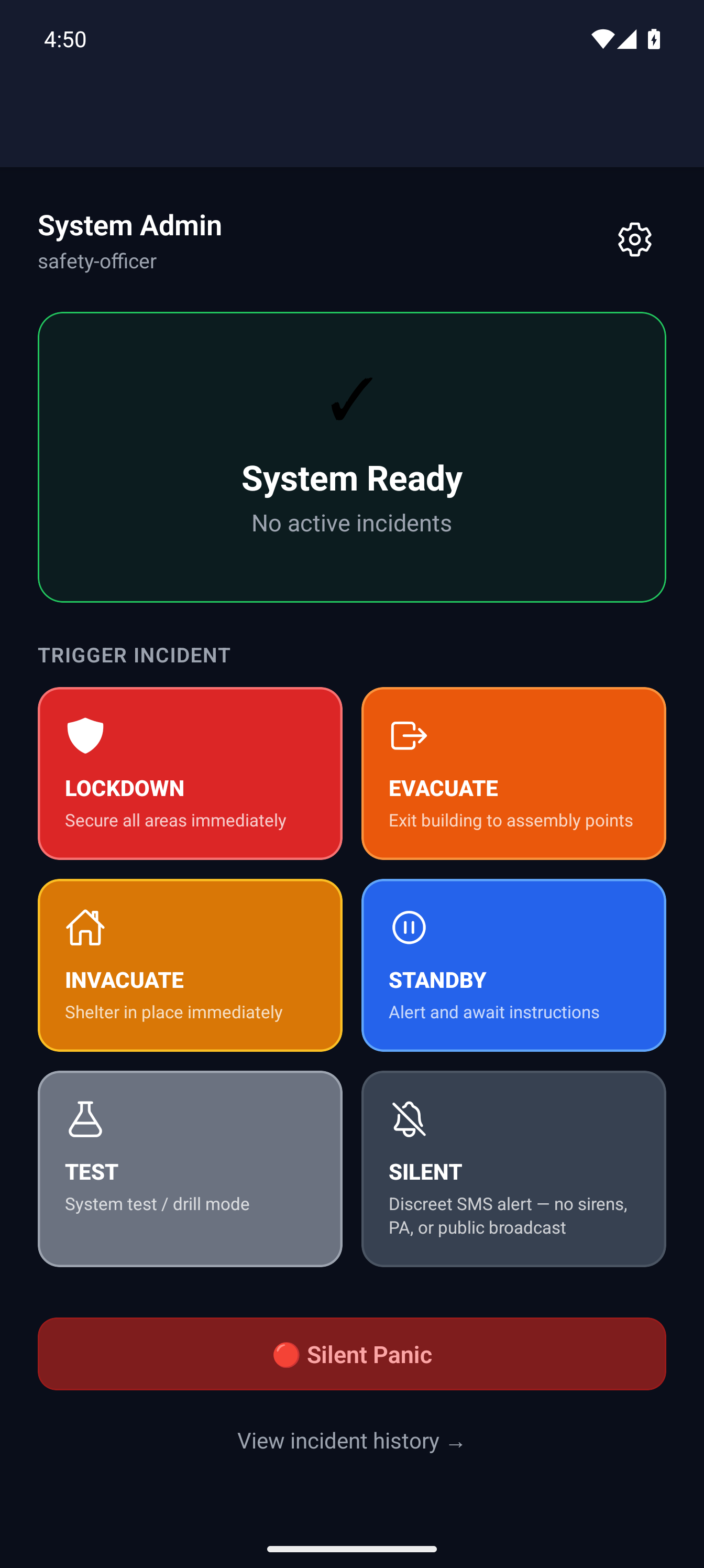
Mobile home with trigger optionsMassComs mobile home screen showing System Ready and trigger options. - 02
Select the incident type
Choose the type. The same six types are available as on the dashboard, and the same rule applies — this is the decision that sends people in a direction. From app version 1.1.4, approved Silent custom scenarios also appear here as tiles with a Silent badge; they skip the scenario step and go straight to scope.
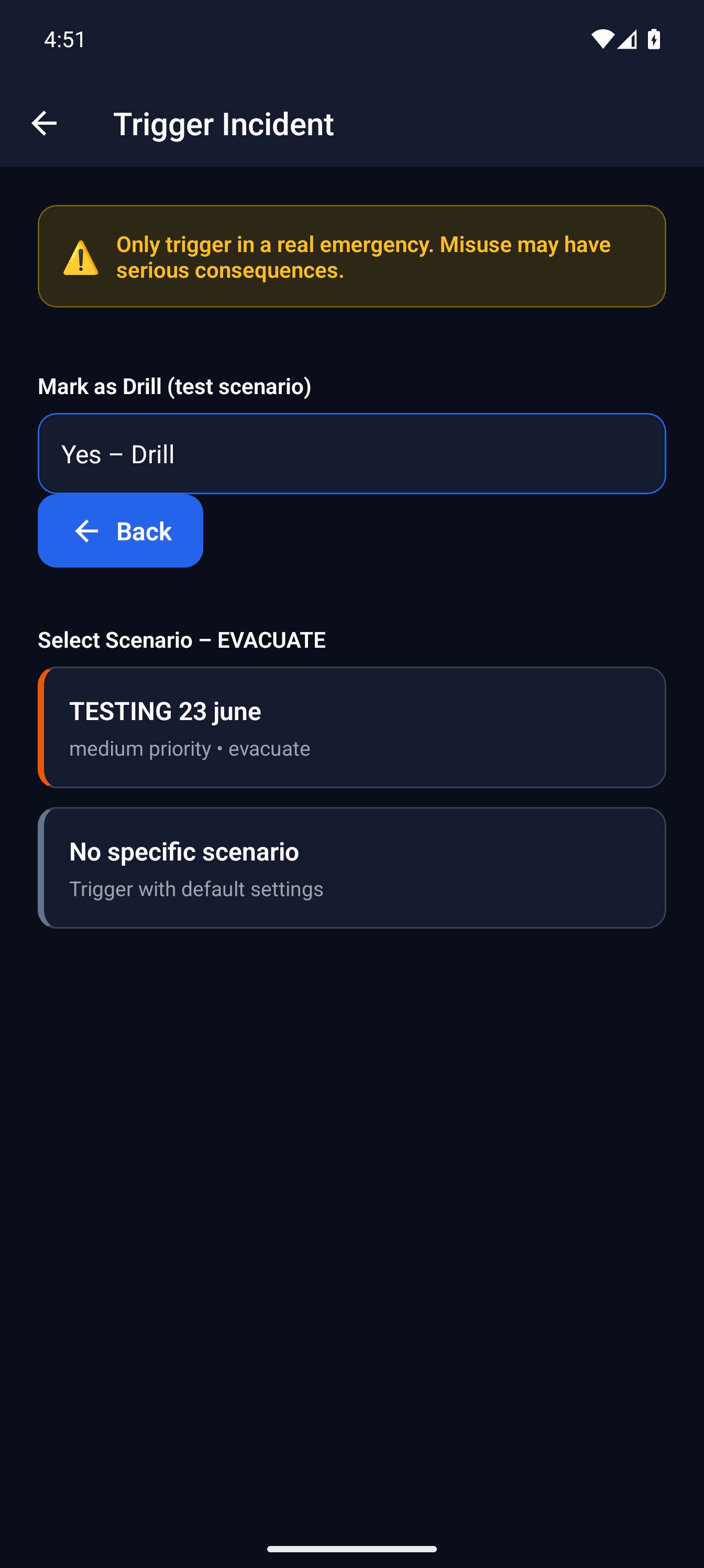
Select evacuation scenarioMassComs mobile app showing incident type and scenario selection. - 03
Choose the scenario
Approved scenarios for that type are listed. If none exists you will see No scenarios available for this incident type. If the scenario has a Details prompt, the app shows the same box as the dashboard, with its quick options.
This is a setup problem surfacing at the worst moment. Make sure each type your organisation would realistically use has at least one approved scenario before you need it.
- 04
Set your location
Give Building, Floor and Zone (label). This is what lets the platform target the right area rather than everything, and it is the field most often rushed.
If you are unsure of the zone, be right about the building and floor rather than guessing the zone. An over-broad but correct scope is safer than a narrow wrong one.
Trigger setupMassComs mobile app trigger setup screen with location fields. - 05
Decide whether this is a drill
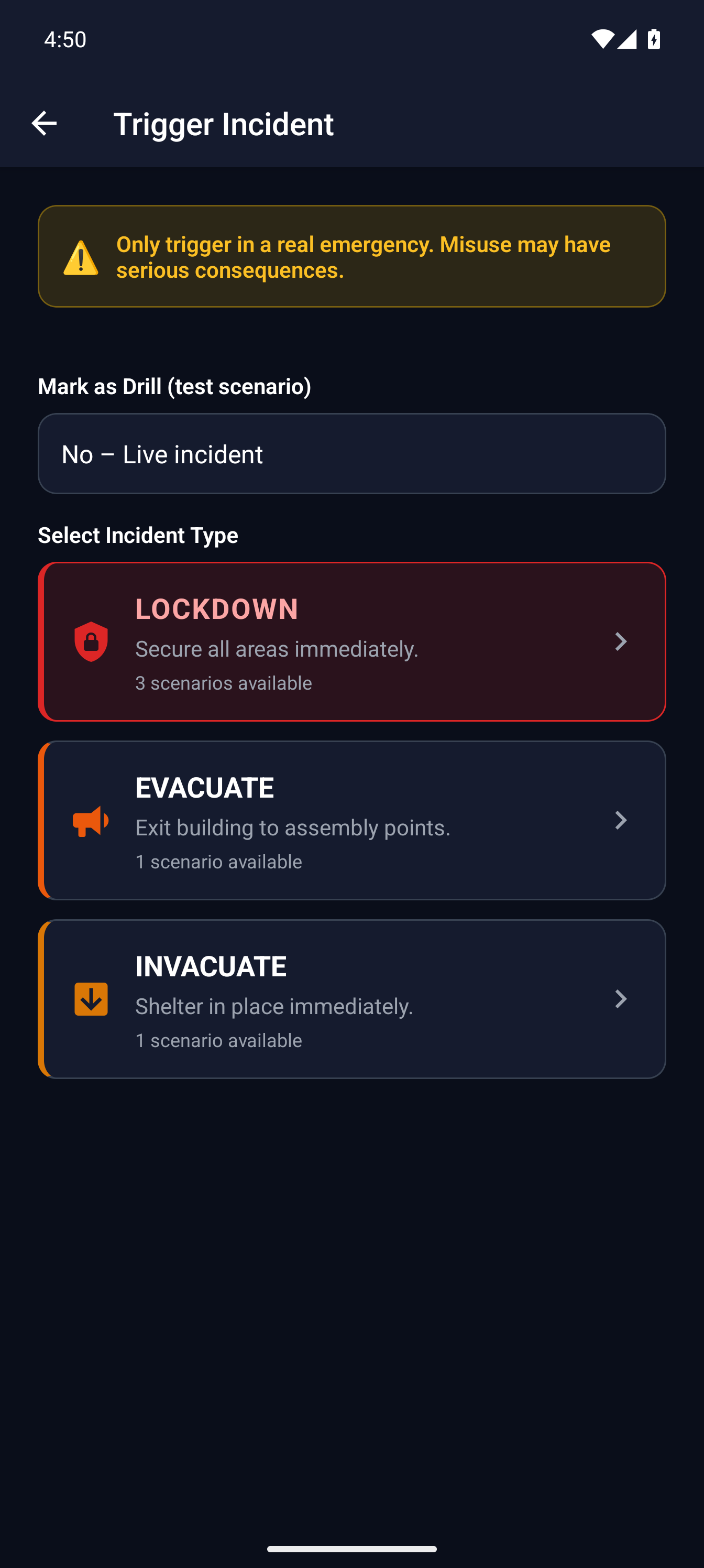
Mark as Drill (test scenario) records the activation as a drill. Use it for any planned exercise.
An unmarked drill is indistinguishable from a real event to everyone who receives it, and to the record afterwards. Mark it.
Drill confirmationMassComs mobile app confirming a drill before triggering. - 06
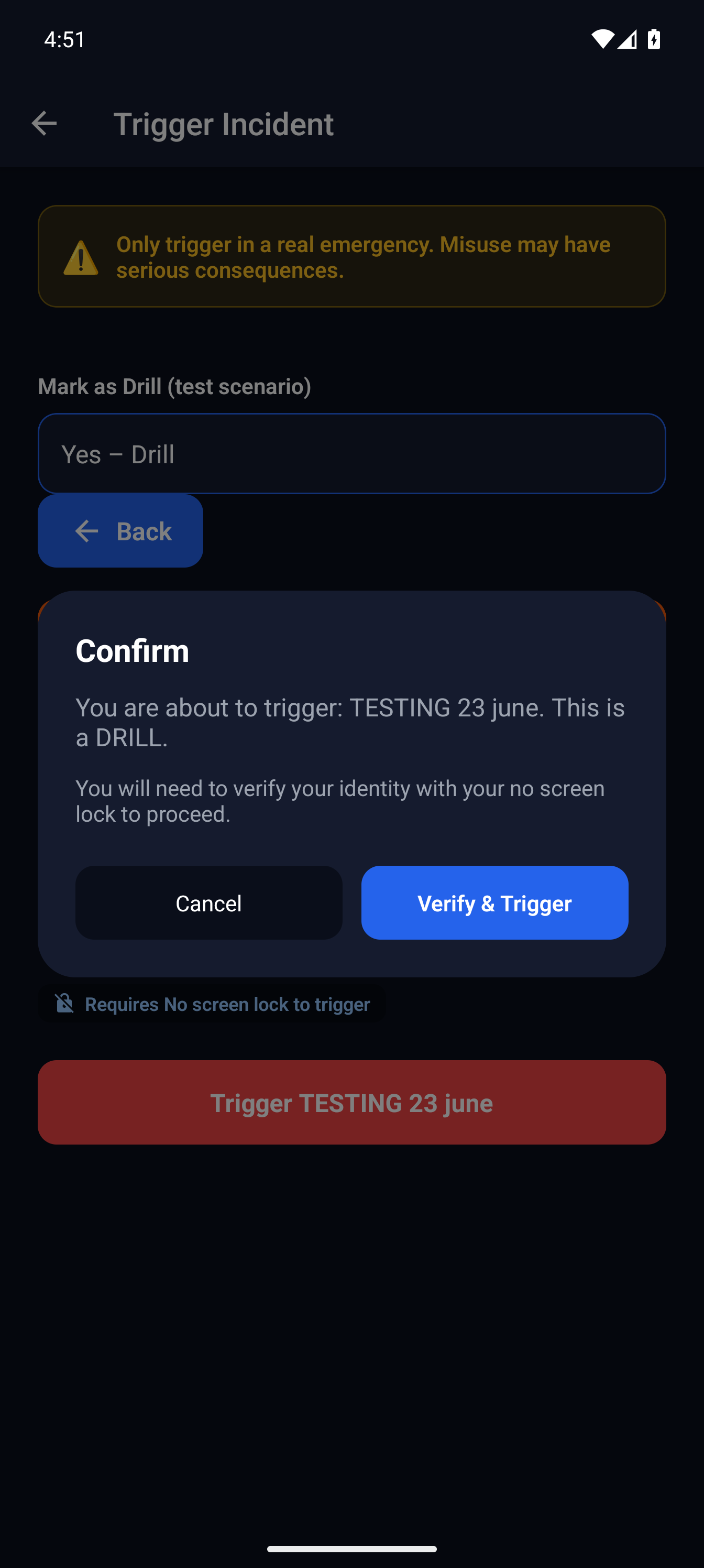
Verify & Trigger
The final screen restates what you are about to send. Verify & Trigger commits it.
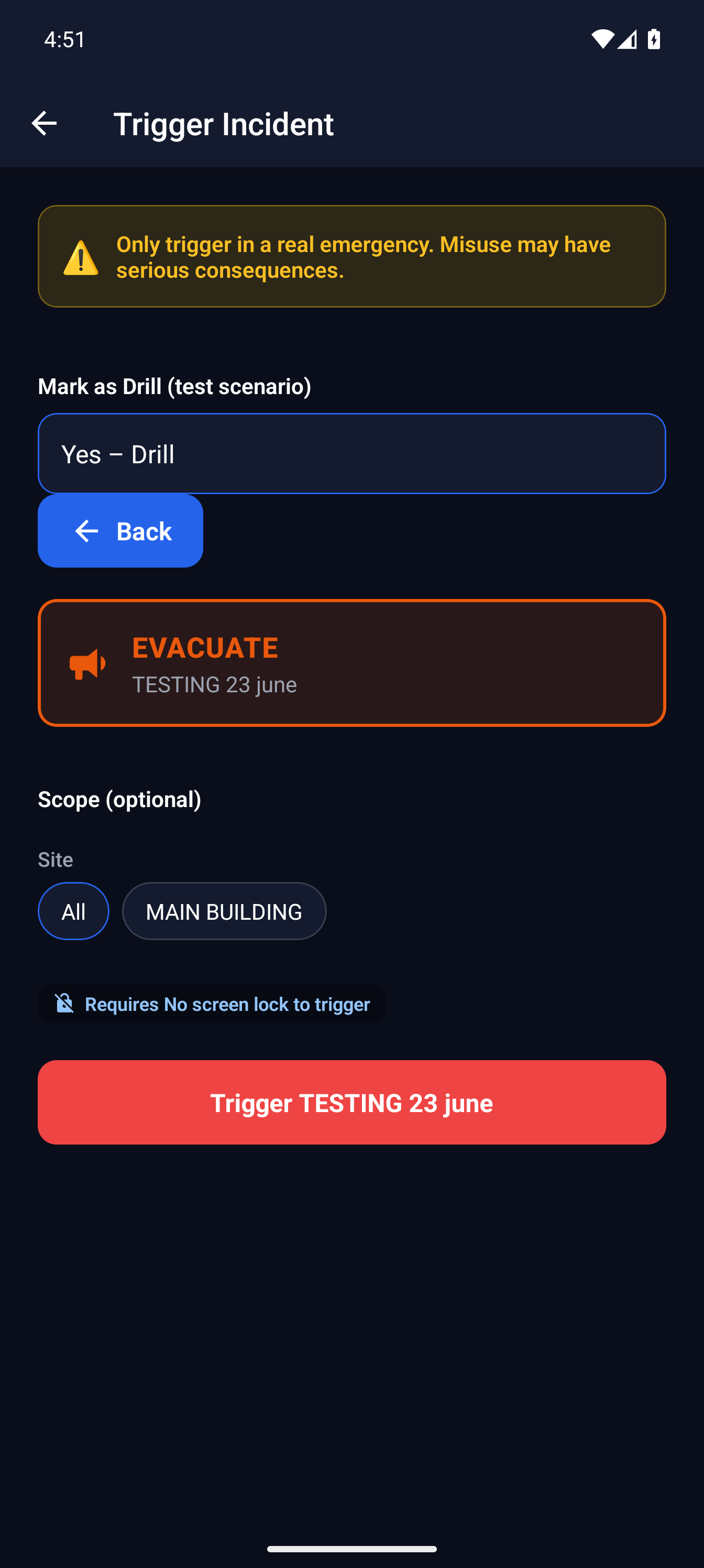
Ready to triggerMassComs mobile app ready-to-trigger confirmation screen. - 07
Read Trigger Status
After triggering, the app moves to Trigger Status, showing delivery data and a timeline. This is your confirmation that the activation left the device and fanned out.
No delivery data yet immediately after triggering is normal for a moment. If it persists, the incident exists but has not reached devices — go and look at the incident on another surface rather than triggering again.
Do not trigger a second time because the first appeared slow. You will create two incidents and split the response.
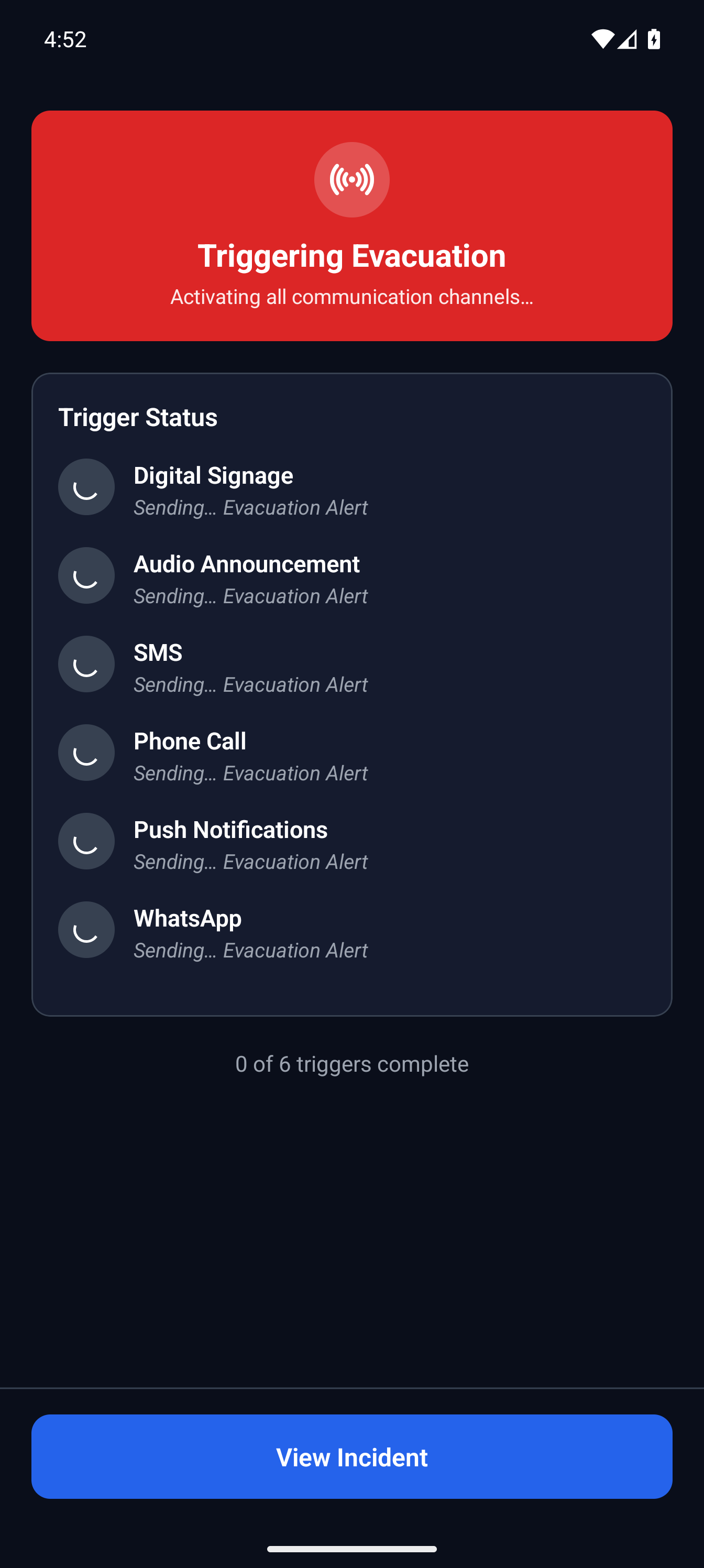
Trigger statusMassComs mobile app trigger status screen with delivery data and timeline. - 08
Move to the incident view
View Incident takes you to the live incident, where you can see the response plan, acknowledgements and roll call as they arrive.
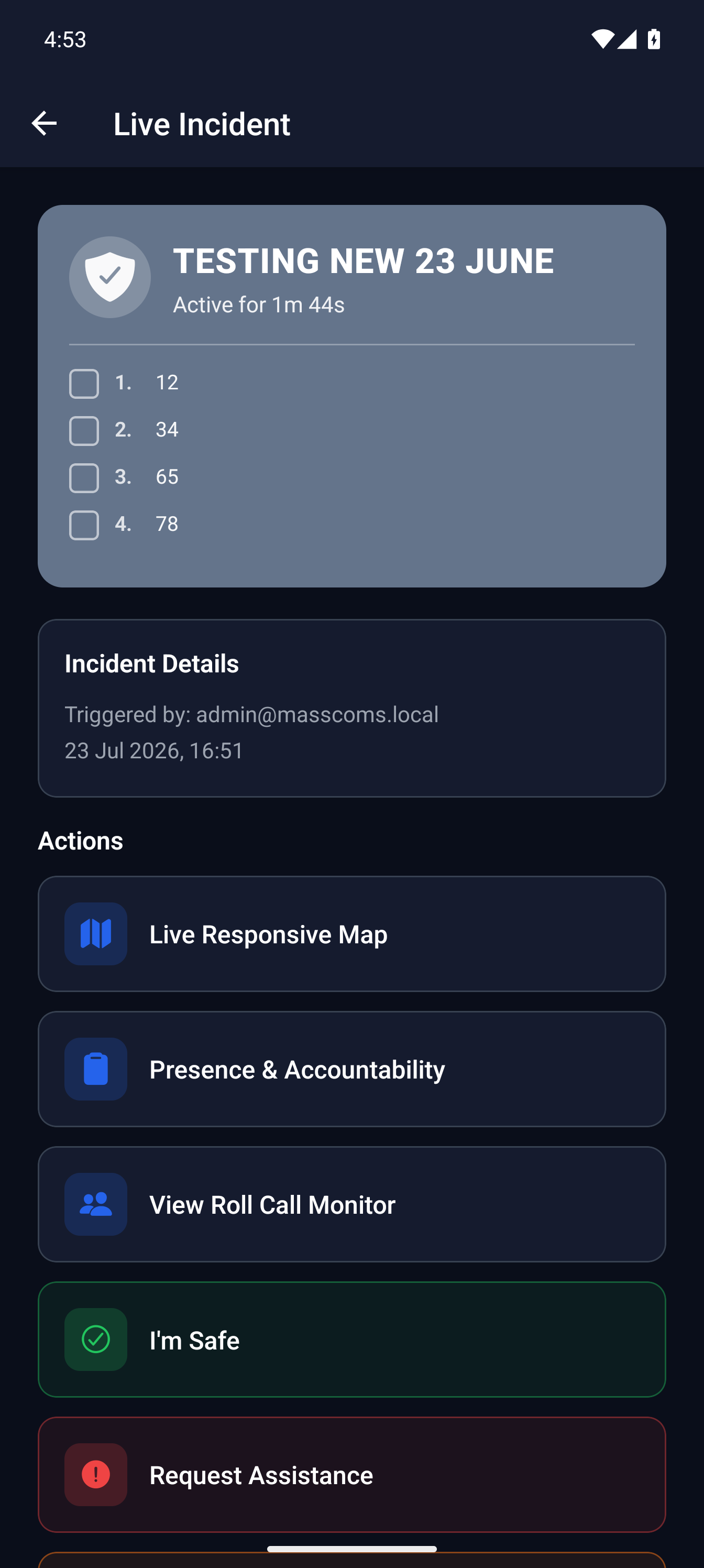
Active drillMassComs mobile app showing an active drill with response actions.
Troubleshooting
When it does not go to plan.
| Symptom | Usual cause | Fix |
|---|---|---|
| Trigger Incident is not on the home screen. | The signed-in role does not hold incidents.trigger. | Check the role in user management. Senior Leadership does not hold it; Teacher does. |
| Missing incident ID after triggering. | The activation did not complete server-side. | Check connectivity and look for the incident on another surface before retrying. Retrying blind risks a duplicate. |
| The location fields are empty with no options. | The site structure has no buildings or floors, or the user is scoped to a site with none. | Complete the site structure — see Create a site and zone structure. |
Good to know
Small details that prevent big confusion.
- The mobile route is the only one that moves with a person, which makes correct notification setup on that device doubly important.
- Mark as Drill is the difference between an exercise and an event in the permanent record.
- Silent Panic is a separate entry point in the app, not a type buried inside this flow.
Was this guide clear?