
This is the screen a member of staff will actually use during an emergency. Everything on it is designed to be usable in about ten seconds while moving.
MassComs supports your organisation’s safety plan. It does not replace authorised instructions, trained judgement or emergency services.
Before you start
Have these ready.
- The app installed, signed in, with notifications and critical alerts allowed.
- 01
Read the incident type first
The type is the instruction. LOCKDOWN means secure in place, EVACUATE means leave by the safest route, INVACUATE means come inside, STANDBY means wait for more. A Silent incident — a Missing Child or Medical Emergency scenario sent to you as one of its recipients — arrives without a siren, as a vibration and a notification, and opens as the scenario's live incident: you are being asked to act quietly, not to move the building.
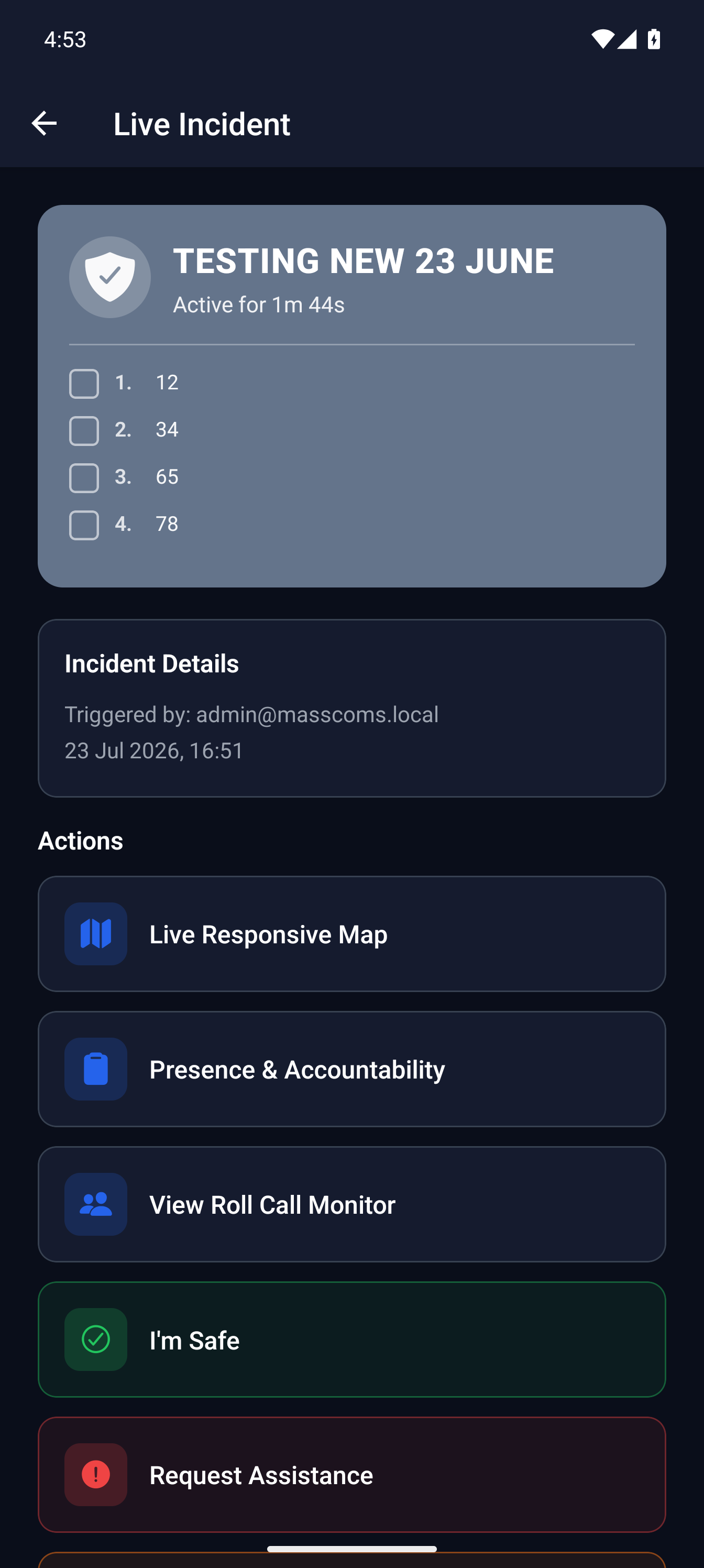
Active incident on mobileMassComs mobile app showing an active incident with response actions. - 02
Follow the response plan
Instructions from the approved scenario appear under the incident. Where no scenario was attached the app shows No response plan assigned — in that case follow your organisation's standing procedure for that incident type.
What should I do now? opens the response plan directly. It is the fastest route to instructions if you have scrolled away.
- 03
Mark yourself safe
I'm Safe reports your status back into the incident. This is the most useful thing most people can do, because it converts an unknown into a known and stops responders searching for you.
You can add optional notes. Keep them factual and short — they are read by people making decisions, not filed for later.
Confirm it workedYour status appears in the incident's acknowledgements. If you are with others who cannot reach their phones, say so in the note.
- 04
Use the live responsive map
The map shows the floor plan for where you are, your location, zones, and checkpoints. Tap a checkpoint to see who is accounted for there.
The legend distinguishes accounted from missing. Zones can be tapped for connected CCTV and speaker options where those integrations exist.
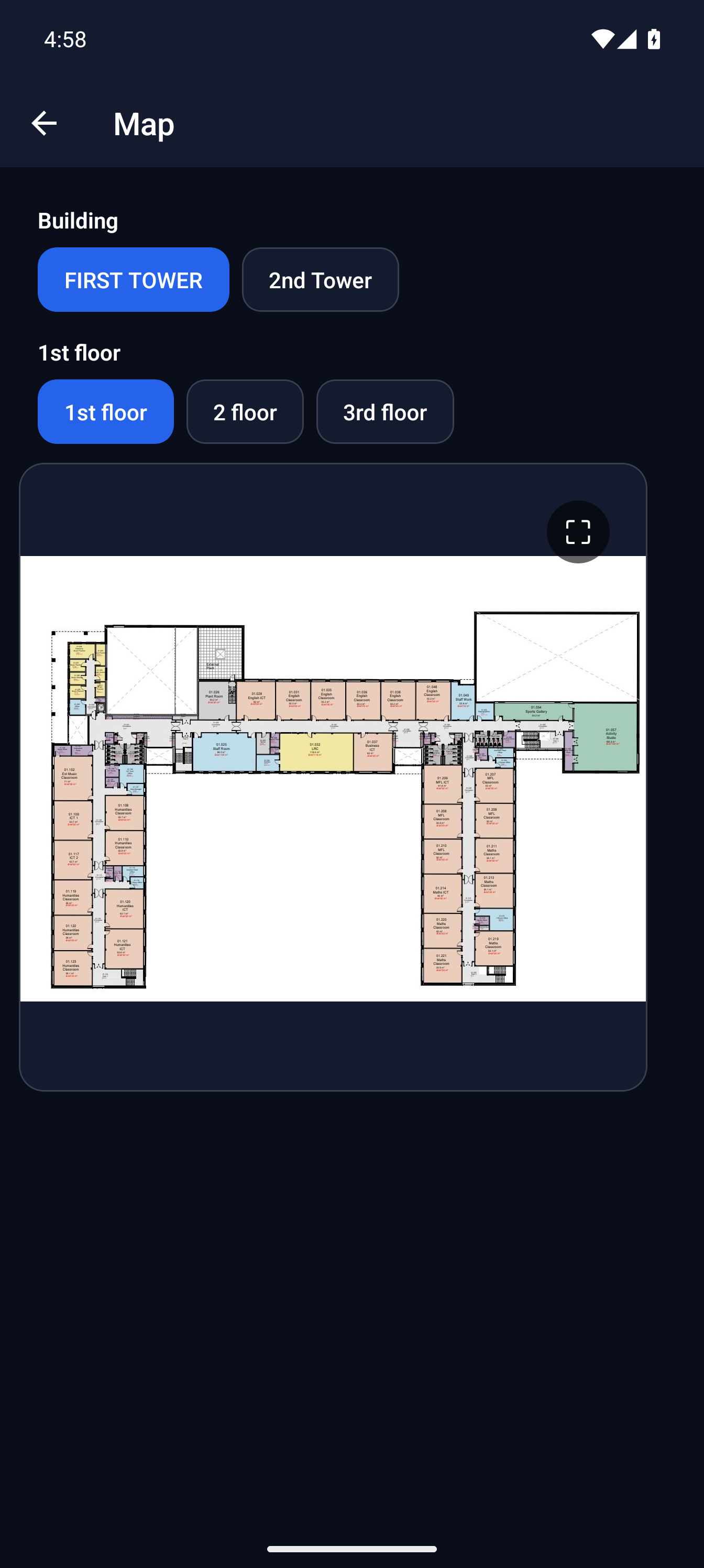
Floor plan on mobileMassComs mobile app showing the floor plan map during an incident. - 05
Use Live PA where you are authorised to
Responders with the right role can speak through connected audio from the incident screen — the Live PA option, including a tannoy override for speakers in a zone.
Speaking over PA during an incident carries authority. Say only what you are authorised to say, and identify yourself.
- 06
Watch for updates and the all-clear
The incident updates in place as it develops. It ends when an authorised person sends the all-clear: the siren stops, the phone plays a neutral chime with a spoken all-clear on its own notification channel, and All Clear – Return to Normal appears on the incident.
The all-clear is deliberately quiet — a chime, not a second siren — so a phone in a pocket signals relief rather than alarm. If your organisation has customised the All Clear wording for that scenario, that is the message you will see.
Do not treat quiet as an all-clear. The absence of new information is not information.
Troubleshooting
When it does not go to plan.
| Symptom | Usual cause | Fix |
|---|---|---|
| No response plan assigned. | The incident was activated without a scenario. | Follow the standing procedure for that incident type. Afterwards, make sure an approved scenario exists for it. |
| The map shows No image for this floor. | That floor has no traced floorplan. | Not fixable during an incident. Trace the floor afterwards — see Upload and prepare a floorplan. |
| No speakers in this zone. | No audio devices are mapped to the zone you selected. | An audio coverage gap. Record it and address it in the floorplan device placement. |
| Failed to load incident. | Connectivity, usually. | Follow the instruction you already received and act on your training. Do not stand still waiting for a screen. |
Good to know
Small details that prevent big confusion.
- Marking yourself safe helps more than it feels like it does. Every unknown consumes responder attention.
- The response plan is guidance from your organisation. Your own judgement and what you can see take precedence.
- Practise this screen in a drill. The first time someone sees it should not be during a real event.
Was this guide clear?