
The route MassComs shows is computed from the traced floorplan: your room, the doors out of it, the exits, and the assembly point attached to your zone. It is a strong aid and it is not a substitute for looking where you are going.
MassComs supports your organisation’s safety plan. It does not replace authorised instructions, trained judgement or emergency services.
Before you start
Have these ready.
- An active incident of a type that uses routing.
- A floor with a verified floorplan — routes are only as good as the geometry behind them.
- 01
Open the route from the incident
The incident's actions include the safe route. It opens the map with your position and the route to the exit.
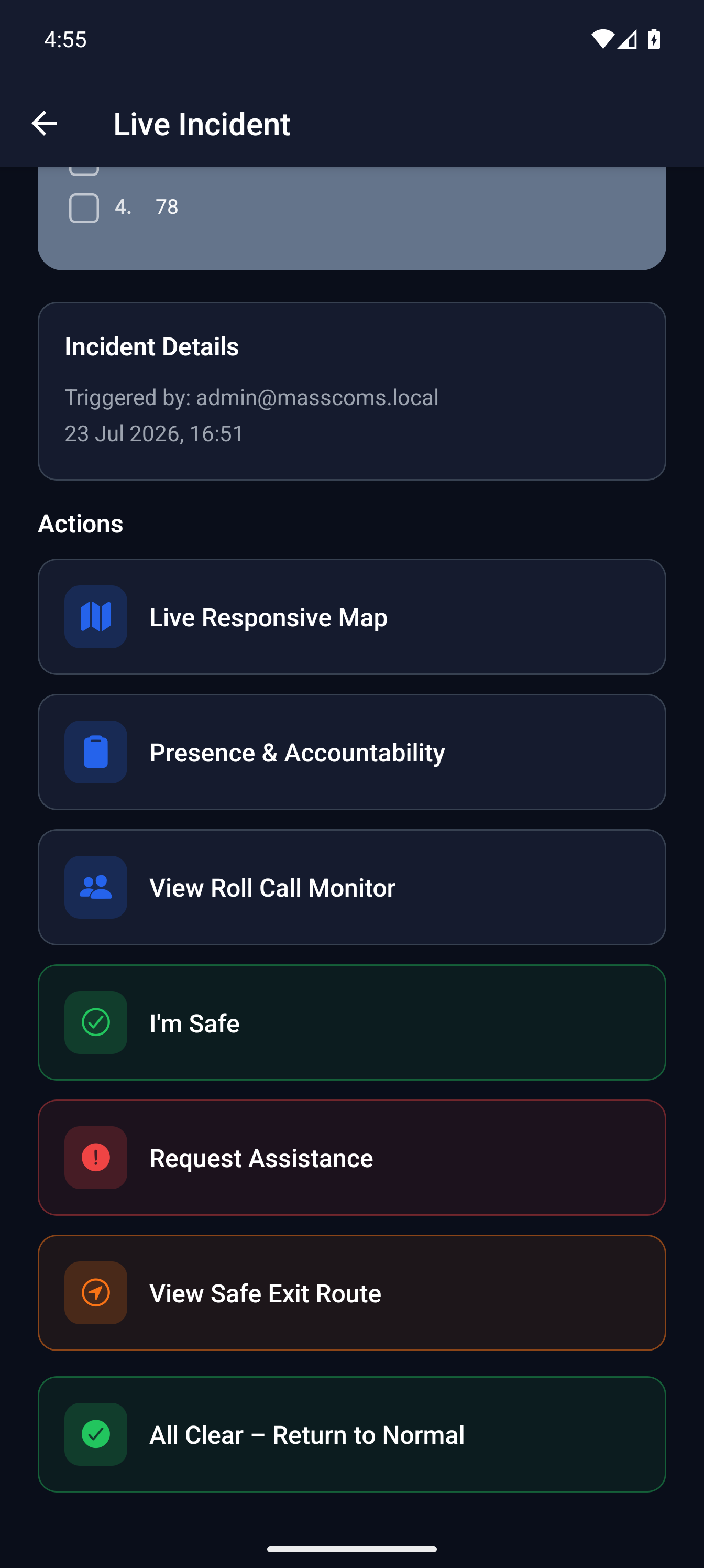
Exit route on mobileMassComs mobile app showing incident actions including the exit route. - 02
Confirm where it thinks you are
The route starts from a room. Check that room is where you actually are before following anything — the whole route is wrong if the starting point is.
Where a device has a location label set, the app shows something like Main corridor, by 01.031 rather than a bare room code. If what it names is not where you are, correct your location if the app allows it, and otherwise navigate by what you can see.
- 03
Read the whole route before moving
Read it end to end: which door, which corridor, which staircase, which exit, which assembly point. Two seconds spent reading is faster than turning around halfway.
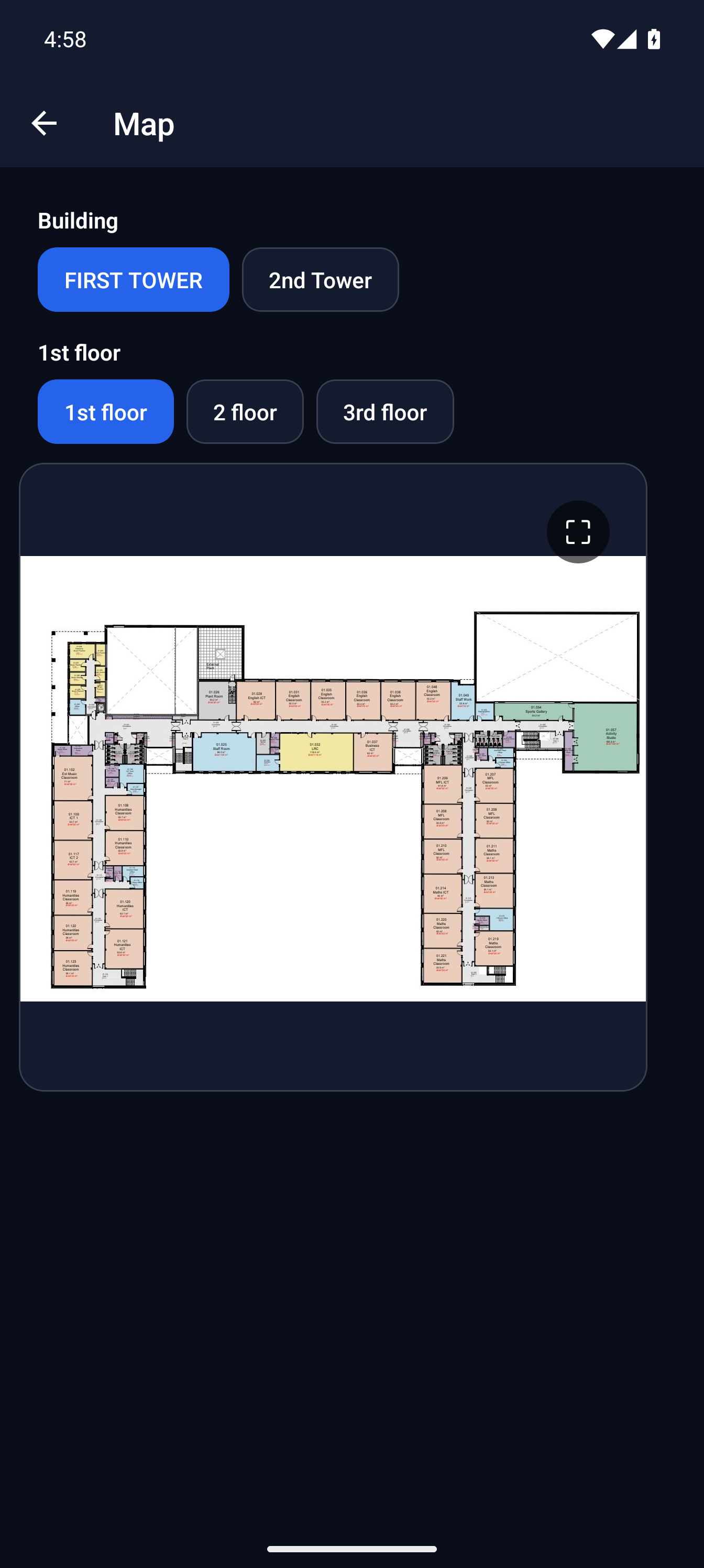
Floor plan with routeMassComs mobile app showing the floor plan and route during an incident. - 04
Check the assembly point
The route ends at the assembly point for your zone, with any instructions attached to it. If the app shows No assembly point resolved yet, your zone has none configured — go to the muster point your organisation's procedure names.
- 05
Follow local safety information over the screen
Fire signage, wardens, physical barriers and what you can see all take precedence. If a route sends you towards smoke, a blocked door or an obvious hazard, do not follow it.
The route is generated from a drawing. The drawing does not know about today's locked door, today's building work, or today's fire.
- 06
Report what was wrong afterwards
If the route was wrong, say so after the event. That feedback is the only mechanism that improves the geometry.
Route errors are floorplan errors. See Add doors, exits and staircases and Troubleshoot the floorplan builder.
Troubleshooting
When it does not go to plan.
| Symptom | Usual cause | Fix |
|---|---|---|
| No route is shown. | Your device has no room assignment, or the floor has no traced exits. | Both are setup problems fixed on the dashboard, not on the phone. |
| The route points at a locked door. | A door was marked as an exit in the builder that is not a usable final exit. | Do not use it. Report it — this is the most serious floorplan error there is and it must be corrected. |
| No assembly point resolved yet. | Your zone has no assembly point attached, or your room is in no zone. | Use the procedure's muster point now; fix the zone configuration afterwards. |
Good to know
Small details that prevent big confusion.
- Routes on upper floors depend on staircases being linked between floors. If a route stops at a stairwell, that link is missing.
- A route that looks tidy has not been verified. Verification is a person walking it.
- Report route problems even when you got out fine. Nobody else will.
Was this guide clear?