
Getting people out is half the job; knowing who is out is the other half. Roll call on mobile is what turns an assembly point into an account.
MassComs supports your organisation’s safety plan. It does not replace authorised instructions, trained judgement or emergency services.
Before you start
Have these ready.
- An active incident.
- People records populated — hand-entered, or synced from your MIS.
- For class-based roll call, class assignments in place.
- 01
Open the accountability view
From the incident, open the roll call or accountability screen. It lists the people you are responsible for accounting for — a class roster, or those signed in on site.
Roll call monitorMassComs mobile app roll call monitor during an incident. - 02
Work from the on-site list, not from memory
The list is built from who was signed in when the incident began, including visitors from the kiosk. Working from it catches the people you would not have thought of.
If the screen shows No one is currently signed in on site, either sign-in discipline has failed or the kiosk is not reporting. Fall back to your paper process and fix it afterwards.
- 03
Mark people safe
Mark as Safe against each person you can physically see. Do not mark someone safe on someone else's word unless your procedure allows it.
A false positive here is worse than a gap. Someone marked safe who is not will not be searched for.
- 04
Record who is missing and why
Where a person cannot be accounted for, record it with a reason. Known-absent is a different fact from unaccounted-for, and the difference matters enormously to whoever is deciding whether to send people back in.
Field or control What it does Accounted Physically seen and confirmed. Missing Expected on site and not accounted for. This is the search list. Reason Why someone is not accounted for — known absent, left early, at another site. Removes them from the search list without removing them from the record. - 05
Use checkpoints on the map
The live map shows checkpoints. Tapping one shows who is accounted for there, which lets several people run roll call in parallel at different assembly points without duplicating each other.
- 06
Watch the aggregate picture
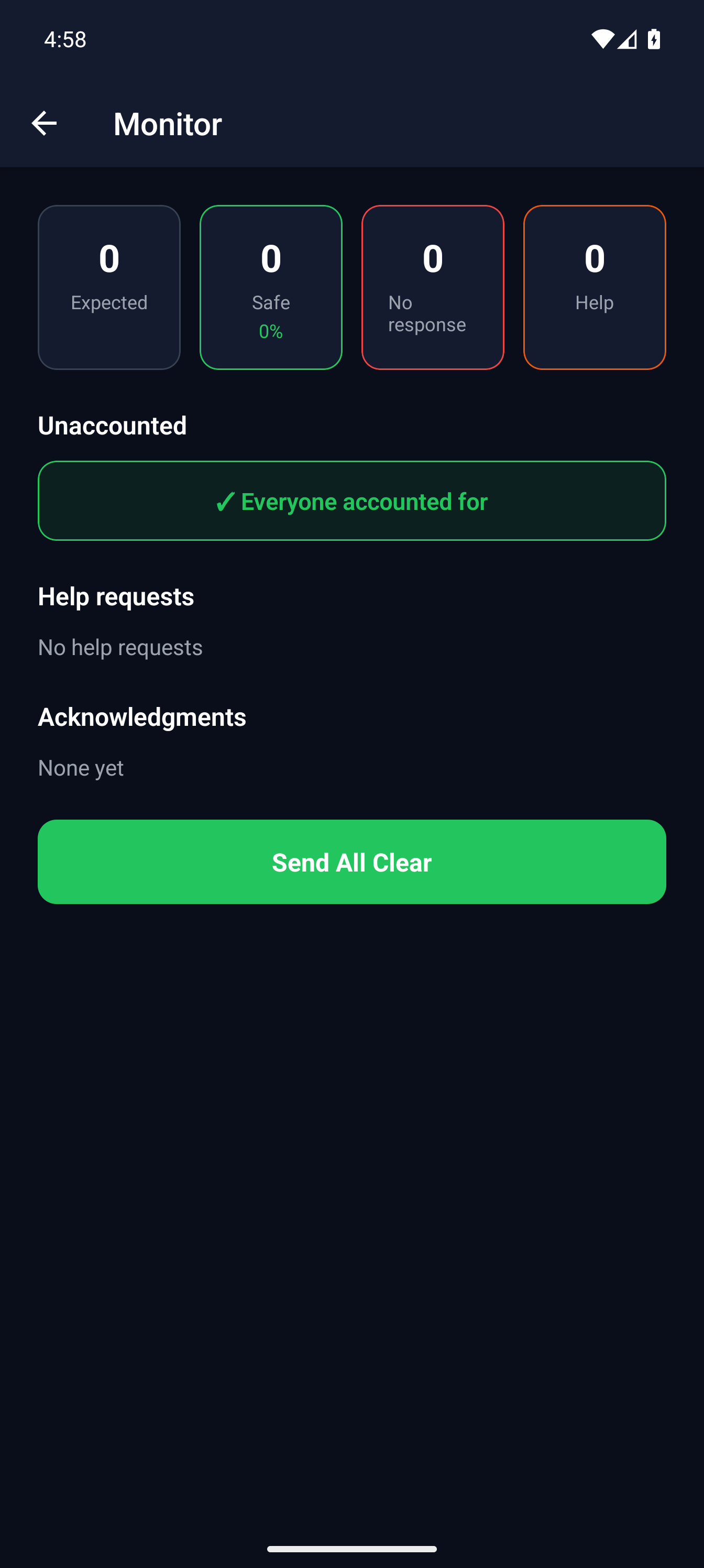
The acknowledgement monitor shows expected versus responded, plus help requests. Somebody should be watching that number rather than only their own group.
Acknowledgements on mobileMassComs mobile app showing acknowledgement statistics during an incident. - 07
Hand over cleanly
When the incident ends, make sure the final account is recorded in the incident rather than only in someone's head. It is part of the evidence record.
Troubleshooting
When it does not go to plan.
| Symptom | Usual cause | Fix |
|---|---|---|
| Could not load roster data. | Connectivity, or no people records for that scope. | Fall back to your paper roll call and continue. Fix the data afterwards. |
| No classes found. | Class assignments have not been configured, or none are assigned to you. | Class-scoped roll call needs class assignments — see Build the people and contact register. |
| The on-site list includes people who left. | They did not sign out at the kiosk. | Account for them as known-absent with a reason, and reinforce sign-out discipline afterwards. |
Good to know
Small details that prevent big confusion.
- The on-site roll over-reports when people forget to sign out. That is the safer failure, but plan for it.
- Parallel roll call at multiple checkpoints only works if everyone uses the app rather than paper.
- Practise roll call in drills specifically. It is the part of an evacuation that is always slower than expected.
Was this guide clear?