
The last first-steps guide. You will trigger a real incident of type TEST — the full delivery path, recorded as a drill. Everyone who could possibly receive it must be told beforehand.
MassComs supports your organisation’s safety plan. It does not replace authorised instructions, trained judgement or emergency services.
Before you start
Have these ready.
- At least one enrolled receiving device: a mobile app sign-in, a MassComs Agent, a kiosk or a signage screen.
- A scenario that has been created and approved — an unapproved scenario cannot be activated.
- Written notice to everyone in scope that a test is happening, and when.
- The incidents.trigger permission, and incidents.resolve for the all-clear.
- 01
Get one device receiving
Open Agent Devices and confirm at least one device shows as connected with a location. A device with no location assignment still receives the alert, but cannot be given a room-specific route.
The quickest first device is the mobile app: install it, sign in, allow notifications and critical alerts. An Agent on a staff PC is the next quickest.
Confirm it workedThe device appears under Agent Devices with a recent Last seen and a Location that is not org-wide.
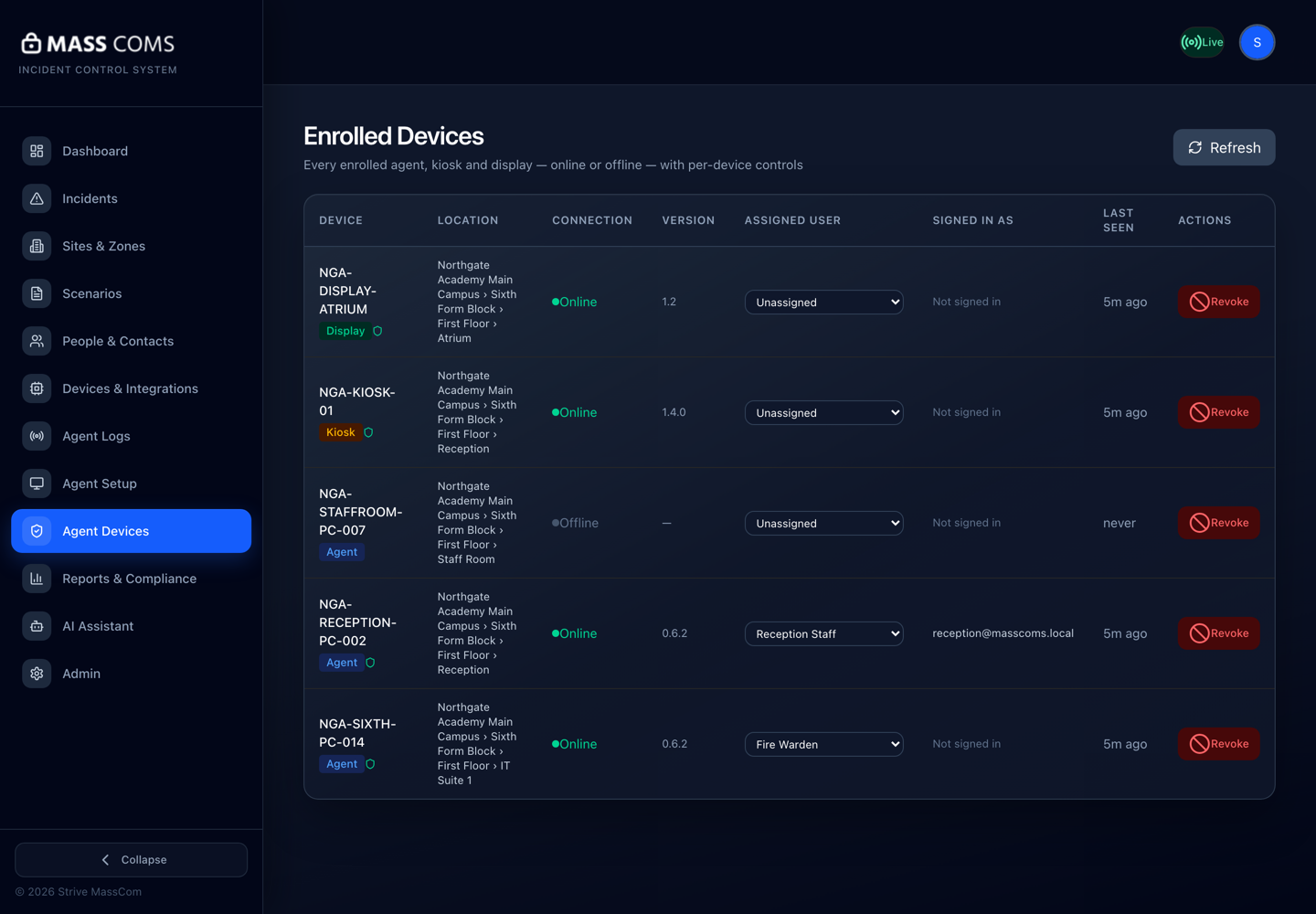
Agent Devices — Enrolled DevicesMassComs Agent Devices page listing enrolled agents, a kiosk and a display with connection state and last seen. - 02
Create and approve a scenario
Open Scenarios. First add a Response Plan of type Test / Drill with the steps people will read. Then Create Scenario and walk the six-step wizard — Type, Channels, Rules, Permissions, All Clear, Review — choosing Test / Drill as the type and linking that plan. On the last step someone with scenarios.approve ticks I approve this scenario for live use. Approval is a separate act from creation on purpose — it is the control that stops an untested message reaching a whole site.
Field or control What it does Scenario name What responders will see on the activation screen. Name the situation, not the mechanism. Linked response plan The instruction people actually read. Only plans of the same type are offered, which is why you create it first. Channels Which delivery paths this scenario uses — audio announcements, voice calls, PA, SMS, email, signage, recipients. Only connected integrations are listed. Authorized Roles Which roles are permitted to activate this scenario at all. The full wizard, section by section, is in Create a scenario and response plan.
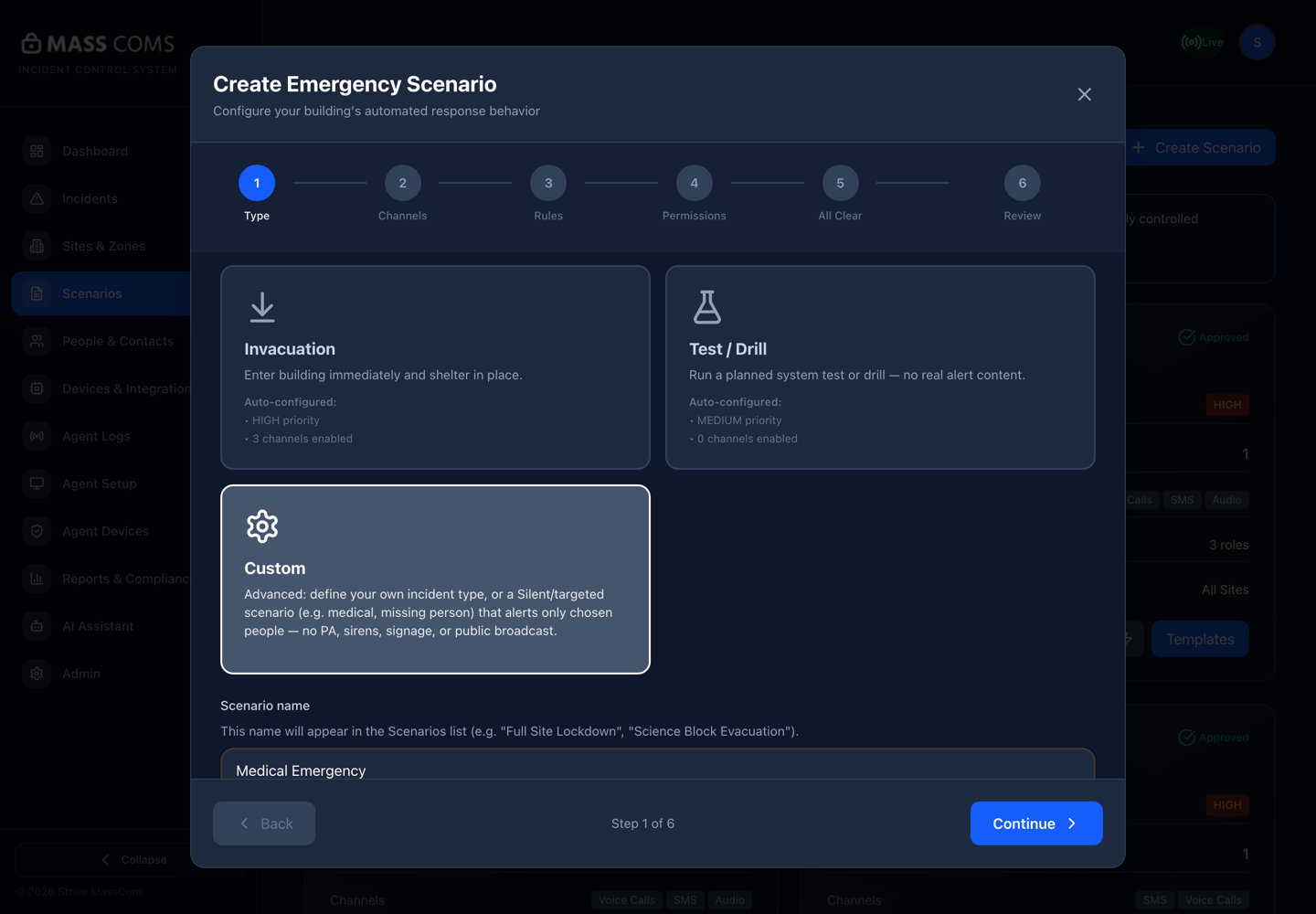
Scenario wizardMassComs scenario creation wizard on its first step. - 03
Open Incident Control and select TEST
Go to Incidents. The activation panel lists six incident types: LOCKDOWN, EVACUATE, INVACUATE, STANDBY, TEST and SILENT. Choose TEST — described in the product as System test / drill mode.
Do not rehearse with LOCKDOWN or EVACUATE. Those types drive sirens, PA and full-screen takeover, and people who were not briefed will treat them as real.
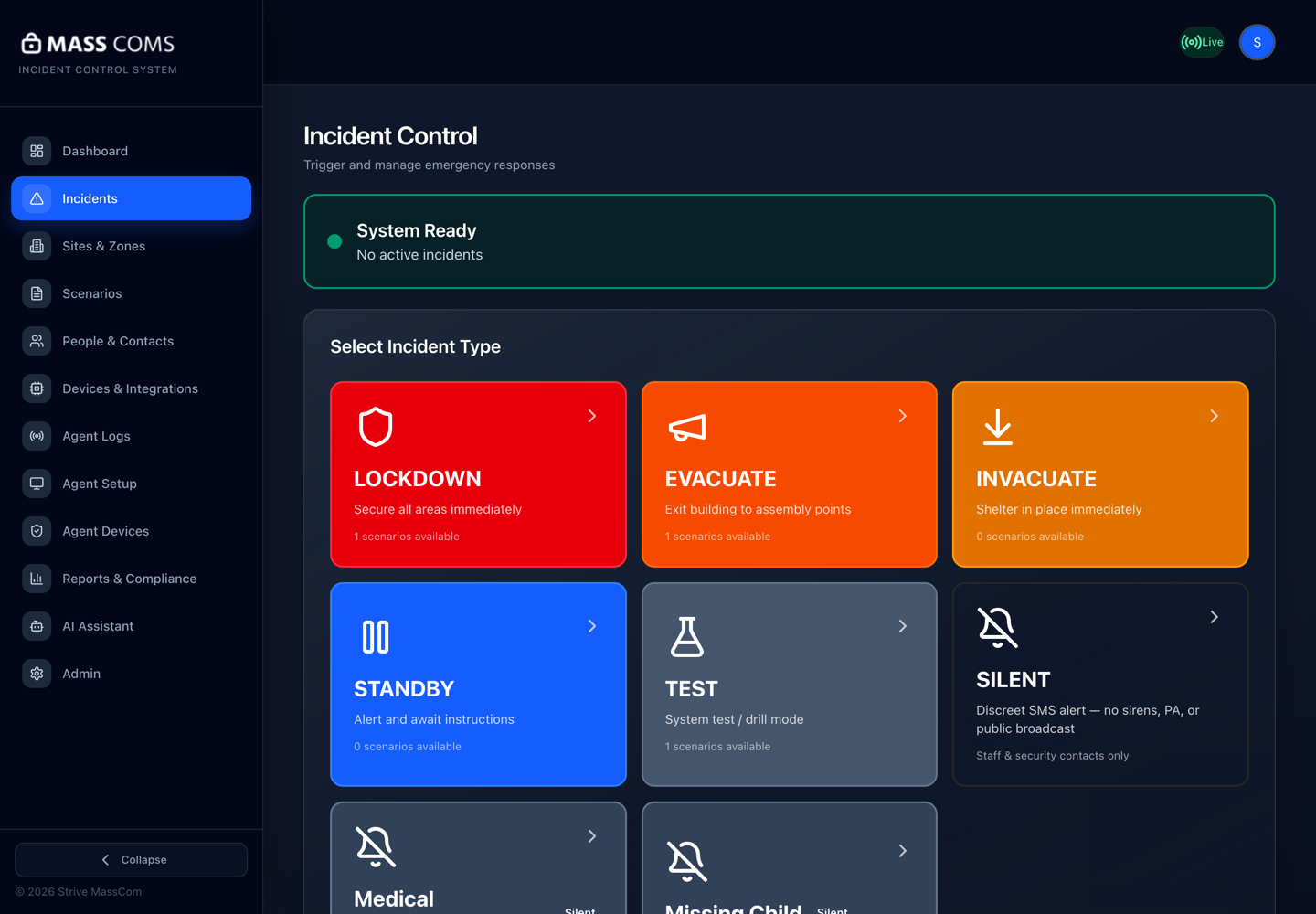
Incident controlMassComs incident control screen in its ready state with incident types listed. - 04
Choose the scenario and the scope
Pick your approved scenario, then set the target zone. Start narrow — one zone containing the device you just checked — rather than the whole organisation.
You can proceed with No specific scenario, but then responders receive the incident type with no response plan attached. For a first test, use the scenario.
- 05
Review, then activate
The review step restates the type, scenario, scope and channels before anything is sent. Read it back against what you intended, then activate.
Confirm it workedWithin a few seconds the incident should appear as active, and your test device should show the alert.
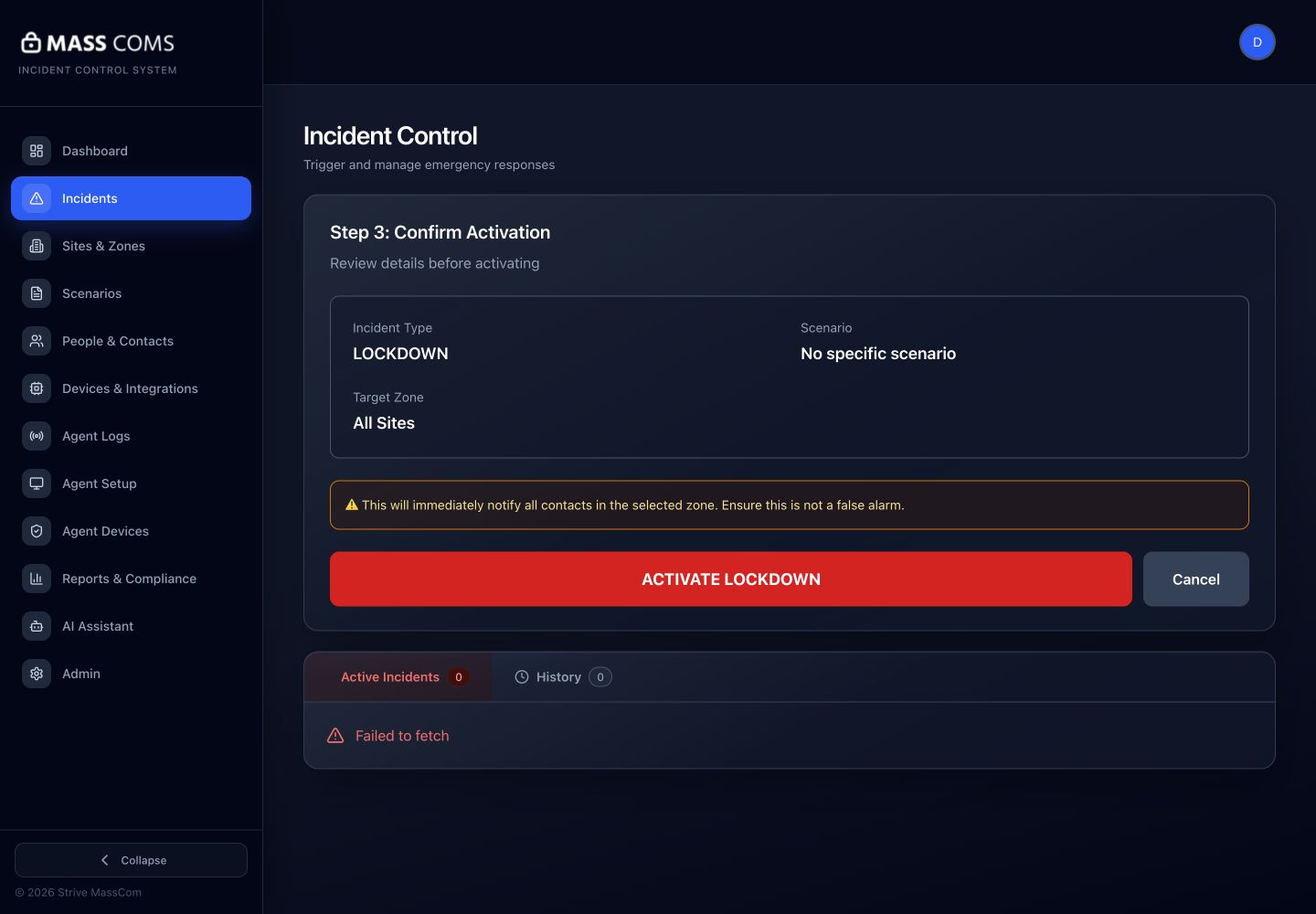
Activation confirmationMassComs confirmation step shown before an incident is activated. - 06
Watch it land
Stay on the incident while it runs. The timeline records activation, delivery and acknowledgements; the acknowledgements view shows who has responded and who has not.
This is the part that tells you whether your setup is real. An incident that shows as active but reaches nothing is the exact failure a first test exists to find.
- 07
Send the all-clear
Resolve the incident from the dashboard. MassComs asks Confirm stop incident? before ending it, because an all-clear is as consequential as an activation. For a Test / Drill scenario no All Clear notification is sent — devices simply return to normal — so say the drill is over out loud as well.
Only send the all-clear when the person with the authority to end the event has said so. The button ends the event on every device at once.
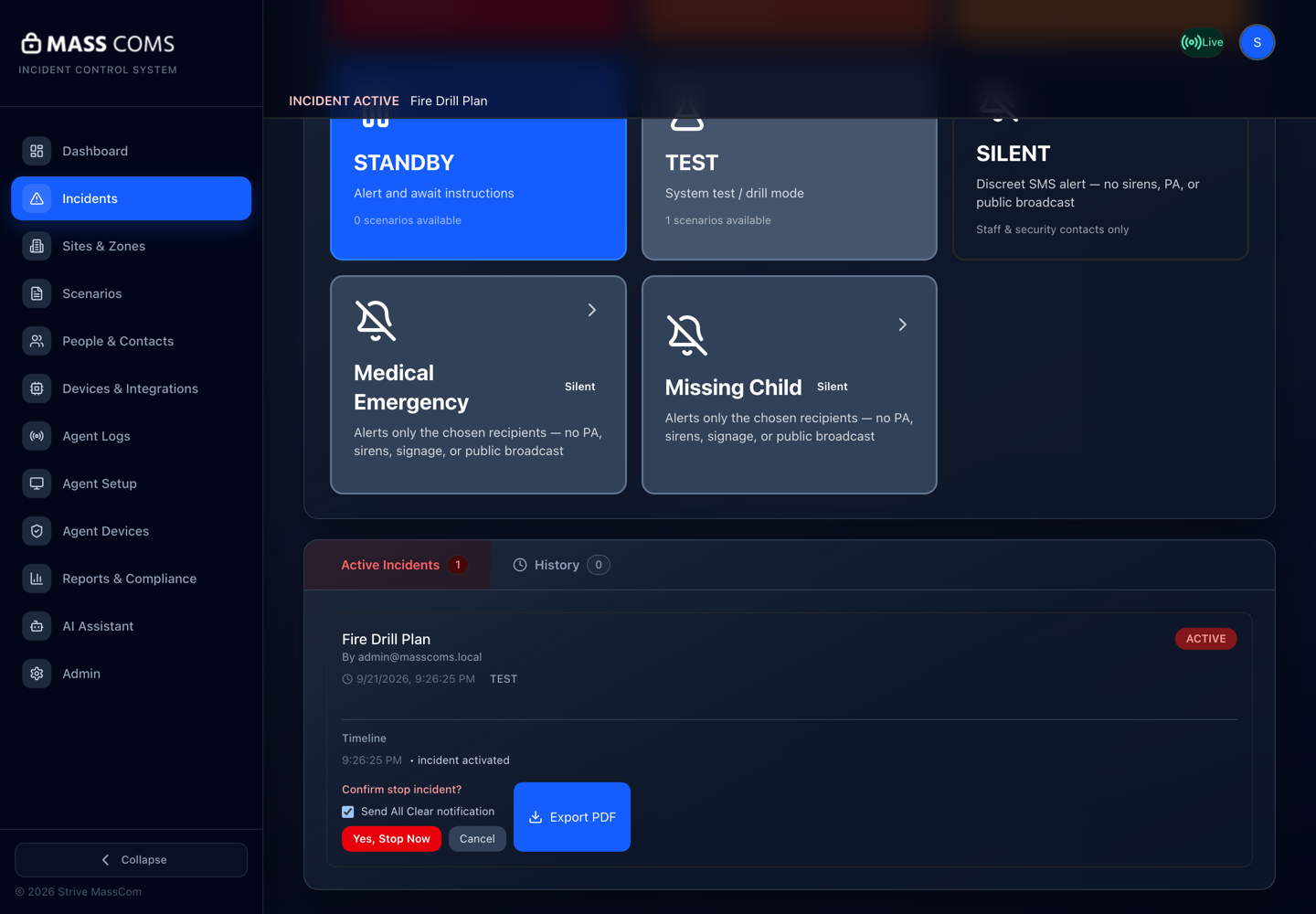
All-clear confirmationMassComs all-clear confirmation dialog during an active drill. - 08
Read the record it produced
Open Reports and find the resolved incident. You should see the timeline, who activated, who acknowledged and what was delivered. That record is the evidence a drill produces.
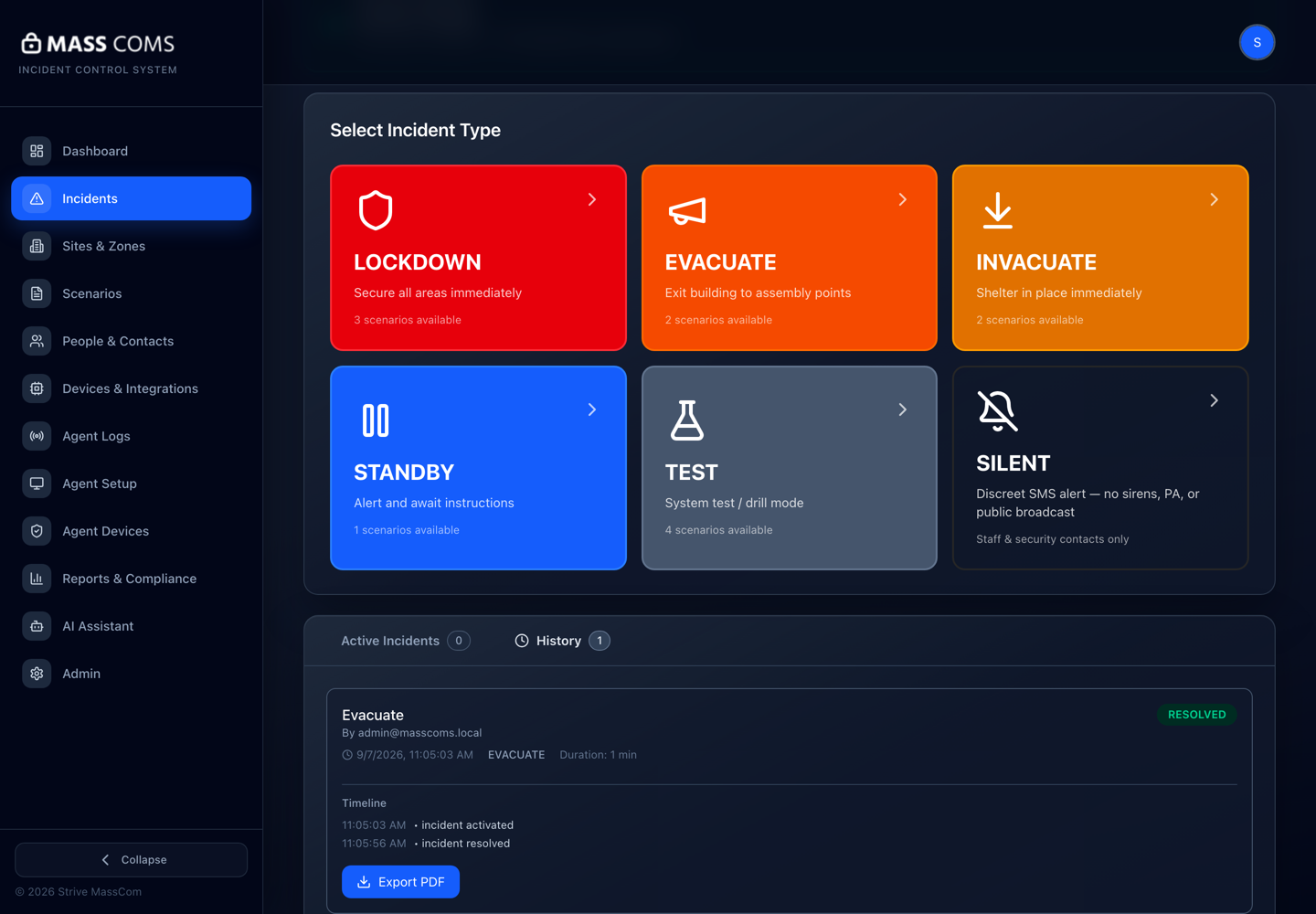
Incident timelineMassComs incident history showing a resolved drill and its timeline.
Troubleshooting
When it does not go to plan.
| Symptom | Usual cause | Fix |
|---|---|---|
| No approved scenarios for this incident type yet. | The scenario exists but is still Pending Approval, or was created for a different type. | Have someone with scenarios.approve approve it. Senior Leadership and Safety Officer hold that permission; Fire Warden does not. |
| The incident activates but the phone stays silent. | Notification or critical-alert permission was never granted on the device. | See Fix missing mobile alerts. On iOS, critical alerts are a separate permission from ordinary notifications. |
| The device received it but showed no route. | The device has no room assignment, or the floor has no traced exits. | Assign the device to a room, and confirm the floorplan has doors and a fire exit. Route features need both. |
Good to know
Small details that prevent big confusion.
- TEST-type incidents are recorded as drills and count as drill evidence — they are not throwaway.
- Tell people first, every time. A test that frightens staff costs more trust than it buys confidence.
- Run the first test outside the times when the site is fullest, then repeat it at a realistic time once it works.
Was this guide clear?