
A device that is enrolled but not placed still receives incidents — it just cannot be told anything specific to where it is. Placement is what turns a broadcast into a room-level instruction.
Before you start
Have these ready.
- Devices already enrolled and connected — see Install and enroll the Agent or Pair a new signage screen.
- A saved floorplan for the floor those devices are on.
- 01
Open the Devices layer in the builder
The builder has a Devices panel listing connected devices for the organisation. Devices already assigned show against their room; unassigned ones show as Not placed — click Place on map, then click the floorplan.
If the panel shows No connected devices found, the devices are not currently connected rather than not existing. Check Agent Devices first — placement works against live devices.
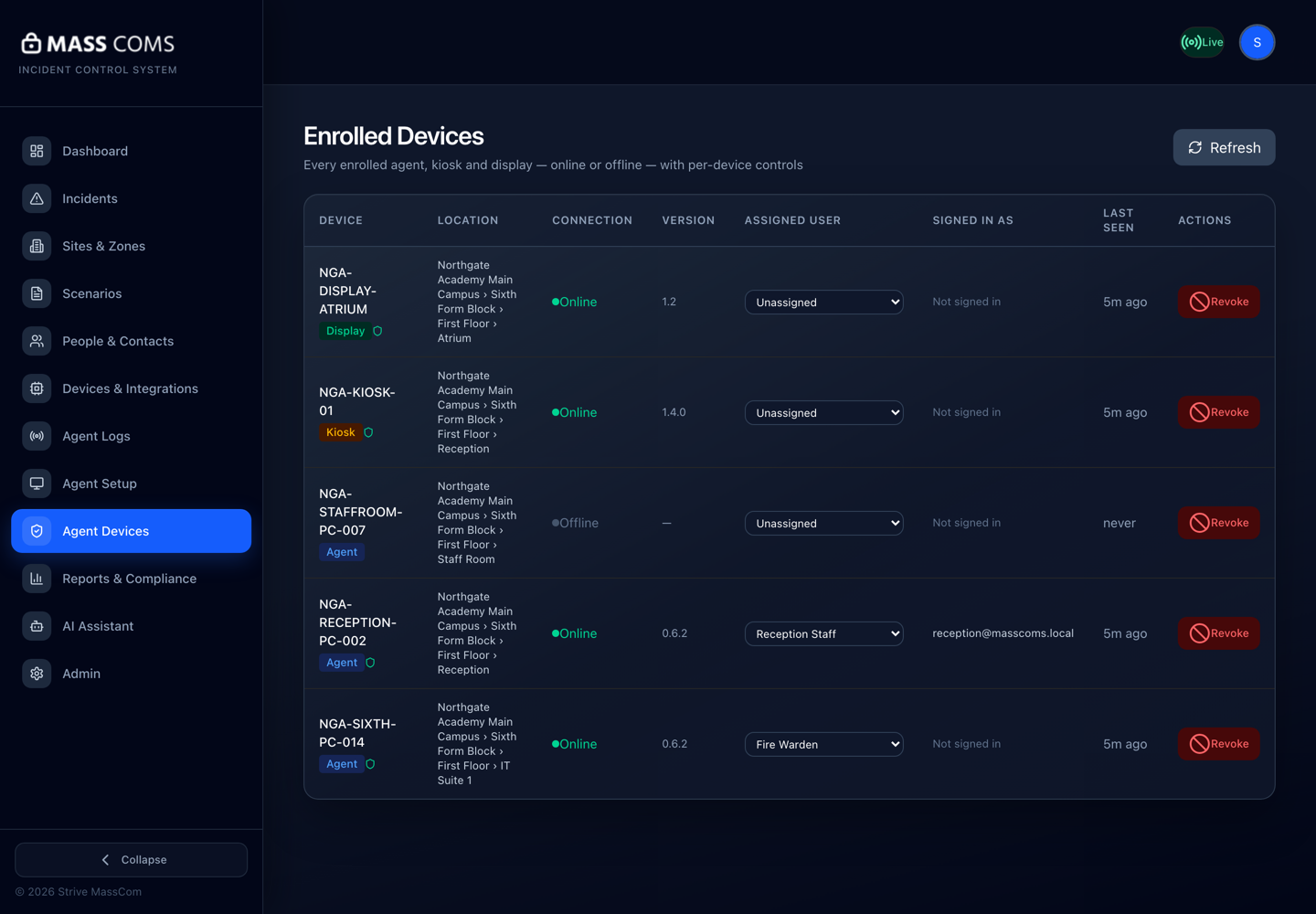
Agent Devices — Enrolled DevicesMassComs Agent Devices page listing enrolled agents, a kiosk and a display with connection state and last seen. - 02
Place each device in its real position
Click Place on map for a device, then click the point on the plan where it physically is. The device resolves to whichever room contains that point.
- Place an Agent where the machine actually sits, not at the room's centre — it makes the plan readable when you are auditing later.
- Place a signage player at the screen, not at the media player hidden in a cupboard.
- A device in a corridor should be placed in the corridor, not in the nearest named room.
Confirm it workedThe device moves from Not placed to showing its room, and the room's panel shows it under devices assigned to this room.
- 03
Set which way a screen faces
Signage players and other screens have a Screen faces setting. This is the direction a person standing at the screen is looking, and it is what lets an exit-route display draw a left or right arrow that is correct from the viewer's point of view.
A screen with the wrong facing shows a confidently wrong arrow. This is worse than showing no arrow, because people follow it.
Confirm it workedOpen the exit-route view for that screen and confirm the arrow points the way you would actually walk when standing in front of it.
- 04
Add location labels where the room name is not enough
Where a device sits somewhere a room name does not describe well, add a Location label. It overrides the "You are in …" text — for example Main corridor, by 01.031.
This is worth doing for every device in a corridor, lobby or open-plan area, where the room record's name is an abstraction rather than a place a person can picture.
- 05
Save and re-check after any re-trace
Device overlays are saved with the plan. If you later re-trace the floor, re-check the placements — the rooms your devices resolved to may have been replaced by new records.
Troubleshooting
When it does not go to plan.
| Symptom | Usual cause | Fix |
|---|---|---|
| No connected devices found in the builder. | No devices are currently connected over the websocket. | Check Agent Devices. An Agent that is installed but not running, or a screen that is unplugged, will not appear here. |
| A device is placed but shows org-wide elsewhere. | It was placed on the plan but the placement was never saved. | Re-place it and use Save floor plan. Overlays persist only with the plan. |
| The exit-route arrow on a screen points the wrong way. | Screen faces is set to the wrong direction. | Correct the facing and re-check from in front of the screen. |
Good to know
Small details that prevent big confusion.
- Unplaced devices still receive incidents — they just get the general message rather than a room-specific route.
- Placement is also an audit tool: the plan becomes the map of where your coverage actually is, and where it is not.
- Rooms with no device and no likely phone are your real coverage gaps. The devices layer makes them visible.
Was this guide clear?