
Microsoft sign-in removes a password from every staff member and puts authentication back where your IT team already manages it. MassComs uses your own Entra ID app registration rather than a shared one, so the trust relationship is yours.
Before you start
Have these ready.
- Permission to create an app registration in your Azure portal.
- The admin.orgSettings permission in MassComs.
- Agreement with IT on which users will be in scope.
- 01
Create an app registration in Entra ID
In the Azure portal, create an app registration for MassComs in your tenant. This is the object that represents MassComs to your directory.
- 02
Add the redirect URI, and pick the matching platform type
The MassComs dialog shows the exact redirect URI to register, with a copy button beside it — it is your dashboard's origin followed by /auth/callback. Copy it rather than typing it.
The platform type you register it under depends on whether you are using a client secret. Use a Single-page application platform for public-client sign-in, which needs no secret. Use a Web platform if you are going to enter a Client Secret in MassComs. Registering the URI under a platform that does not match what you configure here is the usual cause of an authentication failure that is hard to read.
Copy the URI exactly as MassComs shows it. A trailing slash or a different host is enough to break it.
- 03
Collect the identifiers
Take the Client ID (Application ID) and the Tenant ID from the app registration. Both are GUIDs. The Tenant ID is on the app registration's Overview page.
Field or control What it does Client ID (Application ID) Identifies the app registration you created. Tenant ID Your Entra ID directory ID, found on the app registration's Overview page. Client Secret Optional. Leave it blank for public-client sign-in; it is only needed for a confidential (Web) app — and if you supply one, register the redirect URI under the Web platform. - 04
Configure Microsoft Sign-In in MassComs
Open Integrations, configure Microsoft Sign-In and enter the identifiers. The dialog describes itself as bring your own Entra ID (Azure AD) app registration — the trust relationship is yours, not a shared one.
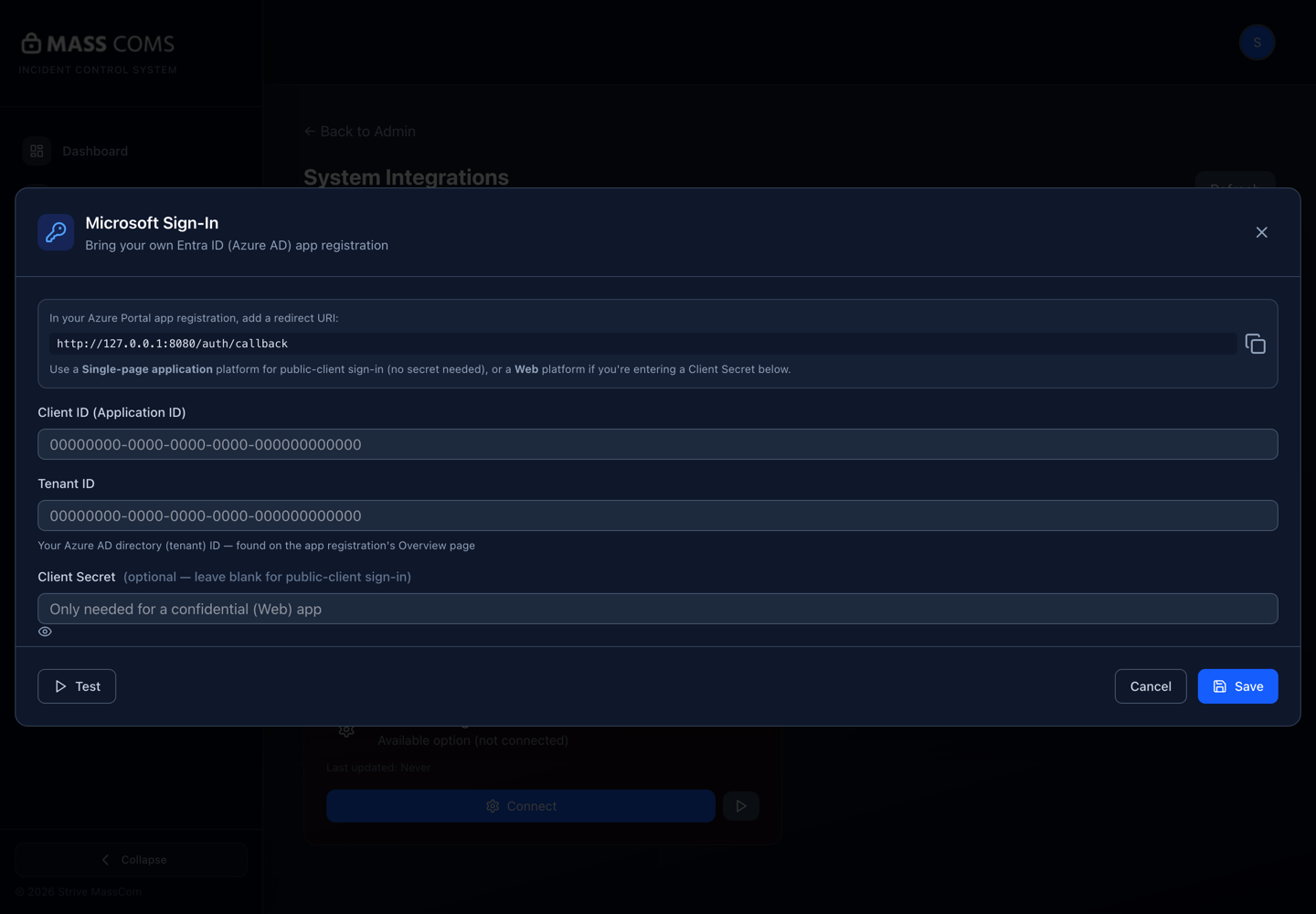
Microsoft Sign-In configurationMassComs Microsoft Sign-In dialog showing the redirect URI, Client ID, Tenant ID and optional Client Secret. - 05
Use the built-in Test before saving
The dialog has its own Test action. Use it — it fails fast and specifically, which is far better than discovering the problem when a member of staff cannot sign in.
Confirm it workedTest succeeds before you save, and before you tell anyone to switch.
- 06
Test before announcing it
Test with your own account first, then with one ordinary user account, before telling staff to switch.
Confirm it workedA non-administrator account can sign in with Microsoft and lands in the correct organisation with the correct role.
- 07
Share the sign-in link
MassComs provides a link to share with staff that takes them straight to the organisation's Microsoft sign-in. Distribute that rather than a generic sign-in page.
Getting people to bookmark the right link removes most first-week sign-in confusion.
- 08
Plan the transition from passwords
Existing email-and-password accounts do not disappear when SSO is enabled. Decide whether they remain as a fallback and tell people which to use.
If a person signs in with Microsoft when their account was created with a password, they may end up with a second identity. Be explicit about which method each person should use.
Troubleshooting
When it does not go to plan.
| Symptom | Usual cause | Fix |
|---|---|---|
| Sign-in fails immediately after the Microsoft prompt. | The redirect URI is missing, misspelled, or registered under a platform type that does not match your secret configuration. | Re-copy it from the dialog. Single-page application if you left Client Secret blank; Web if you entered one. |
| Administrators can sign in but ordinary staff cannot. | The app registration requires admin consent that has not been granted tenant-wide. | Grant admin consent for the app registration in Entra ID. |
| The Microsoft button does not appear. | The integration is not configured for that organisation. | Complete the configuration. It is per organisation, not global. |
Good to know
Small details that prevent big confusion.
- The Agent also offers Microsoft sign-in, so the same configuration improves the desktop experience.
- Because the app registration is yours, your conditional access and MFA policies apply as normal.
- Test with a non-administrator account. Administrators frequently have consent that ordinary users do not.
Was this guide clear?