
MassComs supports email and password, Google, and Microsoft sign-in. Which of these you should use is decided by your organisation, not by preference — using the wrong one is the most common cause of a first-day support ticket.
Before you start
Have these ready.
- The dashboard address your organisation uses.
- An account that has already been created or invited — MassComs has no public self-registration.
- 01
Open your organisation's sign-in page
Use the address your administrator gave you. Some organisations use an organisation-specific sign-in path, which pre-selects the tenant and removes a step for the user.
Bookmark the page you are told to use rather than one you find by searching. A generic sign-in page may not be your organisation's.
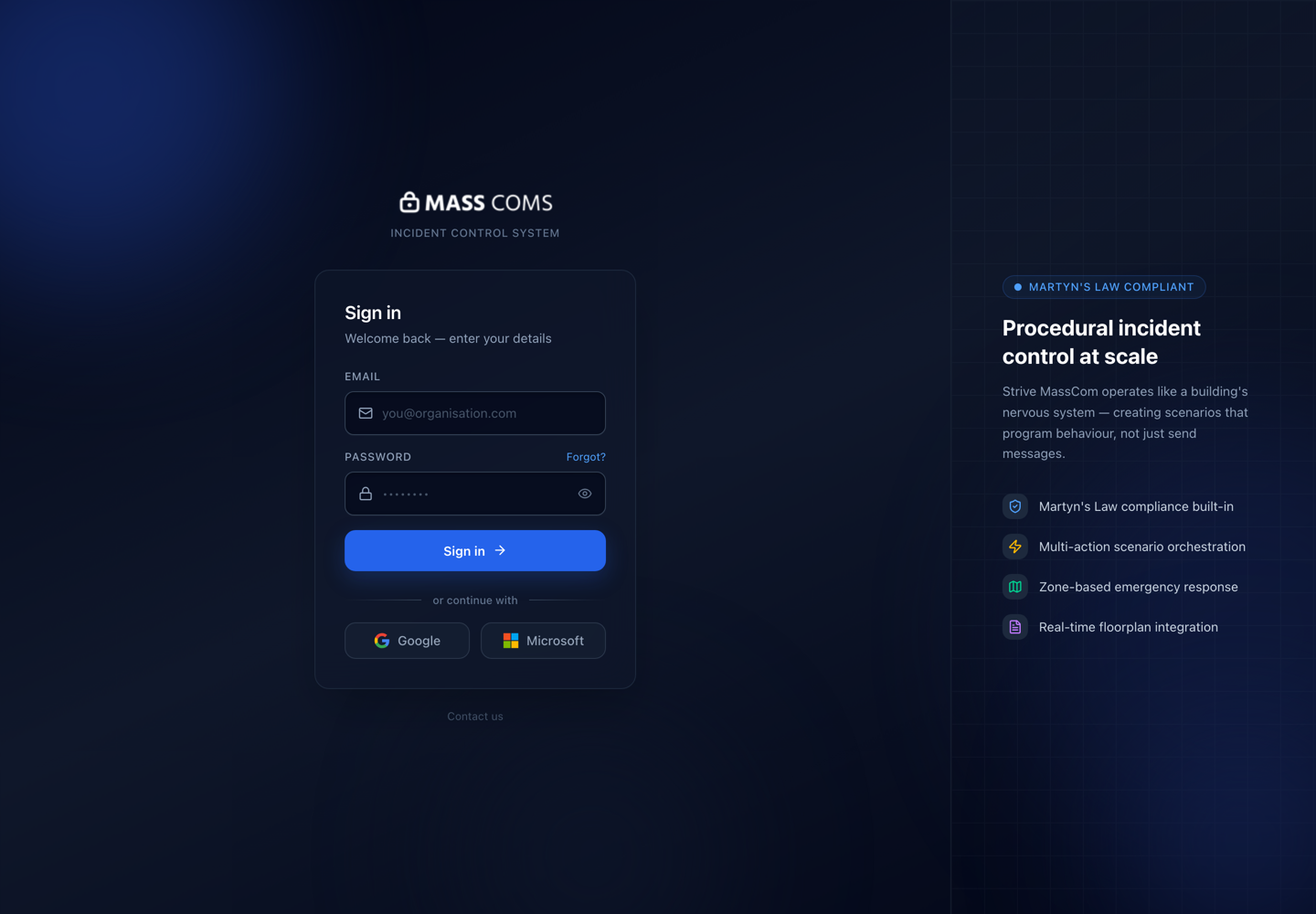
Sign-in pageMassComs sign-in page with email, Google and Microsoft options. - 02
Choose the method your organisation uses
If your organisation has configured Microsoft SSO, use the Microsoft button — an email and password created separately will not be linked to the same account. If SSO is not configured, use the email and password you were sent in your invitation.
- Microsoft — for organisations using Entra ID / Microsoft 365.
- Google — for organisations on Google Workspace.
- Email and password — the fallback, and the default on a new organisation.
- 03
Complete any additional verification
Multi-factor prompts come from your identity provider, not from MassComs. If you are stuck at a Microsoft or Google prompt, that is an IT question rather than a MassComs one.
- 04
Check what you landed in
After sign-in, confirm the organisation name and site shown in the interface are the ones you expect. Your role determines what appears in the navigation — seeing fewer items than a colleague is normal, not a fault.
Confirm it workedThe organisation name is correct, and the navigation shows the areas your role should hold. Compare against Understand user roles and permissions if something looks missing.
Troubleshooting
When it does not go to plan.
| Symptom | Usual cause | Fix |
|---|---|---|
| Sign-in fails for an address that should work. | The account is not a member of that organisation, or it was created against a different sign-in method. | See Fix sign-in problems. Ask your administrator to confirm which method your account uses before resetting anything. |
| The Microsoft button is missing. | Microsoft SSO has not been configured for this organisation. | Use email and password. An administrator can enable SSO — see Configure Microsoft SSO. |
Good to know
Small details that prevent big confusion.
- MassComs has no public sign-up. Every account is created or invited by an administrator.
- A wrong password does not tell you whether the account exists — that is deliberate.
- If your organisation later enables SSO, use the SSO button from then on even if your old password still works.
Was this guide clear?