
Scheduling is where signage gets genuinely useful — different content at different times for different audiences — and where the most confusing behaviour comes from, because overlapping schedules are easy to create by accident.
Before you start
Have these ready.
- A playlist ready to schedule.
- Paired screens to schedule it on.
- 01
Create a schedule
Open the schedule editor and create a schedule for the playlist you want to run.
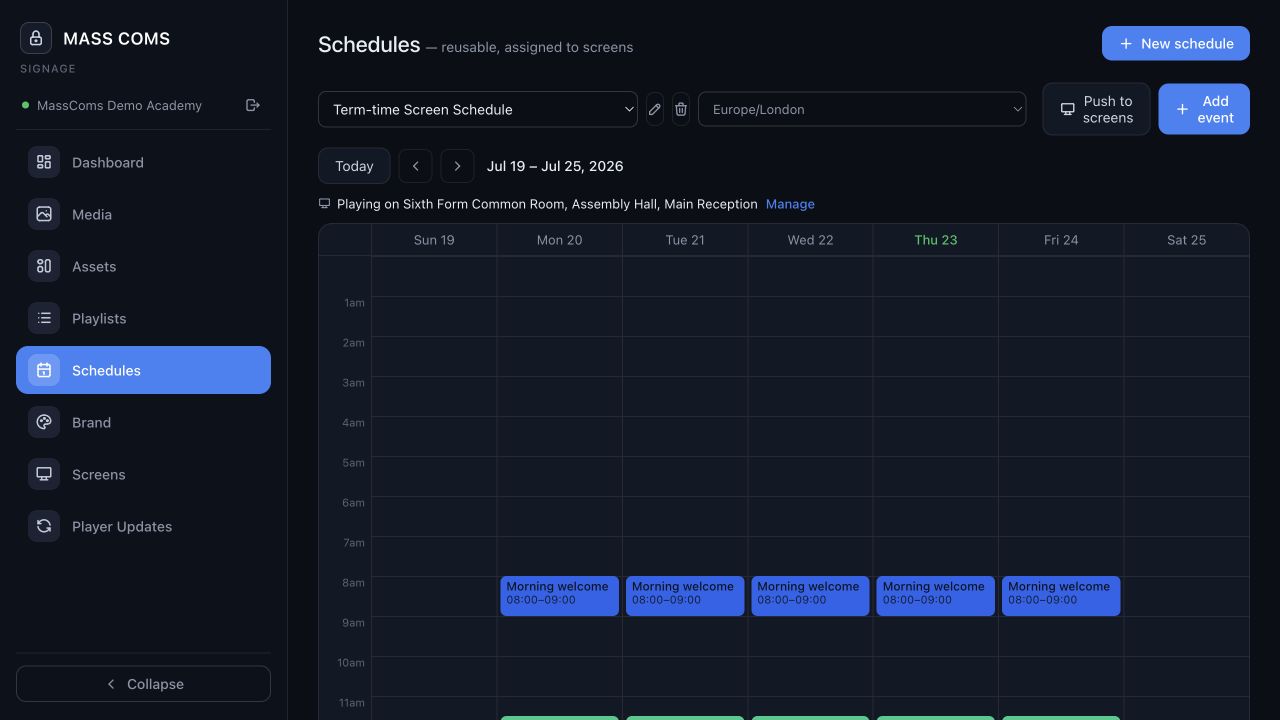
Schedule editorMassComs signage schedule editor with a time window configured. - 02
Set the time window
Choose the playlist and the window it should run in. Be specific about days as well as times — a weekday-only schedule that runs at weekends looks like a fault to whoever walks past.
- 03
Assign screens
Assign the schedule to specific screens. A schedule with no screens is inert and gives no warning that it is doing nothing.
- 04
Resolve overlaps deliberately
Where two schedules cover the same screen at the same time, one wins. Decide which rather than discovering it.
The common accident is a general all-day schedule and a specific lunchtime one, where the general one was created later. Check what a screen is actually showing at a few sample times rather than assuming.
Confirm it workedPick three times — start of day, mid-morning, and a boundary between two schedules — and check what each screen actually shows.
- 05
Leave the emergency path alone
No schedule affects emergency takeover. Takeover interrupts whatever is scheduled and returns to it after the all-clear.
Troubleshooting
When it does not go to plan.
| Symptom | Usual cause | Fix |
|---|---|---|
| A screen shows the wrong playlist. | Overlapping schedules. | Find every schedule covering that screen and time, and narrow or remove the ones you did not intend. |
| A screen shows nothing at some times. | A gap between schedules with nothing covering it. | Add a default all-day schedule as a floor, and layer specific ones above it. |
| The schedule looks right but nothing changed. | No screens are assigned to it. | Assign screens. A schedule without screens does nothing and does not complain. |
Good to know
Small details that prevent big confusion.
- One default schedule plus a small number of specific ones is easier to reason about than many equal ones.
- Check screens physically now and then. Nobody reports a screen showing last term's content.
- Emergency takeover ignores scheduling entirely, by design.
Was this guide clear?