
Takeover is the reason signage is part of a safety system rather than a marketing one. During an incident every targeted screen abandons its playlist and shows the emergency message.
MassComs supports your organisation’s safety plan. It does not replace authorised instructions, trained judgement or emergency services.
Before you start
Have these ready.
- Paired screens with locations set.
- For route displays, a verified floorplan and correct screen facing.
- 01
What takeover does
When an incident is activated, screens in scope switch immediately to the emergency display for that incident — the type, the message and, where configured, route guidance. Scheduled content is suspended, not cancelled.
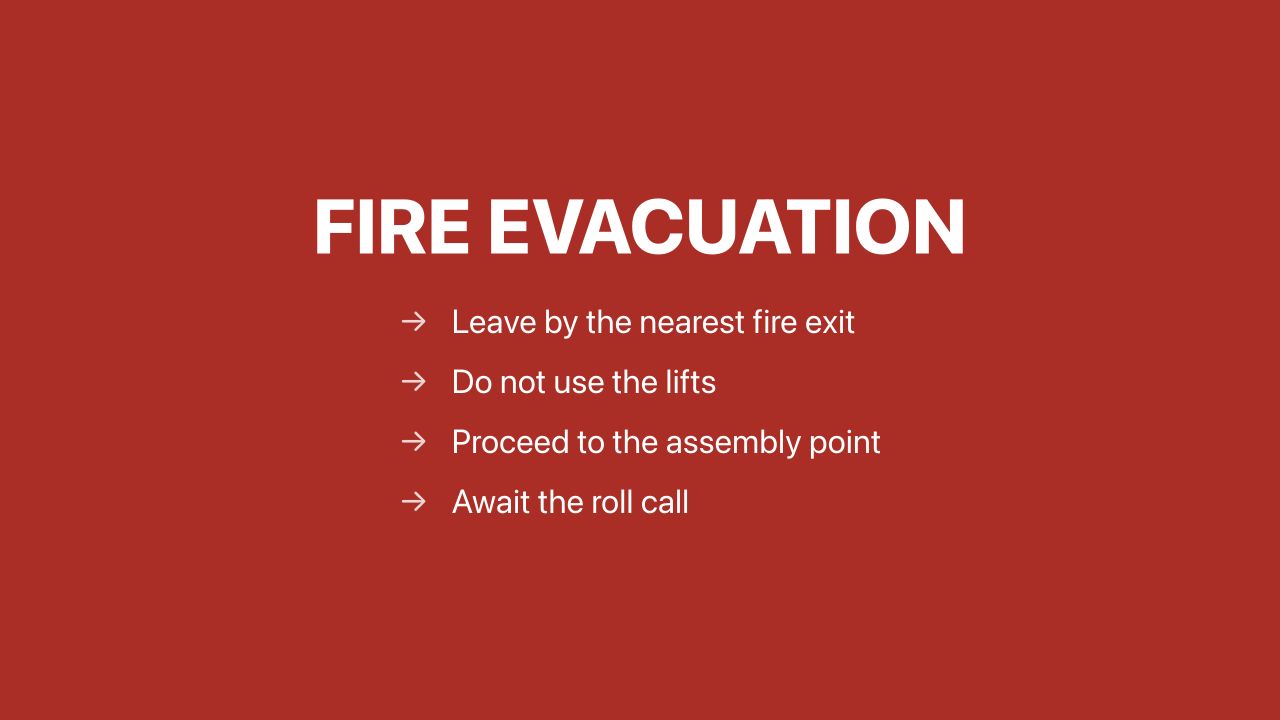
Emergency takeoverMassComs signage showing emergency takeover during an incident. - 02
How screens are targeted
Screens are targeted the same way everything else is: by the zone that contains the room the screen is located in. A screen with no location gets organisation-wide incidents only.
This is the most common signage gap — screens that were paired and named but never given a location, so they never participate in zone-scoped incidents.
- 03
How exit-route displays work
Where the screen is placed on a floorplan and its facing is set, the emergency display can show a route from that screen's position, including directional guidance that is correct for someone standing in front of it.
Both inputs matter. A screen placed in the wrong room produces the wrong route; a screen with the wrong facing produces a correct route with a reversed arrow, which is worse because it looks authoritative.
Confirm it workedStand in front of the screen during a test and check the arrow points the way you would actually walk.
- 04
Return to normal
When the incident is resolved, screens return to their scheduled content. A screen still showing takeover after the all-clear did not receive the resolution.
See Fix an offline device.
- 05
Test it without alarming anyone
Use a TEST-type incident scoped to one zone, outside busy hours, with people in that area told beforehand. Watch the screen switch, check the route, then resolve and watch it return.
A screen in a public corridor showing an untelegraphed evacuation message will be believed. Scope tests narrowly and tell people.
Troubleshooting
When it does not go to plan.
| Symptom | Usual cause | Fix |
|---|---|---|
| The screen did not take over. | It has no location, its room is not in the targeted zone, or it is offline. | Check location, zone membership and Last seen, in that order. |
| The route arrow points the wrong way. | Screen faces is set incorrectly. | Correct the facing and re-check from in front of the screen. |
| The screen stayed in takeover after the all-clear. | It lost connection during the incident. | It should clear on reconnection. See Fix an offline device. |
Good to know
Small details that prevent big confusion.
- Takeover overrides every schedule. There is no content configuration that can suppress it.
- Screens reach the people phones do not — those walking through shared space with nothing in their hands.
- Test takeover separately from testing content. They are different paths and fail differently.
Was this guide clear?