
For the person at the machine, the Agent is the whole product. This guide is what to tell them.
MassComs supports your organisation’s safety plan. It does not replace authorised instructions, trained judgement or emergency services.
Before you start
Have these ready.
- An installed, enrolled Agent assigned to a room.
- 01
What happens when an incident arrives
The Agent sounds an audible alert and takes over the screen with a full-screen overlay showing the incident type and the response plan. It is deliberately impossible to miss and deliberately hard to dismiss.
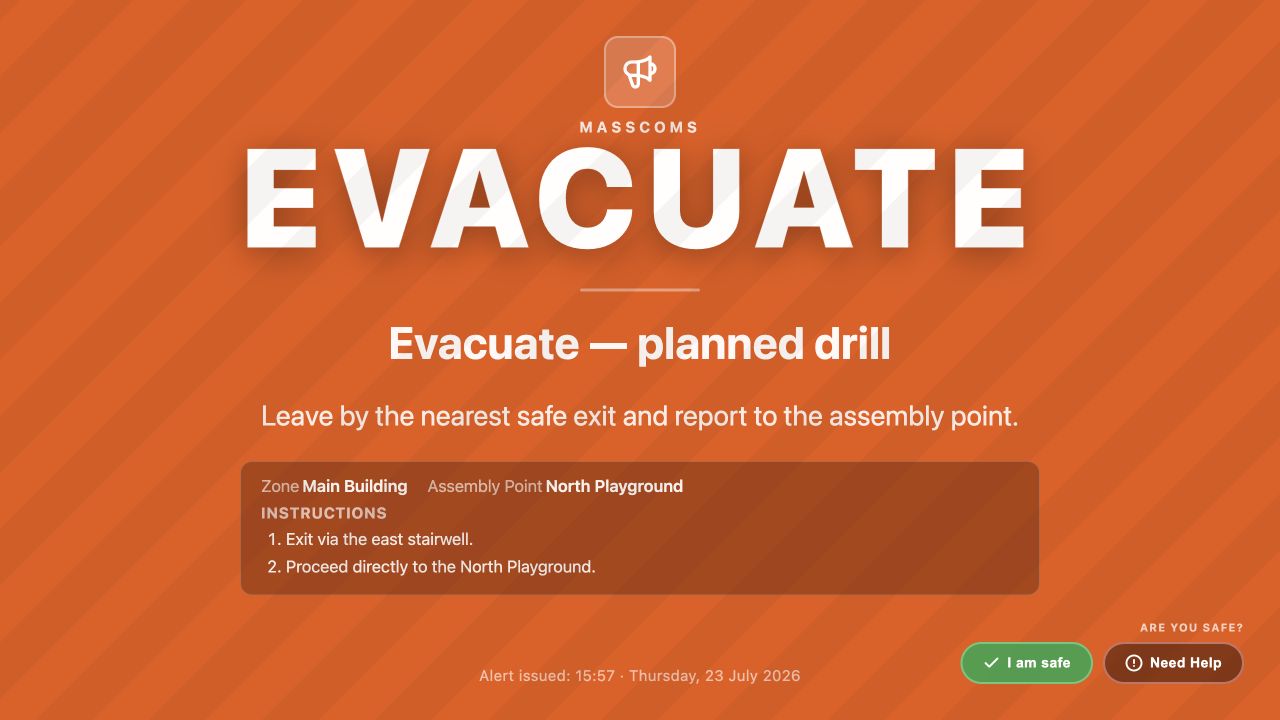
Agent emergency overlayMassComs Agent full-screen emergency overlay with response instructions. - 02
Read the incident type first
The type is the instruction: LOCKDOWN means secure in place, EVACUATE means leave, INVACUATE means come inside, STANDBY means wait. Read the type, then the response plan.
A TEST incident is a drill. It looks the same on purpose, so that a drill tests what a real event would.
- 03
Follow the response plan
The overlay shows the scenario's response steps. Follow them in order. Local judgement and your organisation's procedure take precedence — MassComs distributes the plan, it does not replace trained decision-making.
If what you can see contradicts what the screen says, trust what you can see and act on your training.
- 04
Use the route view where one is provided
Where the floorplan supports it, the Agent shows a route from this room. It is generated from the traced plan, so it is only as good as the verification that was done on that plan.
- 05
Report your status
The Agent lets the person at the machine self-report. That signal goes back into the incident's acknowledgement picture, which is what tells responders which areas are accounted for.
Self-reporting is the single most useful thing an occupant can do. It converts an unknown into a known, and unknowns are what consume responder time.
- 06
Wait for the authorised all-clear
When someone with authority resolves the incident, the Agent plays the All Clear announcement and shows the All Clear message for the duration set on the scenario, then returns to normal. It does not close because the situation appears to have calmed down.
Never work around the overlay to get back to a task. If it is still showing, the incident has not been ended.
Troubleshooting
When it does not go to plan.
| Symptom | Usual cause | Fix |
|---|---|---|
| The overlay appeared but there was no sound. | The machine is muted, or audio is routed to a disconnected output. | See Fix Agent audio or connection problems. |
| The overlay shows no route. | The Agent has no room assignment, or the floor has no traced exits. | Assign the Agent to a room and verify the floorplan has doors and a fire exit. |
| The overlay stayed after the all-clear. | The device lost connection and did not receive the resolution. | See Fix an offline device. It normally clears on reconnection. |
Good to know
Small details that prevent big confusion.
- Self-reporting from Agents gives you coverage of rooms where nobody carries a phone.
- The overlay is intentionally intrusive. That is the feature, not a defect.
- Brief staff on what the Agent will do before their first drill, so the first time they see it is not during an incident.
Was this guide clear?