
A visitor kiosk is a tablet doing one job, permanently, in public. Provisioning it correctly means it cannot be turned into a general-purpose tablet by anyone who walks past.
Before you start
Have these ready.
- A supported Android tablet, ideally a dedicated one.
- The approved APK from Agent Setup on the dashboard.
- Your organisation's kiosk registration, which takes a couple of seconds from the dashboard.
- A physical mounting position at reception with power and network.
- 01
Register the organisation on the kiosk server
From Agent Setup, use Provision Kiosk to register this organisation on the shared kiosk server. This is a one-off per organisation and takes a couple of seconds.
Until you do, the Emergency delivery panel at the top of Agent Setup reports Visitor kiosk relay — Not provisioned, with the plain warning that kiosks will not receive emergency alerts. That panel is the fastest way to check whether reception is actually covered.
Confirm it workedEmergency delivery shows the Visitor kiosk relay as provisioned before you start on the tablet.
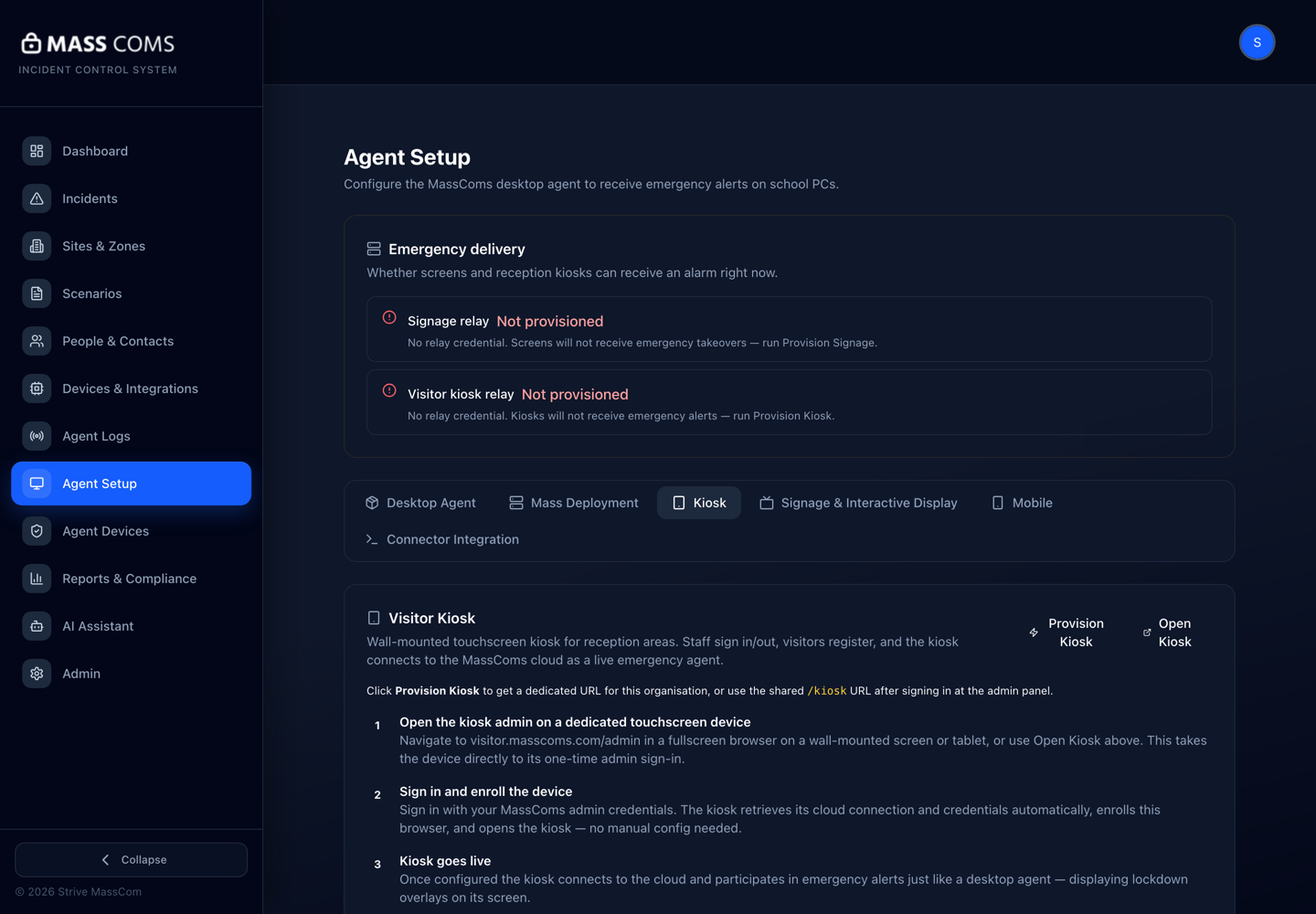
Kiosk provisioningMassComs Agent Setup Kiosk tab with the Provision Kiosk action and emergency delivery status. - 02
Install the approved APK
Download the kiosk APK from Agent Setup and install it on the tablet. Use only the build from your dashboard.
Do not install builds circulated by email or chat. A reception kiosk collects visitor personal data and is exactly the thing worth impersonating.
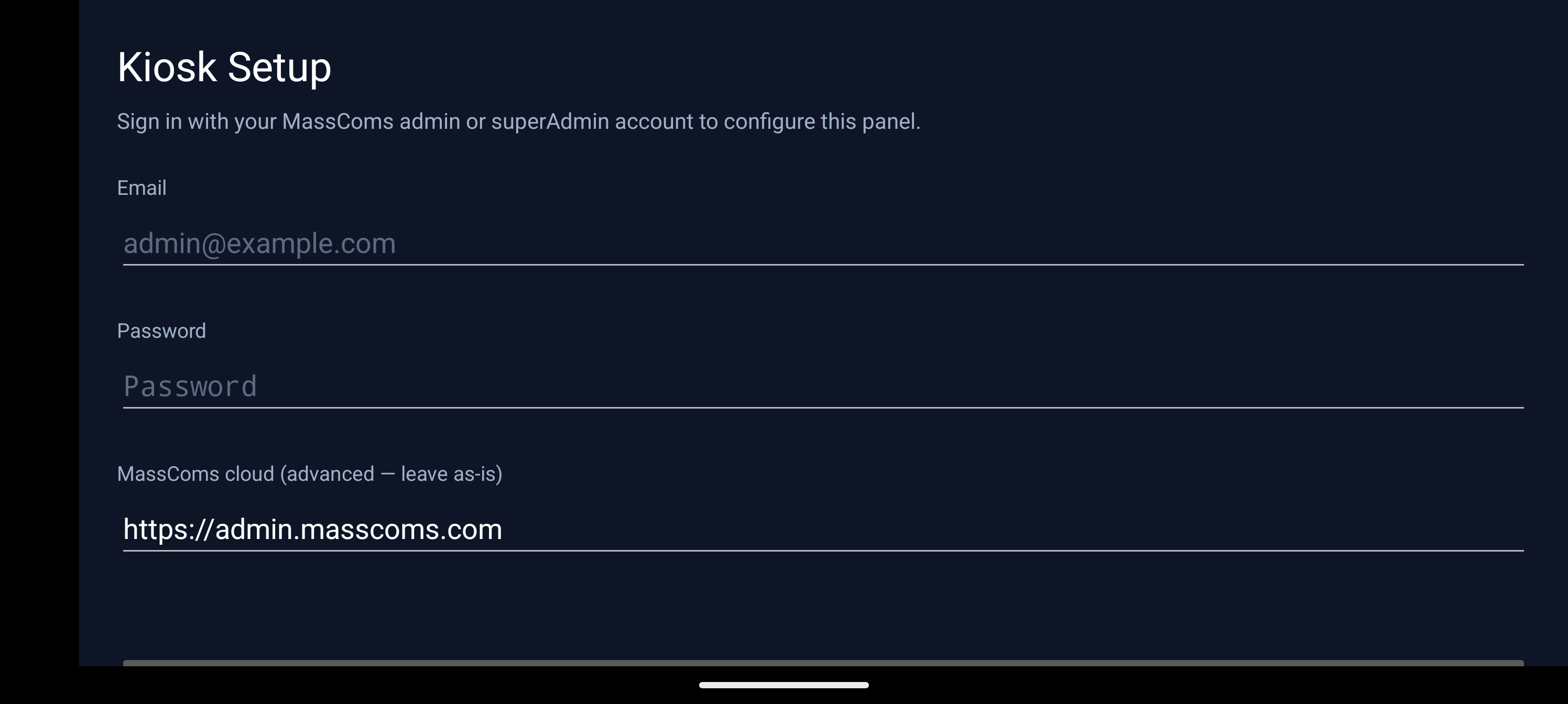
Android kiosk setupMassComs Android kiosk setup screen during provisioning. - 03
Set it as the Home app
Make the kiosk app the device's Home app so it relaunches automatically and the tablet cannot be casually exited to the Android launcher.
This is the difference between a kiosk and a tablet running an app. Without it, one press of the home button turns your reception device into a general-purpose browser.
- 04
Complete kiosk setup
Work through the on-device setup: connect it to your organisation, set the site it belongs to, and configure the reception options your process needs.
- 05
Set the on-device admin sign-in
The kiosk has an on-device admin sign-in for reception staff to reach the admin views. Set it up and make sure the people at the desk know how to use it.
- 06
Harden the tablet
Finish the job at the Android level, not just in the app.
- Disable the notification shade and quick settings where the device supports it.
- Remove or disable other apps, especially browsers and stores.
- Set the device to stay awake while charging.
- Set a device passcode that reception staff know and visitors do not.
- Mount it physically so it cannot be picked up and walked off with.
- 07
Test the full flow
Sign a test visitor in, print a badge, check they appear on the on-site list, then sign them out. Then run a TEST incident and confirm the kiosk switches to emergency mode.
Confirm it workedThe test visitor appears in the on-site list, the badge prints, and the kiosk enters emergency mode during a test incident.
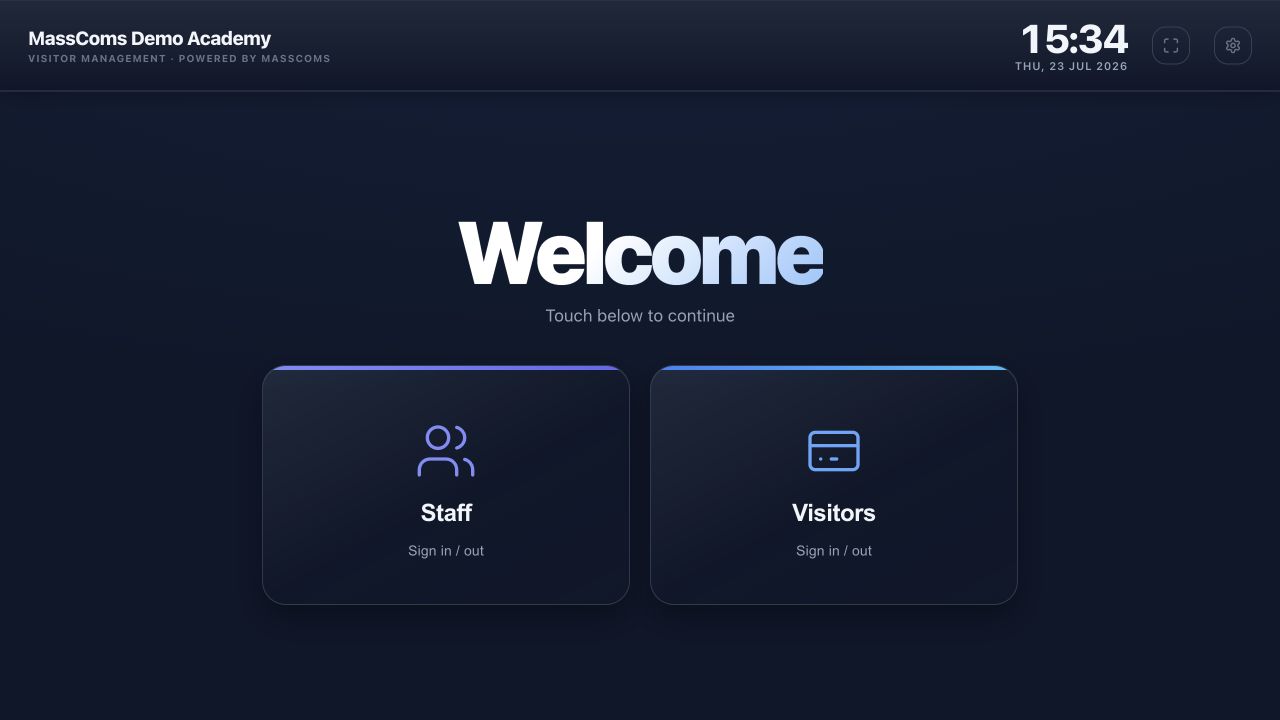
Kiosk welcome screenMassComs visitor kiosk welcome screen with staff and visitor options.
Troubleshooting
When it does not go to plan.
| Symptom | Usual cause | Fix |
|---|---|---|
| The app does not relaunch after a restart. | It is not set as the Home app. | Set it as Home. This is what makes the device a kiosk. |
| The kiosk will not connect to the organisation. | The organisation was never registered on the kiosk server. | Use Provision Kiosk on the dashboard's Agent Setup page first. |
| Visitors can exit to the Android launcher. | Home app not set, or the notification shade is still accessible. | Complete the hardening steps. A kiosk that can be exited is not a kiosk. |
Good to know
Small details that prevent big confusion.
- The kiosk's on-site roll is usually the most accurate list of who is in the building. It is worth the provisioning effort for that alone.
- Reception staff need training on the admin views, not just on the visitor flow.
- Treat the kiosk as a data-collecting device for privacy purposes — it holds visitor personal data.
Was this guide clear?