
MassComs is not one application. It is a control plane plus a set of receivers, and understanding which is which explains most of what you will do in setup and most of what can go wrong.
Before you start
Have these ready.
- No prerequisites — read this before deciding what to deploy.
- 01
The main platform is where decisions are made
The web dashboard holds the site structure, floorplans, zones, scenarios, people, devices, reports and compliance records. It is the only place an incident can be configured, and one of the places it can be triggered.
If you deploy nothing else, the dashboard still gives you structure, planning and evidence — but with no receivers, an incident has nowhere to go.
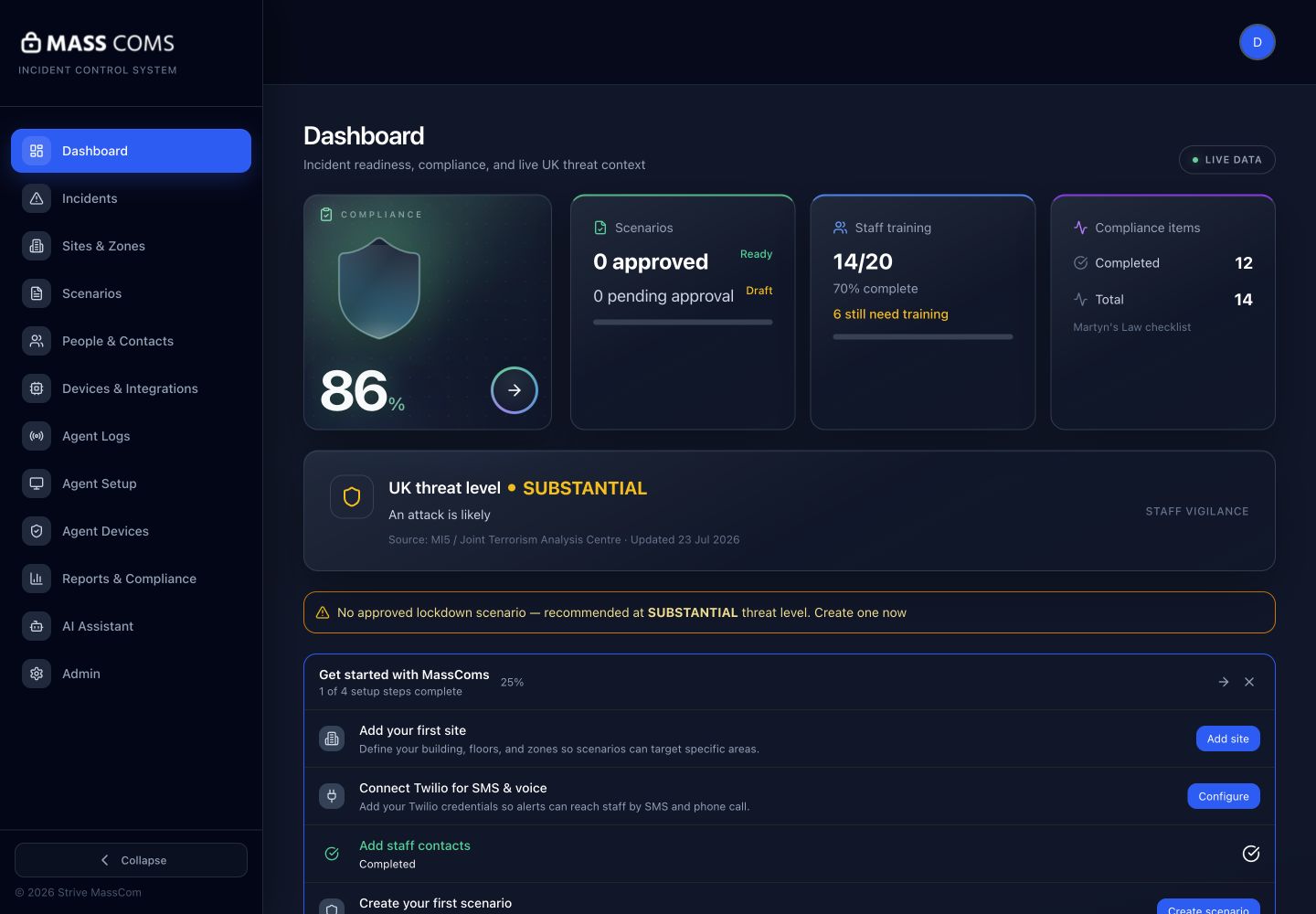
Dashboard overviewMassComs dashboard overview showing system status and site information. - 02
The mobile app is the responder's device
iOS and Android. It receives incidents as critical alerts, shows the response plan and a verified exit route, sends acknowledgements and status, supports roll call, and can itself trigger an incident or a silent panic alert if the signed-in user's role permits it.
It is the only receiver that moves with the person, which makes it the one that most needs correct notification permissions. An unacknowledged permission prompt is a silent device.
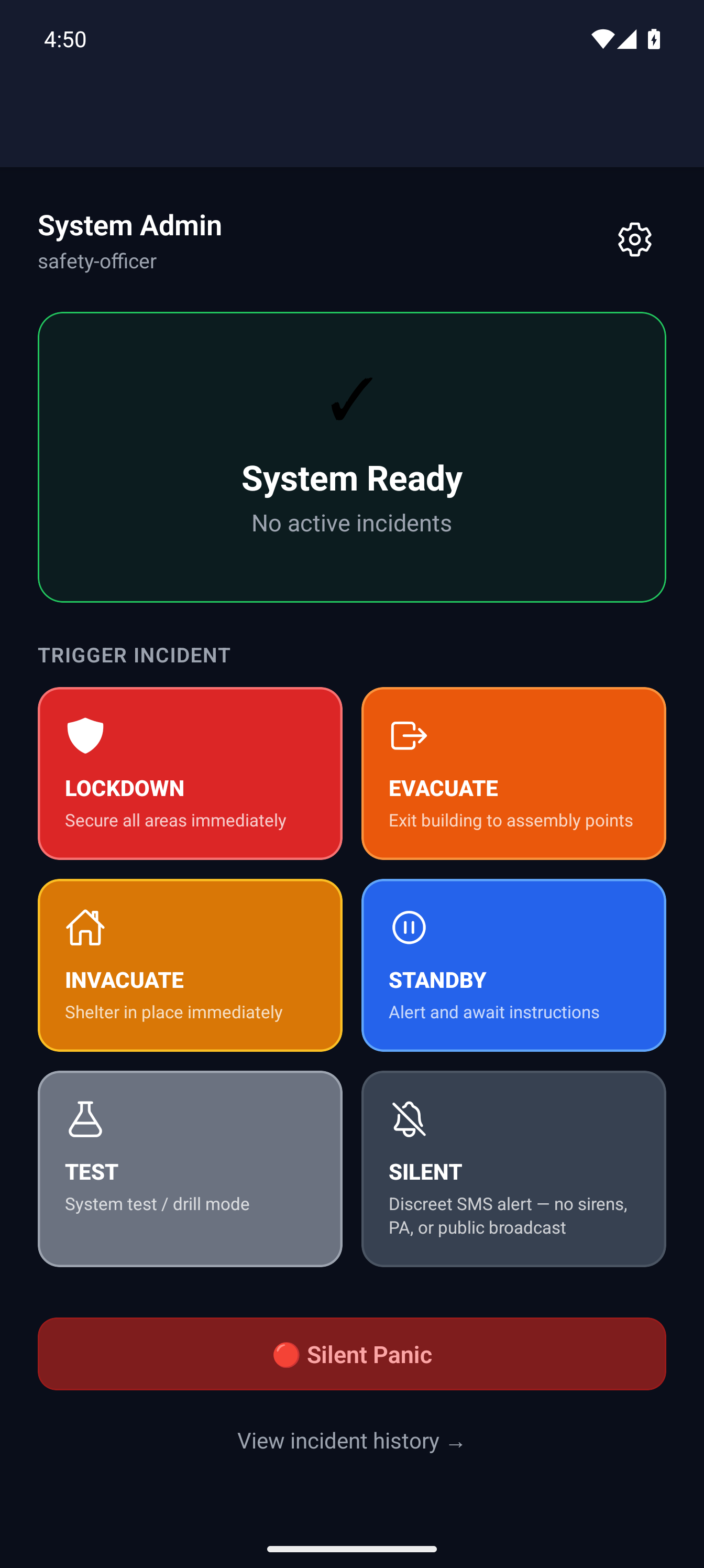
Mobile home screenMassComs mobile app home screen showing system ready state and trigger options. - 03
The MassComs Agent is the fixed computer in a room
A Windows or macOS application installed per machine. It sounds an audible alert, takes over the screen with a full-screen overlay, shows the response plan and room-specific route, and lets the person at that machine self-report their status.
Because it is tied to a physical room rather than a person, the Agent is what gives you coverage of rooms where nobody carries a phone — classrooms, labs, reception desks, workshops.
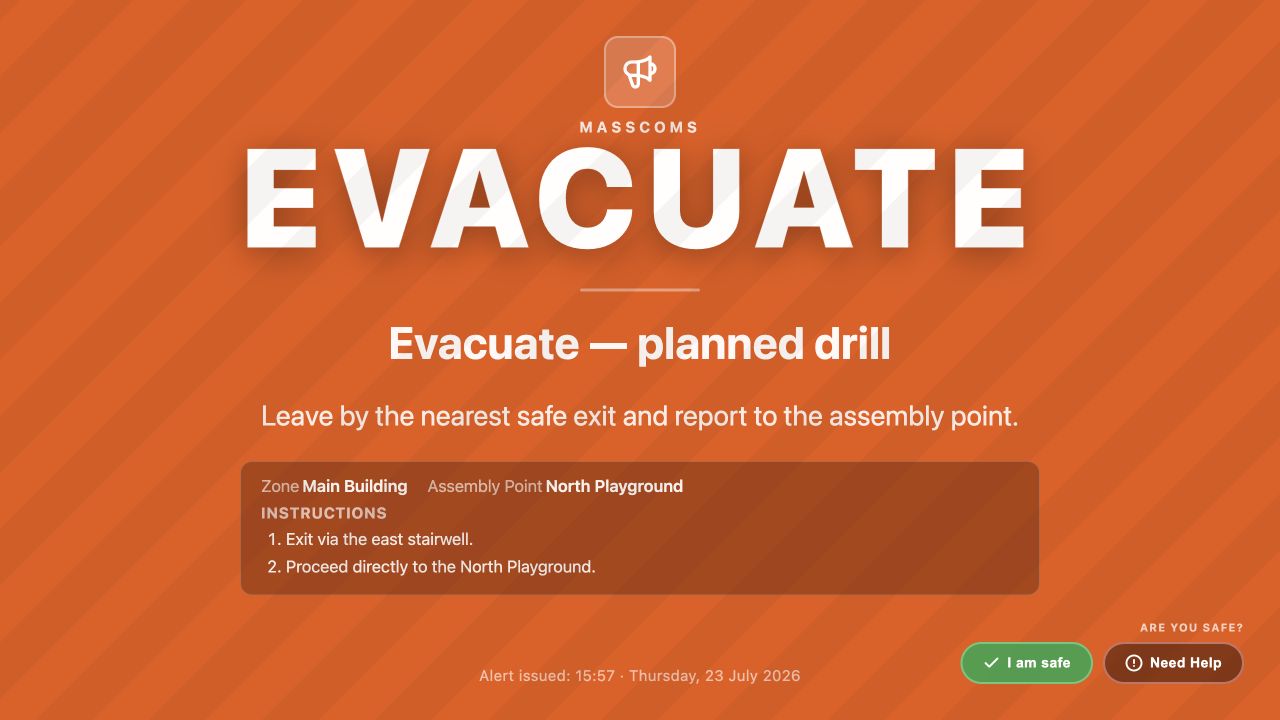
Agent emergency overlayMassComs Agent showing a full-screen emergency overlay with response instructions. - 04
Digital signage covers shared space
Screens run a paired player showing scheduled playlists day to day, and switch to emergency takeover during an incident. Signage reaches people who are not carrying a device and are not at a desk — corridors, halls, receptions.
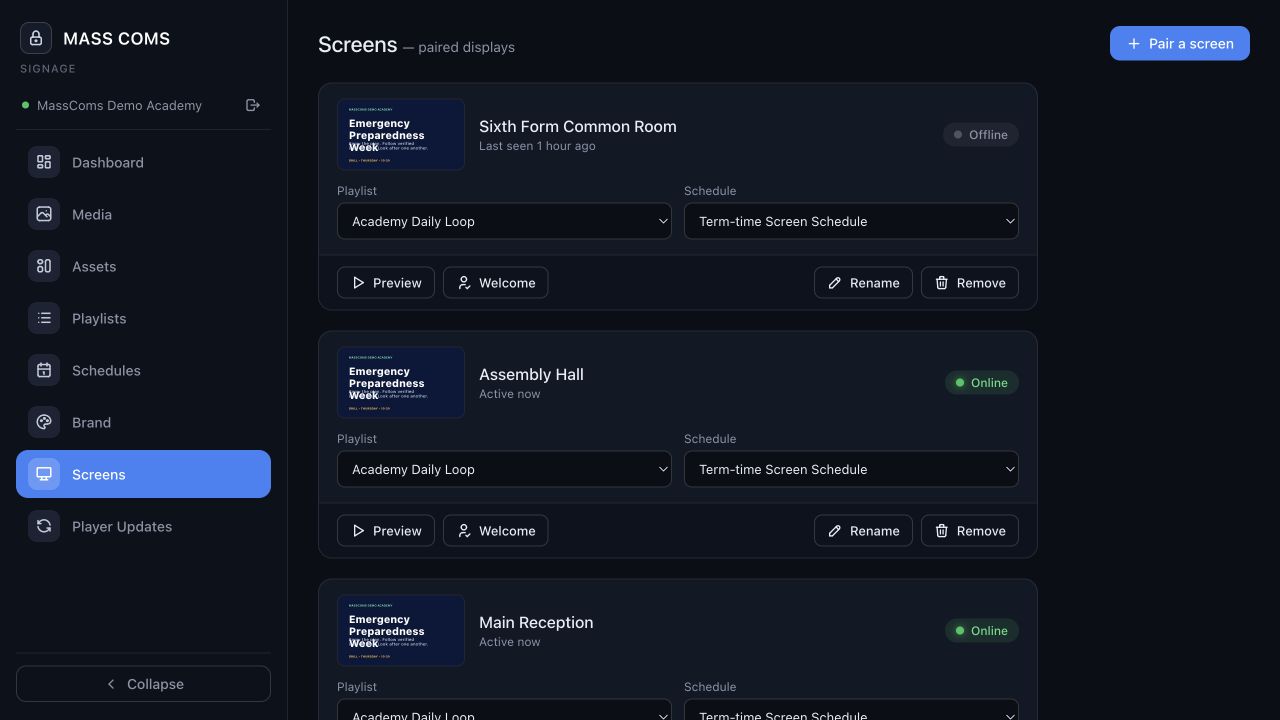
Signage screens overviewMassComs signage dashboard showing paired screens and their status. - 05
The visitor kiosk knows who is actually in the building
An Android tablet at reception for staff sign-in/out, visitor registration and badge printing. During an incident it switches to emergency mode, and its on-site roll becomes the list you check people against.
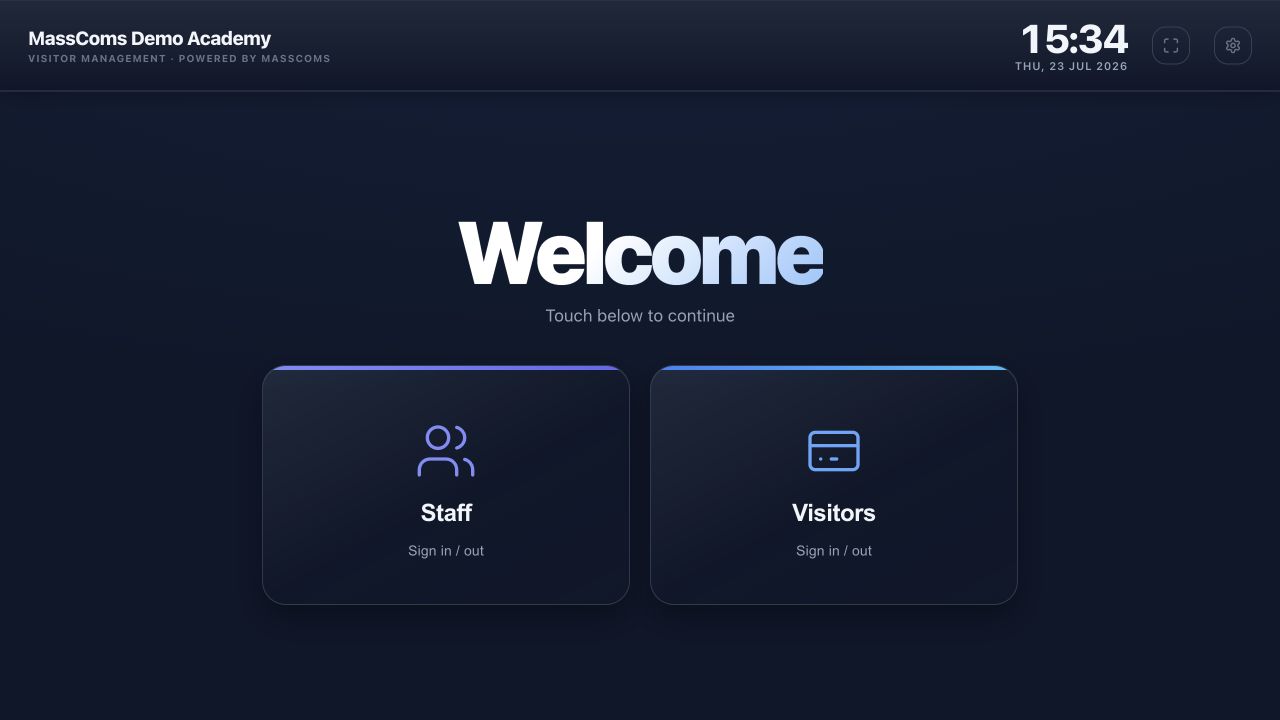
Visitor kiosk welcomeMassComs visitor kiosk welcome screen with staff and visitor options. - 06
The on-site controller connects everything else
An optional local connector bridges physical systems — access control, cameras, PA, alarm panels — so a MassComs incident can drive them, and so they can raise an incident into MassComs.
This is the path that makes a physical panic button or a door-forced event trigger a MassComs response, and the reason the Agent's firewall notes mention inbound ports on private networks.
- 07
How an incident travels
A trigger from any surface reaches the API, which resolves the target zone to rooms, rooms to devices and people, then fans out over each configured channel simultaneously — app notifications, Agent overlays, signage takeover, kiosk emergency mode, SMS and PA.
The important consequence: the accuracy of what each person is told depends entirely on the structure and floorplan work. Delivery is fast and reliable; correctness is something you build.
Good to know
Small details that prevent big confusion.
- The dashboard is required. Every other component is optional, and most organisations start with mobile plus Agents.
- Receivers do not talk to each other. They all resolve through the platform, which is why device location assignment matters so much.
- Anything that can receive an incident can usually also report status back — that returning signal is what turns an alert into accountability.
Was this guide clear?