
The mobile app is the only receiver that travels with a person, which makes it both the most useful and the easiest to leave half-configured. Installing it is five minutes; making sure it will actually wake a phone up is the part that matters.
Before you start
Have these ready.
- An account already created for you — there is no self-registration.
- Knowledge of whether your organisation uses Microsoft, Google or email sign-in.
- A device running a currently supported iOS or Android version.
- 01
Install from the official store listing
Install the MassComs app from the Apple App Store or Google Play. Use the listing your organisation gives you rather than searching, so there is no ambiguity about which app you installed.
Do not sideload builds sent by email or chat. An emergency app is exactly the thing an attacker would want you to install a copy of.
- 02
Sign in
Use the same method you use on the dashboard. If your organisation has Microsoft SSO configured, use the Microsoft option — an email and password created separately will not be the same account.
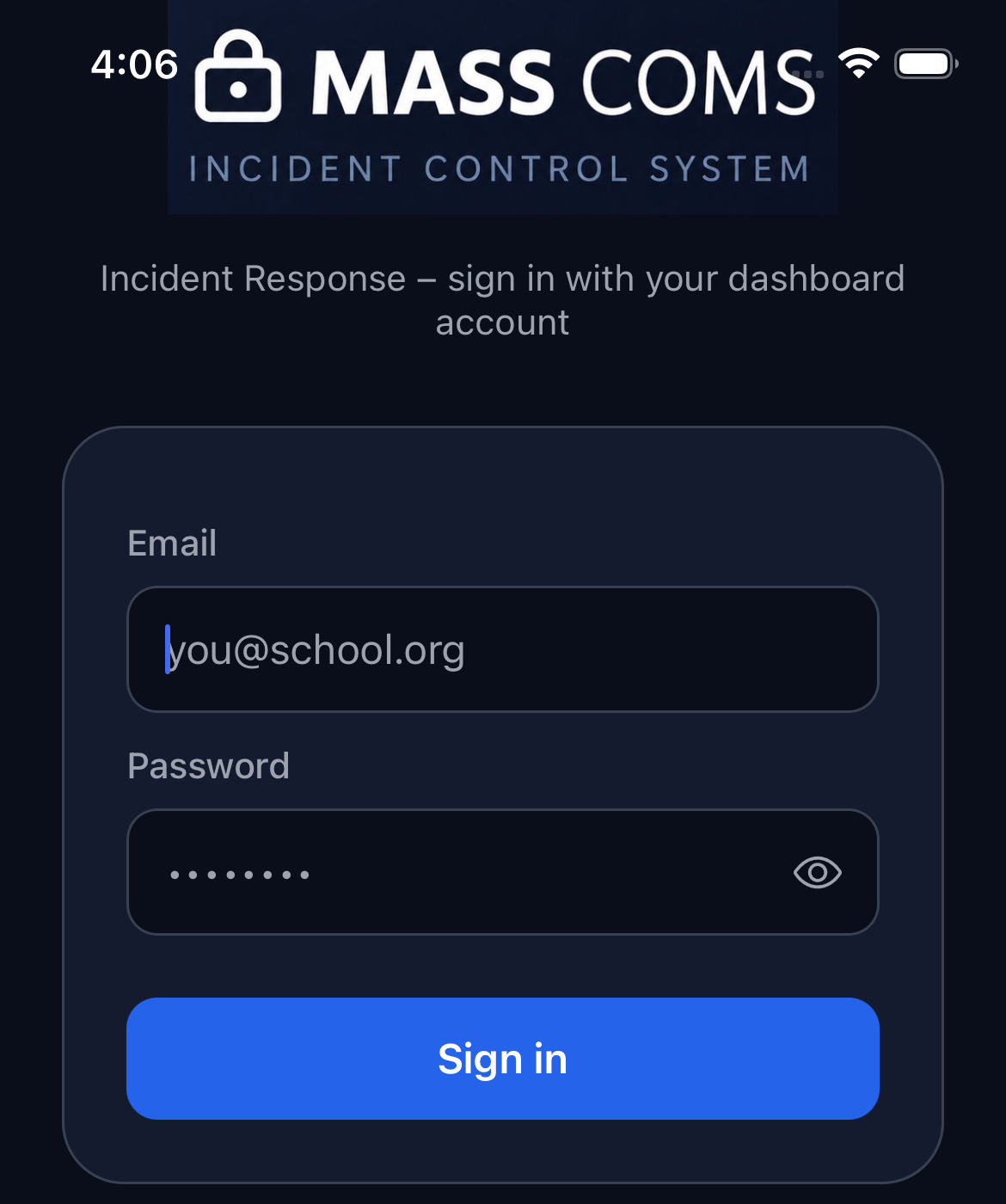
Mobile sign-inMassComs mobile app sign-in screen. - 03
Complete biometric setup if offered
Face ID, Touch ID or Android biometrics let you get past the lock screen gate quickly during an incident. Set it up now rather than discovering the password prompt at the worst moment.
- 04
Allow notifications, and then allow critical alerts
These are two separate permissions on iOS. Ordinary notification permission is not enough to break through a silenced phone; critical alerts are.
See Enable critical alerts and notifications for the full procedure.
A phone with notifications allowed but critical alerts denied looks configured and will stay silent when it matters. This is the single most common mobile failure.
- 05
Check the home screen
The home screen should show System Ready when there is no active incident, and Active Incident when there is. If it shows a connectivity banner, the app is offline.
Confirm it workedSystem Ready is shown, your organisation and site are correct, and the options available match your role.
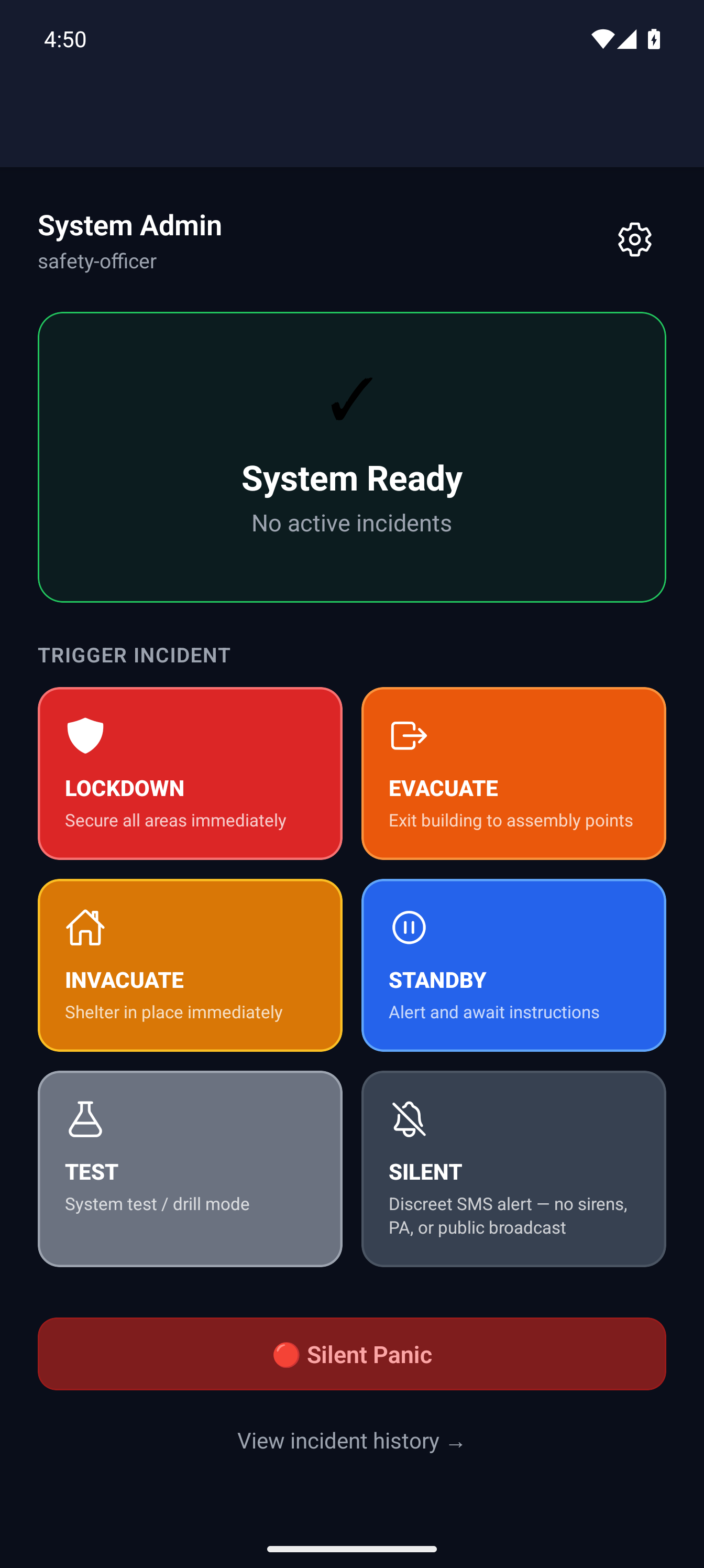
Mobile home screenMassComs mobile app home screen showing system ready state. - 06
Verify with a real test
Have someone run a TEST-type incident scoped to include you, with the phone locked and in your pocket. That is the only verification that means anything.
Checking that the app opens is not a test. Checking that a locked, silenced phone wakes up and makes a noise is a test.
Troubleshooting
When it does not go to plan.
| Symptom | Usual cause | Fix |
|---|---|---|
| Sign-in fails with correct credentials. | The account uses a different sign-in method, or is not a member of this organisation. | Check which method your organisation uses. See Fix sign-in problems. |
| The app installs but shows no organisation. | The account is not yet an active member. | Ask an administrator to confirm the account status in user management. |
| Trigger Incident is not available. | The role does not hold incidents.trigger. | This is expected for some roles. Check Understand user roles and permissions. |
Good to know
Small details that prevent big confusion.
- One account works across dashboard, mobile and Agent. Role and site scope follow the account, not the device.
- The app is useful offline for reading, but an incident you cannot receive is not an incident you can act on.
- Re-verify after a phone replacement or an OS upgrade — permissions do not always survive either.
Was this guide clear?